
Understanding the UI
Mastering the User Interface (UI) in Age of Empires IV is paramount to your success on the battlefield. Far from being a mere aesthetic overlay, the UI is your primary window into the game world, providing critical information and the means to command your burgeoning empire. A deep understanding of each UI element, how to interact with it, and its strategic implications will significantly elevate your gameplay, allowing for quicker reactions, more efficient resource management, and ultimately, more decisive victories.
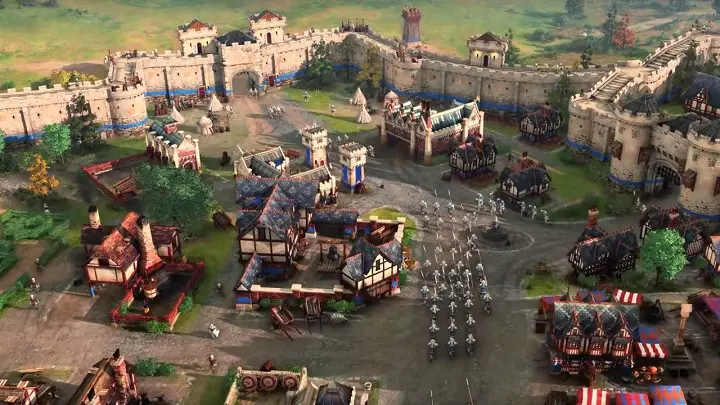
Core UI Elements and Their Functions
The Age of Empires IV UI is thoughtfully designed, segmenting crucial information and command options into distinct, easily accessible areas:
- Minimap (Bottom Left): This is your strategic overview of the entire map.
- Functionality: Displays terrain, unit positions (both yours and revealed enemy units), buildings, resources, and points of interest. It's crucial for scouting, tracking enemy movements, identifying potential attack routes, and managing distant operations.
- Strategic Importance: Regularly glancing at the minimap can prevent surprise attacks, help you coordinate multi-pronged assaults, and identify undefended resource nodes. Click on the minimap to quickly jump your camera to a specific location. Different colored dots represent various unit types and player allegiances.
- Tips: Pay attention to flashing areas, which often indicate combat or important events. Use the minimap to quickly send reinforcements or scouts to new areas.
- Resource Display (Top Left): Your economic lifeline.
- Functionality: Shows your current counts of Food, Wood, Gold, and Stone, along with your current and maximum population limit.
- Strategic Importance: This is arguably the most critical part of your UI for economic management. Constantly monitor these numbers to ensure you have enough resources for unit production, building construction, and technology research. A healthy economy is the backbone of any successful empire.
- Tips: Don't just look at the numbers; understand your resource income and outflow. Are you gathering enough of each resource to sustain your plans? Are you hitting your population cap too early or too late?
- Command Panel (Bottom Right): Your control center for units and buildings.
- Functionality: This dynamic panel changes based on your current selection. When units or buildings are selected, it displays their specific abilities, build options, and commands.
- Strategic Importance: This is where you issue all direct orders. Learning the layout and hotkeys for common commands here is essential for rapid and efficient gameplay.
- Details:
- Unit Commands: Move, Attack, Guard, Patrol, Stop, Hold Position, and specific unit abilities (e.g., Archer's Volley, Spearmen's Brace).
- Building Commands: Train units, research technologies, upgrade buildings, set rally points.
- Command Queuing: Hold down
Shiftwhile issuing multiple commands (e.g., move to point A, then attack unit B, then gather resource C). This is vital for micro-managing units efficiently and setting up complex build orders. - Sub-Menus: Some options, like building advanced units or researching specific technologies, might be nested within sub-menus. Hover over icons to see tooltips explaining their function and hotkey.
- Objective Tracker (Top Right): Your guide through the current game.
- Functionality: Displays your current primary and secondary objectives, whether in a campaign mission or a skirmish/multiplayer match (e.g., "Age Up to the Feudal Age," "Destroy Enemy Landmark").
- Strategic Importance: Keeps you focused on your immediate goals. In campaigns, it provides narrative context and progression. In multiplayer, it reminds you of victory conditions or specific challenges.
- Tips: Don't ignore this! It's easy to get sidetracked, but the objective tracker ensures you're always working towards victory.
- Unit/Building Information Panel (Bottom Left, above Minimap): When a unit or building is selected, this area displays detailed statistics such as health, armor, attack, movement speed, and any active buffs or debuffs. It also shows the unit's current task.
- Notifications and Chat (Top Center/Left): Important game messages, alerts (e.g., "Your Town Center is under attack!"), and player chat messages appear here. Keep an eye on these for critical updates.
Common UI Interactions and Advanced Techniques
Beyond simply identifying UI elements, knowing how to interact with them effectively is key:
- Unit Selection:
- Single Unit: Left-click on a unit.
- Multiple Units (Drag Select): Click and drag a box over desired units.
- All Units of Same Type (Screen): Double-click on a unit.
- All Units of Same Type (Map): Select a unit, then press
Ctrl + A. - Control Groups: Select units, then press
Ctrl + [Number 1-9]to assign them to a control group. Press the number key to select the group, double-tap the number key to center your camera on them. This is absolutely essential for managing armies.
- Command Queuing (
ShiftKey): As mentioned, holdingShiftwhile issuing commands allows you to chain actions. This is invaluable for:- Villager Efficiency: Send a villager to build a house, then gather wood, then build a farm.
- Scouting: Send a scout on a complex patrol route.
- Combat Micro: Order a unit to attack one enemy, then move to a safer position, then attack another.
- Rally Points: For production buildings (Town Centers, Barracks, Archery Ranges, Stables, Siege Workshops), set a rally point by selecting the building and right-clicking on the map. Newly trained units will automatically move to this location. Hold
Shiftto queue multiple rally points, creating a patrol path for new units. - Hotkeys: Age of Empires IV features extensive hotkey support. Learning these will drastically improve your reaction time and efficiency. Most commands in the Command Panel have a corresponding hotkey (often displayed in the tooltip). Familiarize yourself with common hotkeys for:
- Building selection (e.g.,
Hfor Town Center,Qfor Barracks). - Unit production (e.g.,
Qfor Villager,Wfor Spearmen). - Unit commands (e.g.,
Afor Attack,Sfor Stop). - Camera control (e.g.,
Spacebarfor idle villagers,.for idle military).
- Building selection (e.g.,
Customizing Your UI Experience
Age of Empires IV offers several UI customization options to tailor the experience to your preferences, accessible through the game's settings menu (usually via the Esc key):
- Unit Health Bars: You can choose when health bars are displayed (always, when damaged, never). Displaying them always or when damaged can provide crucial visual feedback during intense battles.
- Resource Display Options: While the core resource display is fixed, you might find options related to displaying resource income rates or other economic statistics in advanced settings.
- Hotkeys Customization: The game allows you to rebind almost every hotkey. If the default layout doesn't feel natural, experiment with a custom setup that suits your playstyle.
- Colorblind Mode: For players with color vision deficiencies, the game offers colorblind modes that adjust UI colors for better visibility.
- UI Scale: Adjust the overall size of the UI elements to better fit your screen resolution and personal preference.
By thoroughly understanding and effectively using every aspect of the Age of Empires IV UI, from the strategic overview of the minimap to the precise commands of the command panel, you will gain a significant advantage over your opponents. Practice these interactions, learn your hotkeys, and observe how top players use the UI to make lightning-fast decisions. Your empire's destiny rests in your ability to command it efficiently.