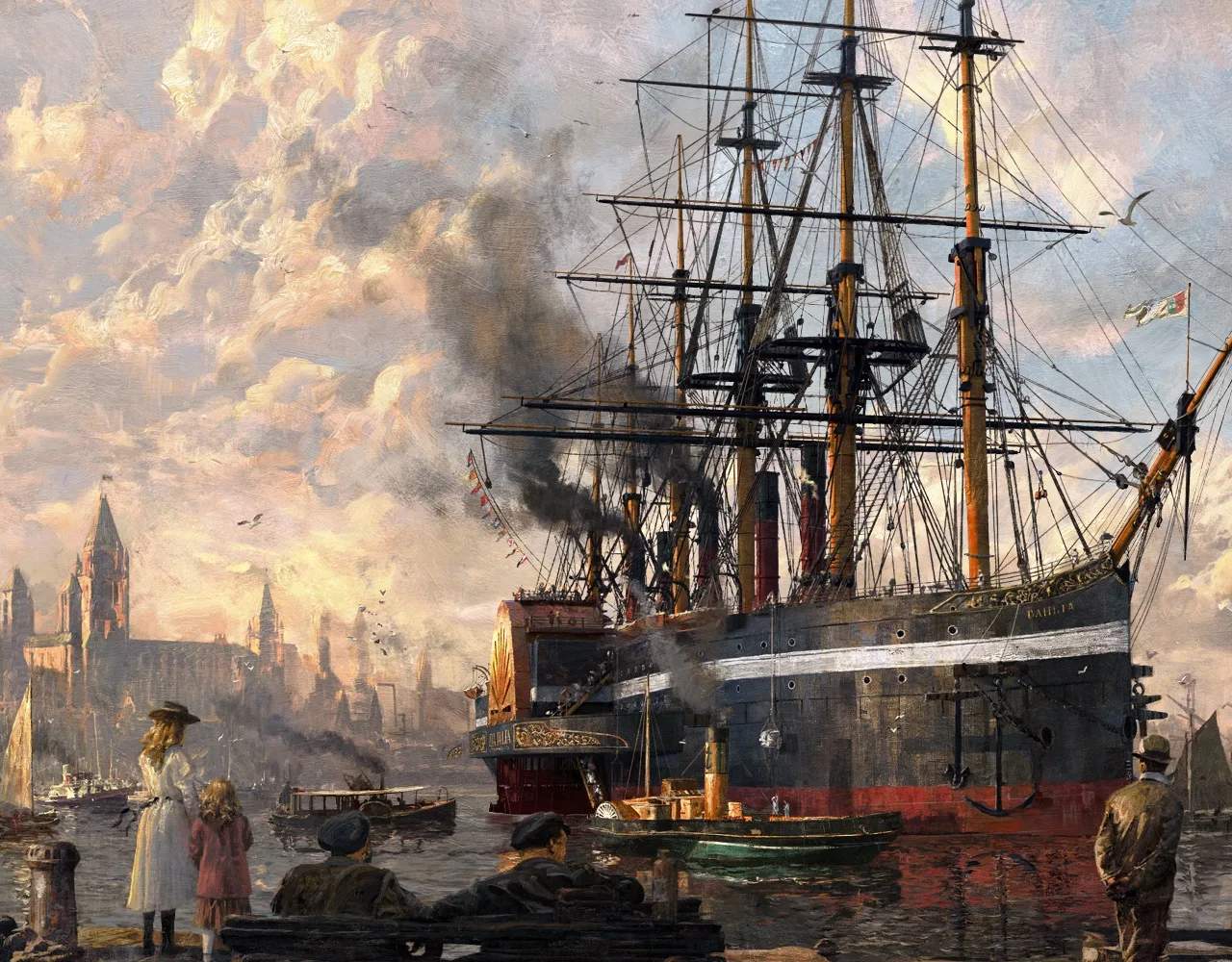
Installation & Setup
Welcome, aspiring industrialist, to the world of Anno 1800! Before you can embark on your journey of discovery and empire-building, a proper installation and setup are crucial for a smooth and enjoyable experience. This detailed guide will walk you through the process, from initial download to optimizing your game settings.
I. Acquiring Anno 1800
Anno 1800 is primarily available through digital distribution platforms. Depending on where you purchased the game, your installation steps may vary slightly.
- Ubisoft Connect (PC): This is the primary platform for Anno 1800. If you purchased the game directly from Ubisoft or a third-party retailer providing a Ubisoft Connect key, you will need to download and install the Ubisoft Connect client.
- Download Location: Visit the official Ubisoft website and navigate to the Ubisoft Connect section to download the client.
- Installation: Run the downloaded installer (e.g.,
UbisoftConnectInstaller.exe) and follow the on-screen prompts. - Login: Once installed, launch Ubisoft Connect and log in with your Ubisoft account credentials. If you don't have an account, you will need to create one.
- Game Library: After logging in, Anno 1800 should appear in your "Games" library. Click on the game tile to initiate the download and installation process.
- Epic Games Store (PC): Anno 1800 is also available on the Epic Games Store.
- Download Location: Download and install the Epic Games Launcher from the official Epic Games website.
- Login: Launch the Epic Games Launcher and log in to your Epic Games account.
- Library: Navigate to your "Library" within the launcher. Anno 1800 should be listed there. Click on it to begin the download and installation.
- Ubisoft Connect Integration: Note that even when purchased through the Epic Games Store, Anno 1800 still requires Ubisoft Connect to be installed and running in the background to launch the game. The Epic Games Launcher will typically prompt you to install and link your Ubisoft account during the initial setup.
II. System Requirements Check
Before diving into the game, ensure your PC meets the minimum or recommended system requirements for Anno 1800. While the game is well-optimized, meeting these specifications will significantly enhance your gameplay experience.
- Operating System: Windows 7, 8.1, or 10 (64-bit versions only).
- Processor: Intel i5-4460 3.2 GHz or AMD Ryzen3 1200 3.1 GHz (Minimum); Intel i5-7500 3.4 GHz or AMD Ryzen5 1600X 3.6 GHz (Recommended).
- RAM: 8 GB (Minimum); 16 GB (Recommended). Many players, especially those with multiple applications running or extensive modding, find 16GB to be a comfortable baseline, with 32GB offering even more headroom for large sessions.
- Graphics Card: NVIDIA GeForce GTX 670 or AMD Radeon R9 270X (2GB VRAM, Shader Model 5.0) (Minimum); NVIDIA GeForce GTX 970 or AMD Radeon RX 480 (4GB VRAM, Shader Model 5.0) (Recommended).
- DirectX: Version 11 or 12.
- Storage: At least 60 GB of available hard drive space. An SSD (Solid State Drive) is highly recommended for faster loading times.
III. Initial Game Launch & Settings
Once Anno 1800 is installed, it's time for your first launch. This is where you'll configure essential display and audio settings.
- Launch the Game: Click the "Play" button within Ubisoft Connect or the Epic Games Launcher.
- First-Time Setup: The game may perform a one-time setup, installing necessary redistributables like DirectX or Visual C++ runtimes. Allow this process to complete.
- Graphics Settings: Upon reaching the main menu, navigate to
Options > Graphics.- Resolution: Set this to your monitor's native resolution for the sharpest image.
- Display Mode: "Fullscreen" is generally recommended for performance, but "Borderless Window" can be useful for multi-monitor setups.
- Graphics Quality: Start with the "High" or "Very High" preset if your system meets recommended specifications. If you experience performance issues, gradually reduce individual settings. Key settings to consider adjusting for performance include:
- Texture Quality: Lowering this can free up VRAM.
- Shadow Quality: Shadows are often performance-intensive.
- Anti-Aliasing: Can be demanding; consider TAA or FXAA if MSAA is too much.
- Vegetation Quality: Reduces the density and detail of trees and plants.
- Audio Settings: Go to
Options > Audio. Adjust master volume, music, sound effects, and voice-over levels to your preference. Ensure your preferred audio output device is selected. - Interface Settings: In
Options > Interface, you can customize elements like UI scaling, tooltip delay, and unit of measurement. Consider enabling "Show FPS" to monitor your performance in-game.
IV. Post-Installation Checks & Troubleshooting
Even with a smooth installation, a few checks can prevent common issues.
- Driver Updates: Ensure your graphics card drivers (NVIDIA GeForce, AMD Radeon) are up to date. Outdated drivers are a frequent cause of performance problems and crashes.
- Game Files Verification: If you encounter crashes or unusual behavior, verify the integrity of your game files.
- Ubisoft Connect: In your game library, right-click on Anno 1800, select "Properties," then "Verify files."
- Epic Games Launcher: In your library, click the three dots next to Anno 1800, then select "Verify."
- Firewall/Antivirus: Occasionally, your firewall or antivirus software might interfere with the game's connection to Ubisoft servers. Ensure Anno 1800 and Ubisoft Connect are whitelisted or temporarily disable them for testing purposes if you experience connectivity issues.
- Background Applications: Close unnecessary background applications to free up system resources, especially RAM, for Anno 1800.
With these steps completed, you are now fully prepared to set sail and forge your industrial empire in Anno 1800!