Game Controls & Interface
Mastering the controls and understanding the interface in Asgard's Wrath 2 is crucial for your journey across the Nine Realms. This section provides a comprehensive breakdown to ensure you're always in command, whether you're battling formidable foes or navigating intricate puzzles.
Basic Movement & Interaction
- Locomotion: Use the left analog stick on your primary VR controller (typically the left hand) to move your character. Smooth locomotion is the default, but you can adjust comfort settings in the 'Options' menu under 'VR Comfort' to enable teleportation or snap turning if preferred.
- Turning: The right analog stick controls your turning. Again, 'Smooth Turn' is standard, but 'Snap Turn' (adjustable in 15, 30, 45, or 90-degree increments) can be activated for players prone to motion sickness.
- Grabbing/Interacting: To pick up items, open chests, or interact with environmental objects (like levers or climbable surfaces), press and hold the Grip Button on your dominant hand's controller when the reticle highlights the object. Release to drop.
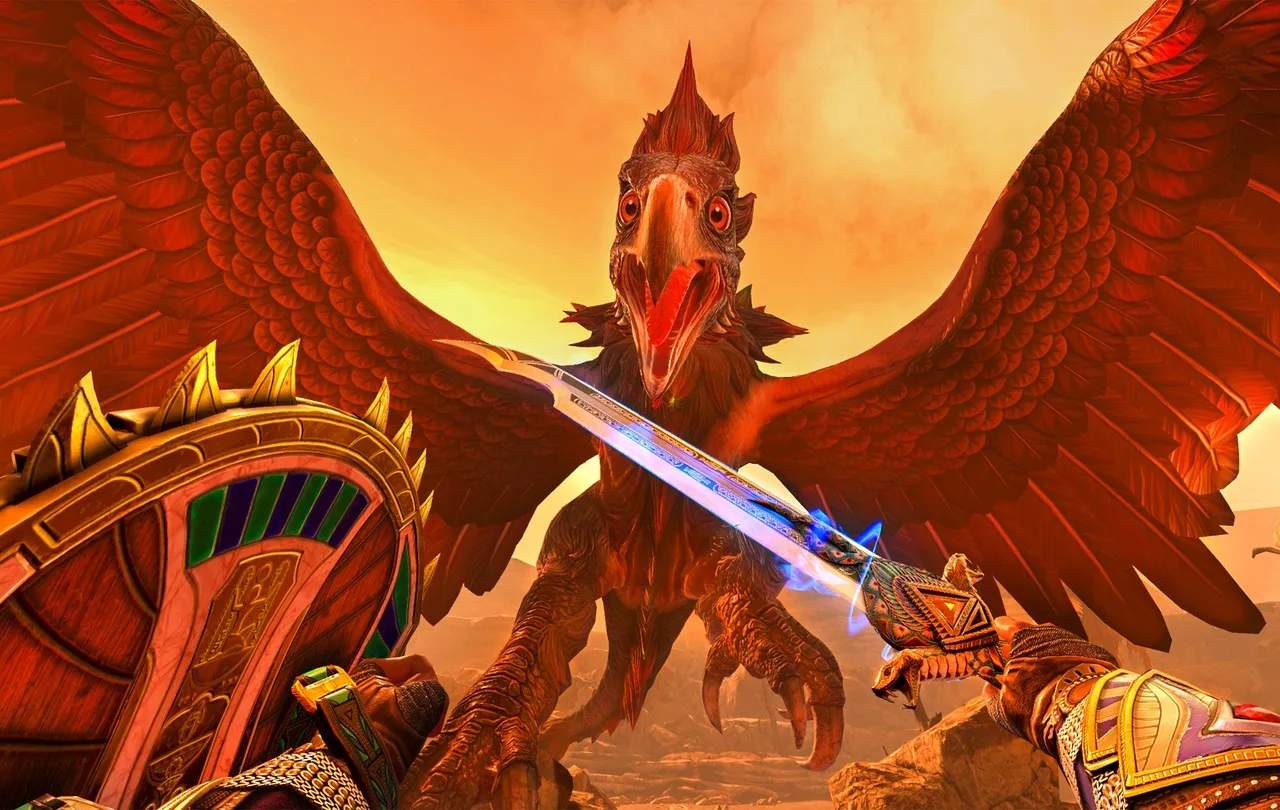
- Attacking: Swing your primary weapon by physically moving your dominant hand. The game's physics engine translates your movements into powerful attacks. For ranged weapons like the Celestial Bow, nock an arrow by reaching over your shoulder with your off-hand, then draw back and release the Trigger Button on your off-hand controller.
- Shield Block/Parry: Hold your off-hand controller in front of you to raise your shield. Timing a block just before an enemy attack lands can result in a parry, staggering the opponent and opening them up for a counter-attack.
Combat Mechanics
Combat in Asgard's Wrath 2 is fluid and reactive. Understanding your abilities and how to deploy them is key to survival.
Weapon Switching
You can quickly swap between your equipped weapons:
- Melee Weapons: Reach over your dominant shoulder to retrieve your primary melee weapon (e.g., the Axe of the Aesir).
- Ranged Weapons: Reach behind your back with your off-hand to equip your ranged weapon (e.g., the Celestial Bow).
- Secondary Melee: Some companions or special abilities may grant you access to secondary melee options, typically activated via a specific button prompt or gesture.
God Powers & Companion Abilities
As a God, you wield immense power. Your companion, such as the fierce Set, also brings unique skills to the battlefield.
- Activating God Powers: Press the Menu Button on your dominant controller to bring up the God Power selection wheel. Select your desired power (e.g., Divine Intervention to heal, or Wrath of the Heavens for an area-of-effect attack) and then press the Trigger Button to unleash it. These powers consume Divine Favor, indicated by the blue bar on your wrist.
- Directing Companions: Point at an enemy or interactive object with your off-hand controller and press the Action Button (usually 'A' or 'X') to command your companion. For example, command Set to attack a specific foe or interact with a distant lever.
- Companion Special Abilities: Each companion has a unique special ability. For Set, this might be a powerful charge attack. Activate these by holding down the Action Button and making a specific gesture, as indicated by an on-screen prompt.
User Interface (UI) Elements
Your in-game HUD provides vital information without being intrusive.
Wrist-Mounted Display (Left Wrist)
Your left wrist serves as your primary information hub. Glance down to see:
- Health Bar: The red bar indicates your current health. If it depletes, you'll be defeated.
- Divine Favor Bar: The blue bar shows your available Divine Favor, consumed by God Powers.
- Companion Health: A smaller, green bar below your own health indicates your companion's current vitality.
- Equipped Weapon Icon: A small icon displays your currently active weapon.
- Objective Tracker: Your current main objective is briefly displayed here, along with a compass pointing towards your next waypoint.
Inventory & Map Access
To access your inventory, character stats, or the world map:
- Main Menu: Press the System Button (often the Oculus/Meta button) on your dominant controller to pause the game and bring up the main menu.
- Inventory Tab: Navigate to the 'Inventory' tab to manage your equipment, consumables, and crafting materials. Here, you can equip new armor pieces like the Berserker Cuirass or the Valkyrie Gauntlets, or consume Health Potions.
- Character Tab: The 'Character' tab allows you to view your current stats, skill tree progression, and equipped runic attacks.
- Map Tab: Select the 'Map' tab to view your current location within the realm, identify discovered points of interest, and set custom waypoints.
- Journal Tab: Access the 'Journal' to review completed quests, active side quests, and lore entries you've discovered throughout your journey.
Environmental Cues
- Interactable Highlights: Objects you can interact with (chests, levers, climbable ledges) will glow faintly when you look at them or approach them.
- Enemy Health Bars: When targeting an enemy, a health bar will appear above their head, along with their name and any status effects they are suffering from.
- Loot Sparkles: Dropped loot from defeated enemies or broken environmental objects will emit a distinct sparkle, making it easy to spot.