Controls & User Interface
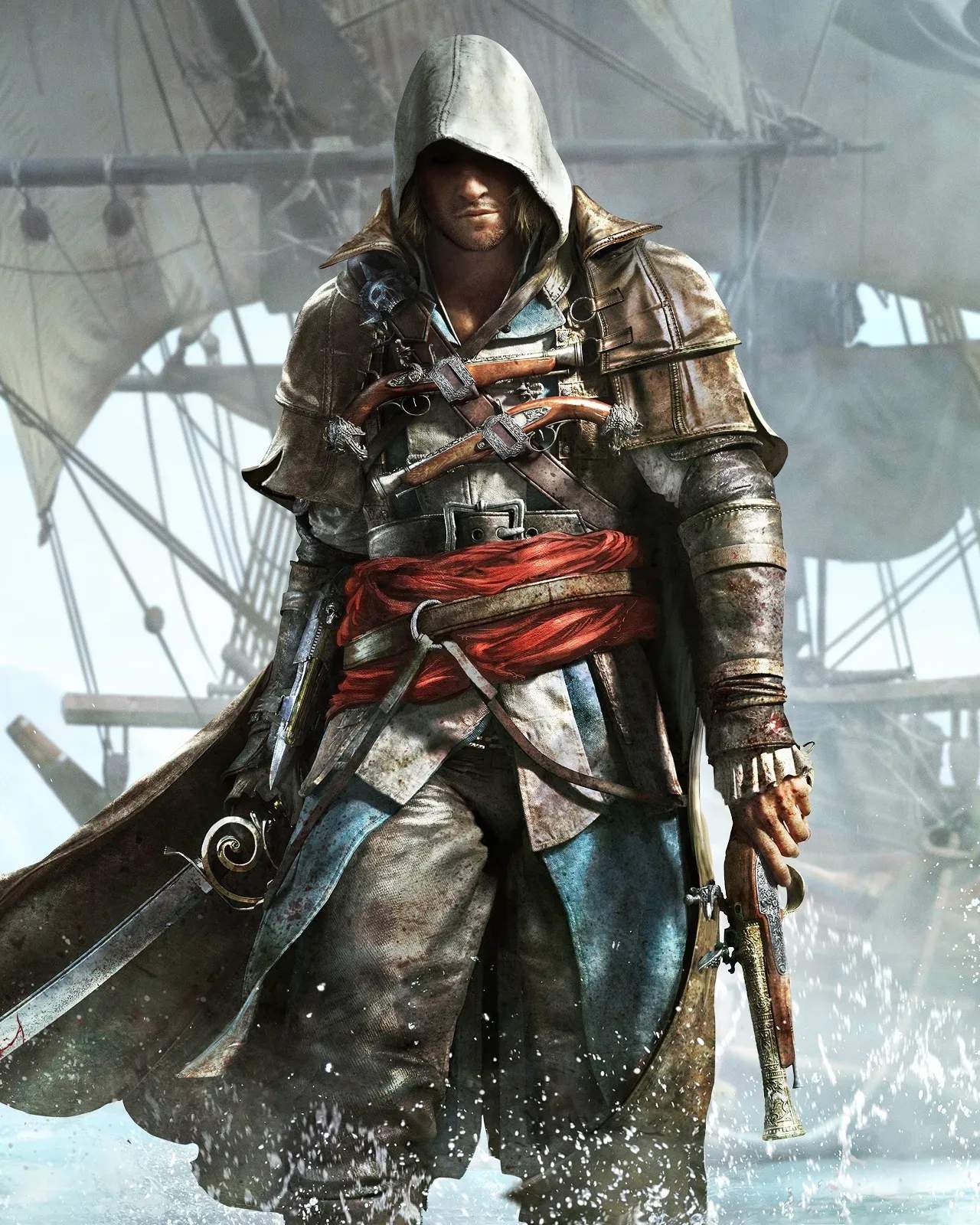
Mastering the controls and understanding the User Interface (UI) in Assassin's Creed IV: Black Flag is fundamental to becoming a legendary pirate assassin. This section will guide you through Edward Kenway's intricate movements, the Jackdaw's command systems, and the crucial information presented on your screen, ensuring you navigate both land and sea with unparalleled precision.
Edward Kenway: On-Foot Controls
Edward's parkour and combat abilities are at your fingertips. While specific button layouts vary slightly between platforms, the core actions remain consistent. Familiarize yourself with these to seamlessly transition between stealth, free-running, and brutal combat.
Common Actions & Default Bindings (Console Example: PlayStation)
- Movement: Left Analog Stick (Walk/Run), L3 (Toggle Sprint/Eagle Vision - hold)
- Free-Running: R2 + Left Analog Stick (Hold R2 to initiate free-running up/over obstacles)
- High Profile Actions: R2 (Hold) + X (Jump/Climb Up), R2 (Hold) + O (Jump Down/Descend)
- Stealth/Cover: O (Enter/Exit Cover, Blend)
- Combat:
- Square (Light Attack)
- Triangle (Heavy Attack/Break Defense)
- Circle (Counter/Disarm - timed press during enemy attack)
- X (Dodge/Evade - timed press during enemy attack)
- L1 (Aim Pistol/Tools)
- R1 (Fire Pistol/Use Tool)
- Directional Pad (D-Pad):
- Up: Equip/Unequip Primary Weapon (Swords)
- Left/Right: Cycle Secondary Weapons/Tools (Pistols, Smoke Bombs, Sleep Darts, Berserk Darts)
- Down: Whistle (Attract Guards)
- Eagle Vision: L3 (Hold)
- Interact/Loot: O (Press near objects/bodies)
- Camera Control: Right Analog Stick
- Pause Menu: OPTIONS / START Button
- Map: Touchpad / SELECT Button
PC Keybinds & Customization
PC players have the most flexibility. The default keyboard and mouse controls are robust, but Assassin's Creed IV: Black Flag offers extensive keybinding customization through the in-game 'Options' menu under 'Controls'.
- Default PC Bindings (Common Examples):
- Movement: W, A, S, D
- Free-Running: Spacebar (Hold) + W, A, S, D
- High Profile Actions: Spacebar (Hold) + Left Mouse Button (Climb Up), Spacebar (Hold) + Right Mouse Button (Jump Down)
- Stealth/Cover: E
- Combat:
- Left Mouse Button (Light Attack)
- Right Mouse Button (Heavy Attack/Break Defense)
- E (Counter/Disarm)
- Spacebar (Dodge/Evade)
- F (Aim Pistol/Tools)
- R (Fire Pistol/Use Tool)
- 1, 2, 3, 4 (Weapon/Tool Selection)
- Eagle Vision: V (Hold)
- Interact/Loot: E
- Camera Control: Mouse
- Pause Menu: ESC
- Map: M
- Customization Tips:
- Rebind frequently used actions: Place crucial combat or free-running keys in easily accessible locations.
- Mouse Sensitivity: Adjust to your preference for precise aiming and camera control.
- Controller Support: The PC version fully supports gamepads. If you prefer a console-like experience, simply plug in a compatible controller (Xbox 360/One controllers are natively supported, PS3/PS4 controllers may require third-party drivers). The game will automatically switch to controller prompts.
The Jackdaw: Naval Controls
Commanding the Jackdaw is a core part of the Black Flag experience. Understanding its controls is vital for naval combat, exploration, and escaping formidable foes.
Naval Actions & Default Bindings (Console Example: PlayStation)
- Steering: Left Analog Stick
- Sail Speed:
- X (Half Sail)
- O (Full Sail)
- Square (Stop)
- Triangle (Brace for Impact - reduces incoming damage)
- Naval Combat:
- L1 (Aim Swivel Cannons - for targeting weak points)
- R1 (Fire Swivel Cannons)
- L2 (Aim Broadside Cannons - Left Side)
- R2 (Aim Broadside Cannons - Right Side)
- Left Analog Stick (Adjust Aim while aiming broadsides)
- Directional Pad (D-Pad):
- Up: Fire Chain Shot (disables enemy sails)
- Left/Right: Fire Round Shot (standard damage)
- Down: Fire Heavy Shot (close-range, high damage)
- Mortar: Hold L1 (Aim Mortar - requires upgrade), R1 (Fire Mortar)
- Burning Oil: Hold R1 (Deploy Burning Oil - requires upgrade, for chasing ships)
- Boarding: O (When prompted, after disabling an enemy ship)
- Spyglass: L3 (Press)
- Anchor: Hold O (While stopped)
PC Naval Keybinds
- Steering: W, A, S, D
- Sail Speed:
- E (Half Sail)
- Q (Full Sail)
- C (Stop)
- Spacebar (Brace for Impact)
- Naval Combat:
- F (Aim Swivel Cannons)
- R (Fire Swivel Cannons)
- Left Mouse Button (Aim Broadside Cannons - Left Side)
- Right Mouse Button (Aim Broadside Cannons - Right Side)
- Mouse (Adjust Aim while aiming broadsides)
- 1 (Chain Shot)
- 2 (Round Shot)
- 3 (Heavy Shot)
- Mortar: Hold F (Aim Mortar), R (Fire Mortar)
- Burning Oil: Hold R (Deploy Burning Oil)
- Boarding: E
- Spyglass: V
- Anchor: Hold C
User Interface (UI) Overview
The UI provides critical real-time information, allowing you to make informed decisions in combat, stealth, and exploration. Pay close attention to these elements.

On-Foot UI Elements
- Top Left:
- Health Bar (Red): Your current health. Depletes when taking damage. Synchronize with viewpoints or use medicine to restore.
- Notoriety Meter (Red/White Circles): Indicates how aware guards are of your presence. White means low awareness, red means high. Increases with illegal actions (killing guards, open combat). Decreases by tearing down wanted posters, bribing heralds, or hiding.
- Current Weapon/Tool: Icon showing your currently equipped primary and secondary items.
- Top Right:
- Mini-Map: Displays your immediate surroundings, including objectives (yellow diamond), enemies (red dots/cones of vision), points of interest (various icons), and collectibles. Crucial for navigation and tactical planning.
- Objective Tracker: Briefly displays your current mission objective and any secondary objectives.
- Bottom Right:
- Action Prompts: Context-sensitive button prompts for interactions (e.g., "Press O to Loot," "Press E to Hide").
- Ammo/Tool Count: Displays remaining ammunition for pistols, darts, and smoke bombs.
- Center Screen (Contextual):
- Target Lock: When locked onto an enemy, their health bar and name may appear.
- Stealth Indicator: A small icon (e.g., eye) that changes to indicate if you are hidden, detected, or being hunted.
Naval UI Elements
- Top Left:
- Jackdaw Health Bar (Green): Your ship's current integrity. Depletes from enemy fire and environmental hazards. Repair at sea or docks.
- Crew Morale (Blue Bar): Represents your crew's fighting spirit. Drops when taking heavy damage or losing crew members. High morale boosts combat effectiveness.
- Wind Direction Indicator: Shows the current wind direction, crucial for efficient sailing.
- Top Right:
- Mini-Map: Displays nearby ships (red for enemies, blue for allies), islands, and mission objectives.
- Objective Tracker: Current naval mission objectives.
- Bottom Right:
- Cannon/Mortar Ammo: Displays remaining ammunition for your various naval weapons.
- Sail Speed Indicator: Shows your current sail setting (stopped, half, full).
- Center Screen (Contextual):
- Target Ship Info: When aiming at an enemy ship, their health, type, and cargo may be displayed.
- Damage Indicators: Visual cues and text warnings when your ship is taking critical damage.
Control Schemes & Customization
Assassin's Creed IV: Black Flag offers a few control presets, particularly on consoles, and extensive customization on PC.
- Console Presets:
- Default: The standard control scheme detailed above, designed for intuitive parkour and combat.
- Alternate 1/2: These often swap certain button functions (e.g., moving free-run from R2 to another shoulder button, or remapping combat actions). Experiment in the 'Options' > 'Controls' menu to see if an alternate scheme feels more natural for your playstyle. For instance, some players prefer a scheme where the 'High Profile' button is more easily accessible during combat.
- PC Customization:
- As mentioned, the PC version allows for full remapping of nearly every action. This is invaluable for players who prefer specific key layouts or have specialized gaming peripherals.
- Mouse/Keyboard vs. Controller: The game seamlessly switches between these input methods. You can even use a controller for naval combat and switch to mouse/keyboard for on-foot segments if that suits you.
Take the time to explore the 'Options' menu to fine-tune your experience. A comfortable and intuitive control setup will significantly enhance your enjoyment and effectiveness as you carve your legend across the Caribbean.