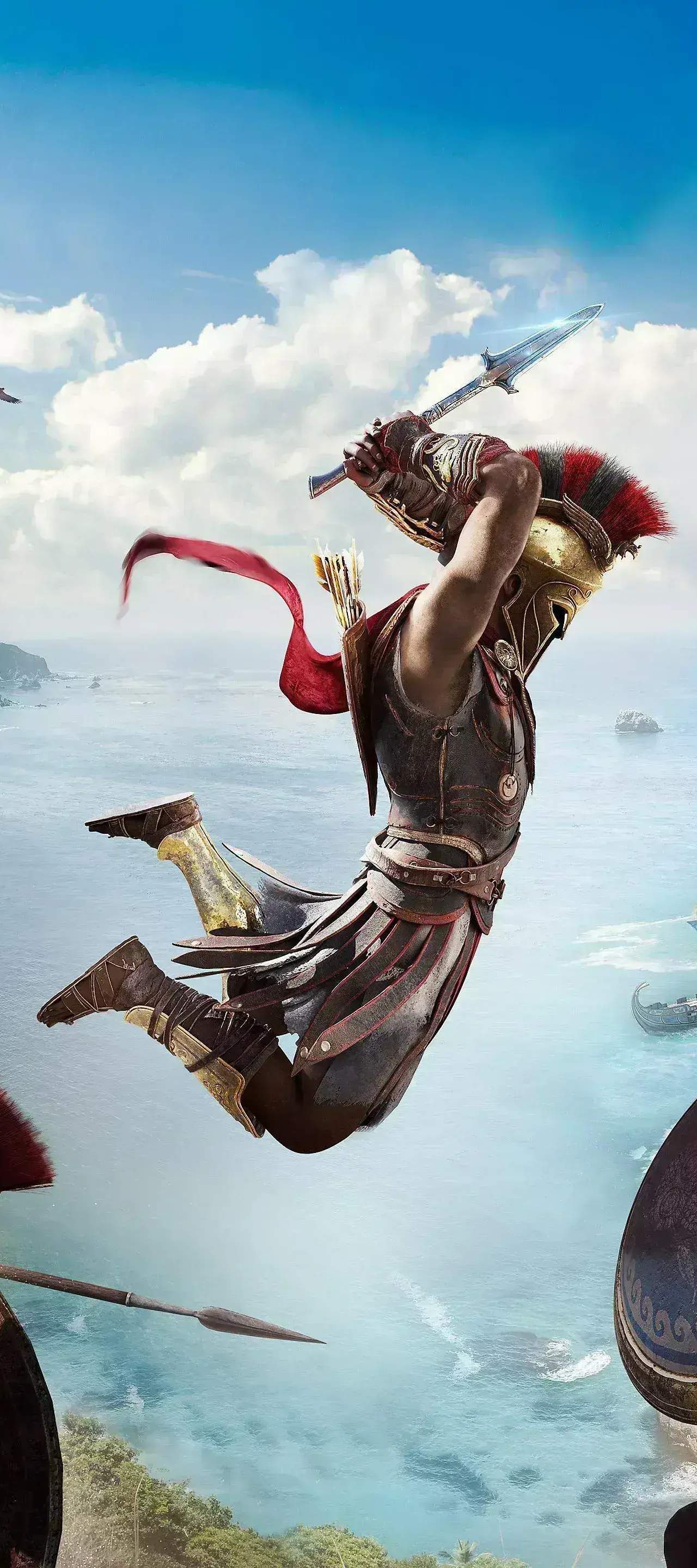
Fast Travel & World Navigation
Navigating the vast and beautiful world of Ancient Greece in Assassin's Creed Odyssey is a core part of the experience. While exploring on foot or horseback is encouraged for immersion and discovering hidden secrets, mastering fast travel will save you countless hours and streamline your questing.
Unlocking Fast Travel Points
Fast travel in Odyssey is tied to specific locations on your world map. These are typically synchronization points, which are usually high vantage points, or specific settlements and ports. To unlock a fast travel point:
- Reach the Location: Physically travel to the desired fast travel icon on your map. This could be a towering statue, a prominent ruin, or a bustling harbor.
- Synchronize (Synchronization Points): For synchronization points (represented by an eagle icon), climb to the very top of the structure. Once there, interact with the prompt (usually 'E' on PC, Triangle on PlayStation, Y on Xbox) to synchronize. This will trigger a brief cinematic and reveal a portion of the surrounding map, making the location available for fast travel.
- Discover (Settlements/Ports): For major settlements and ports, simply entering the area and having the location name pop up on your screen is usually enough to unlock it as a fast travel destination. Look for the white diamond icon on your map to confirm it's active.
Prioritize unlocking fast travel points in new regions as you explore. This foresight will pay dividends when you need to quickly return for side quests or main story objectives.
using the Map for Fast Travel
Once unlocked, fast traveling is a simple process:
- Open Your Map: Access your world map (usually by pressing 'M' on PC, Touchpad on PlayStation, View button on Xbox).
- Select a Destination: Hover your cursor over any unlocked fast travel icon. These will appear as white diamond shapes for discovered locations and eagle icons for synchronized viewpoints.
- Confirm Fast Travel: A prompt will appear, usually displaying the name of the location and asking you to confirm your fast travel. Confirming will initiate a loading screen, and you'll arrive at your chosen destination.
Remember that you cannot fast travel while in combat or during certain quest-specific scenarios. If the fast travel option is greyed out, check your immediate surroundings for threats or quest restrictions.
Adrestia: Your Personal Fast Travel Hub
Your ship, the Adrestia, serves as a mobile fast travel point and a crucial element of world navigation. As you progress through the main story, particularly through chapters like "A New Sun Rises" and "A Soldier, a Mercenary, a God," you'll gain more control over your ship and its capabilities.
- Summoning the Adrestia: While on land, you can often summon the Adrestia to a nearby accessible port by interacting with a ship icon on your map or by simply calling it from the shore. This is incredibly useful for quickly transitioning from land exploration to sea voyages.
- Navigating the Seas: The Adrestia allows you to traverse the vast Aegean Sea efficiently. You can set a course on your map, and your crew will automatically steer the ship, allowing you to enjoy the scenery or manage your ship upgrades.
- Ship Fast Travel: Once you've sailed to and discovered a new port or island, that location becomes a potential fast travel point for your ship. You can fast travel the Adrestia directly to any previously visited and unlocked port. This is distinct from character fast travel and is invaluable for naval missions and exploring distant islands.
Upgrading the Adrestia's speed and maneuverability through the Shipyard menu (accessible from any port or by interacting with the ship's mast) will further enhance your global travel efficiency.
Horseback Riding (Phobos)
For shorter distances or when exploring areas between fast travel points, your trusty steed, Phobos, is your best friend. Summon Phobos by pressing the appropriate button (usually 'V' on PC, Down on D-Pad on PlayStation/Xbox). Phobos can automatically follow roads to your custom map markers, allowing you to enjoy the scenery or simply put down your controller for a moment. Just place a custom marker on your map, mount Phobos, and press the auto-ride button (usually 'X' on PC, Square on PlayStation, A on Xbox).