
The UI in Bendy and the Ink Machine is minimalistic, designed to immerse you in the environment without too many distractions. However, understanding the few elements present is key to knowing your status and interacting with the world effectively. Here's what you'll typically see on your screen:
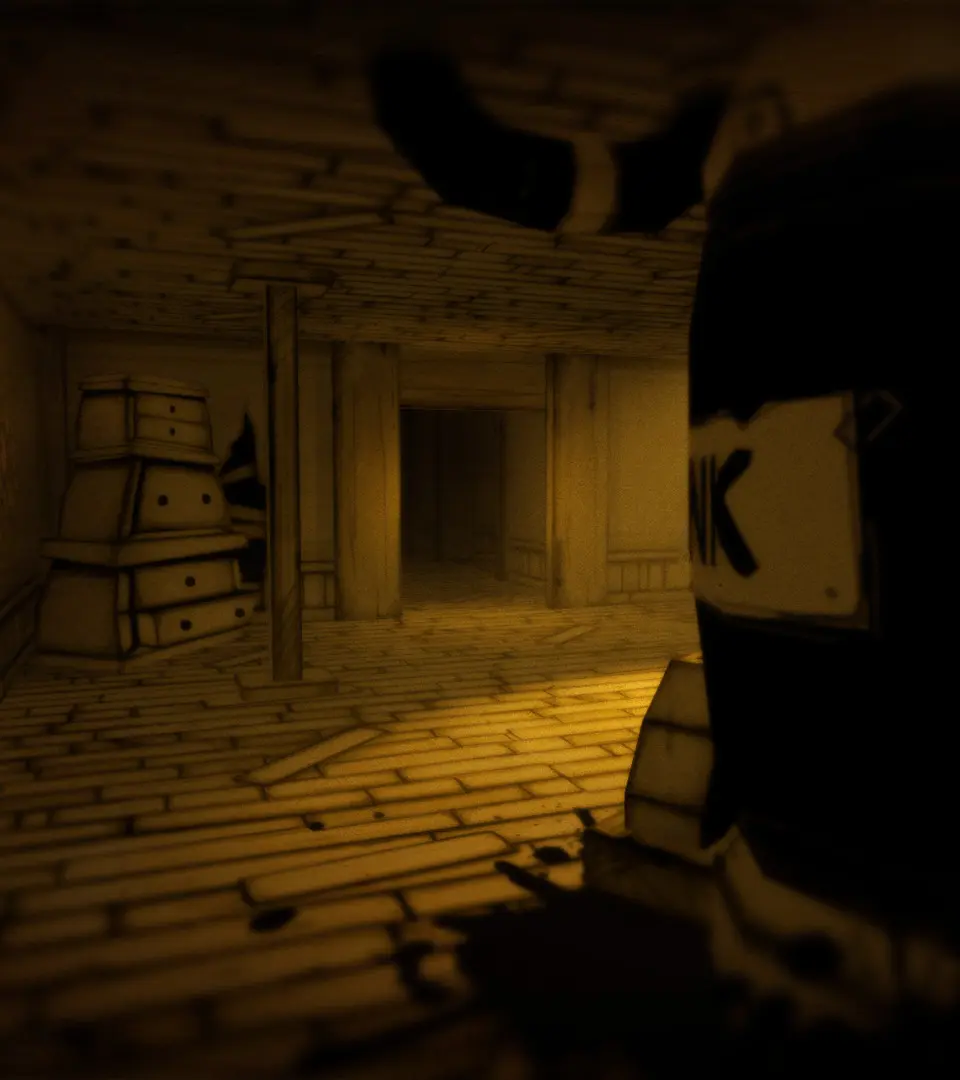
- Crosshair: Located in the center of your screen, this indicates where you are looking and what you will interact with. When hovering over an interactable object, it will often change or display a prompt.
- Interaction Prompts: When you are close enough to an object or mechanism that can be interacted with, a prompt (e.g., 'E - Pick Up', 'Left Click - Activate') will appear near the crosshair. Always pay attention to these.
- Inventory Slots (Bottom Right - when active): When you pick up a weapon or a specific tool, it will often appear in a small slot in the bottom right of your screen, indicating it's currently equipped. You can cycle through equipped items using the scroll wheel or number keys.
- Health Indicator (Implied): There is no explicit health bar. Instead, damage is indicated by visual cues like screen distortion, ink splatters, and Henry's heavy breathing. If the screen becomes too distorted and dark, you are close to death.
- Objective Reminders (Top Left - occasional): Sometimes, a brief reminder of your current objective will flash in the top left corner of the screen, especially after completing a step or entering a new area.
Keeping an eye on these subtle UI elements will help you stay oriented and react appropriately to the dangers and puzzles within Joey Drew Studios.