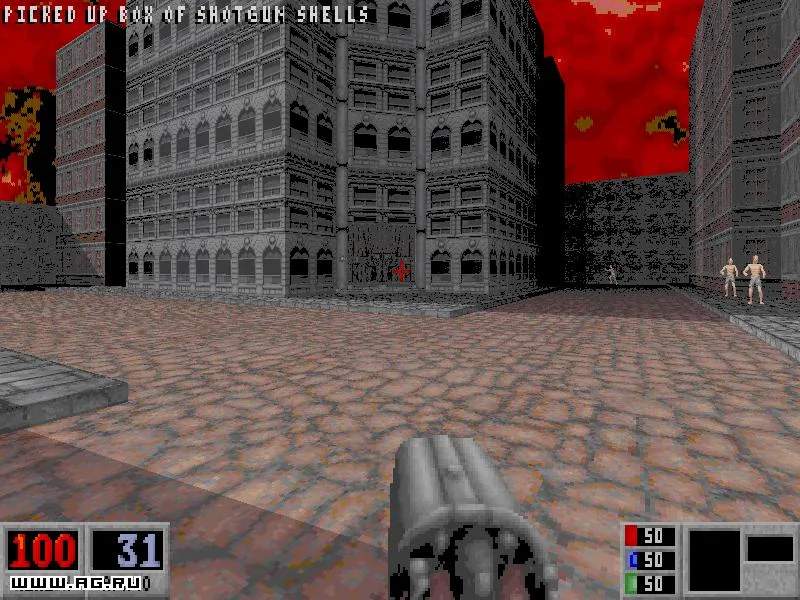
To begin your journey of vengeance, you first need to ensure Blood is properly installed and configured. While the original DOS version can be tricky on modern systems, the most common and recommended way to play today is through the Fresh Supply re-release by Nightdive Studios. This version offers enhanced compatibility, improved graphics options, and native support for modern operating systems.
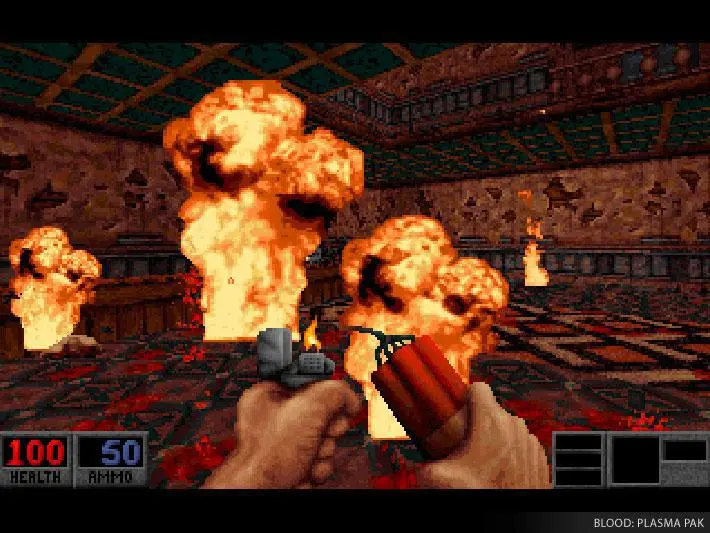
For Fresh Supply:
- Purchase and download Blood: Fresh Supply from your preferred digital storefront (Steam, GOG, etc.).
- Run the installer and follow the on-screen prompts.
- Once installed, launch the game. You'll be presented with a launcher where you can adjust display settings, resolution, and other graphical options. It's recommended to start with your monitor's native resolution and adjust other settings to your preference.
- For optimal performance and a classic feel, ensure 'Classic Mode' is enabled if you prefer the original rendering style, or 'Enhanced Mode' for updated visuals.
For Original DOS Version (Advanced Users):
If you're determined to play the original DOS version, you'll need a DOS emulator like DOSBox. This process is more involved:
- Download and install DOSBox.
- Acquire the original Blood game files.
- Mount your game directory within DOSBox (e.g.,
mount c c:\games\blood). - Navigate to the game directory (
c:thencd blood). - Run the setup utility (
setup.exe) to configure sound and video. - Launch the game using
blood.exe.
Regardless of your chosen version, ensure your audio drivers are up to date for the best sound experience, as Blood's sound design is a crucial part of its atmosphere.