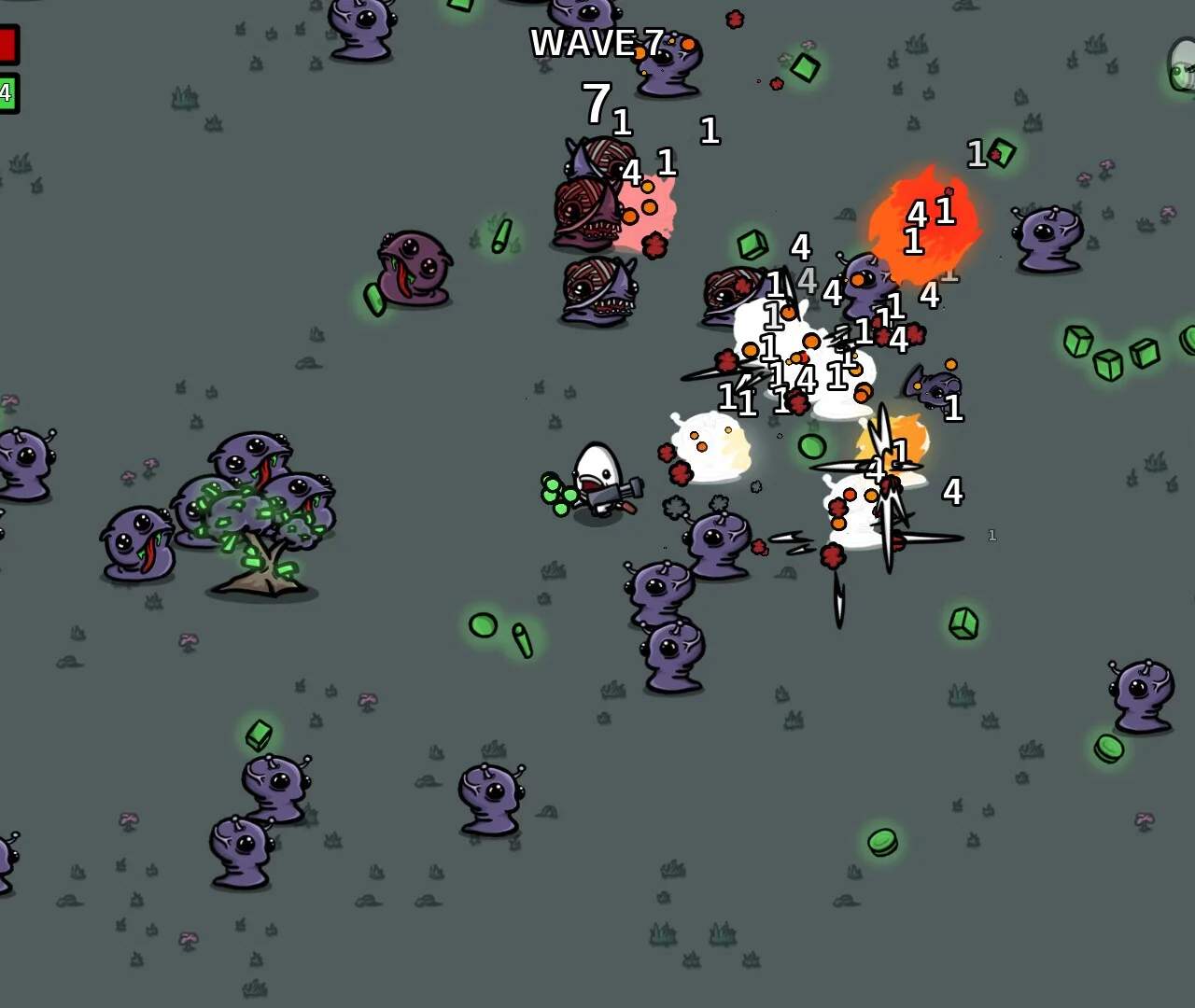
Controls & Keybindings
Mastering your controls in Brotato is paramount to survival, especially as the hordes grow denser and the bosses become more formidable. While the default keybindings are generally intuitive, understanding them thoroughly and customizing them to your playstyle can significantly improve your performance and enjoyment. This section will walk you through the standard controls, offer strategic advice for their use, and guide you on how to personalize your setup.
Movement & Basic Actions
Your Brotato's mobility is your first line of defense and offense. Efficient movement allows you to dodge projectiles, kite enemies, and position yourself for optimal weapon fire.
- Movement (WASD or Arrow Keys): This is your primary method of navigating the arena.
- WASD: The default and generally preferred scheme for most PC gamers. Allows for easy access to other keys with your left hand.
- Arrow Keys: An alternative for players who prefer a right-hand dominant movement scheme, though it can make reaching other keys more awkward.
- Strategic Tip: Practice strafing (moving sideways while attacking) to maintain consistent damage output while avoiding incoming threats. In later waves, constant, unpredictable movement is key to avoiding being swarmed by elites like the Armored Spitter or the Charging Brute.
- Aiming (Mouse Cursor): Your mouse dictates where your weapons will fire.
- Automatic Aiming: Most weapons in Brotato have some degree of auto-aim, targeting the closest enemy or the enemy in the direction of your cursor.
- Manual Precision: For weapons like the Sniper Rifle or the Slingshot, precise mouse aim can be crucial for hitting high-priority targets or exploiting enemy weaknesses.
- Strategic Tip: Don't just point and shoot. Learn to lead targets, especially faster enemies like the Leaping Spider. For area-of-effect weapons like the Rocket Launcher, aim for clusters of enemies to maximize damage.
Interaction & Item Management
During the shop phase between waves, efficient interaction with items and upgrades is crucial for building a powerful Brotato.
- Interact/Pick Up (E or Left Mouse Click):
- In-Game: Used to pick up materials (green triangles) dropped by defeated enemies. Materials are automatically collected if you move over them, but this key can be used for manual collection if needed.
- Shop Phase: Primarily used to purchase items, weapons, and upgrades from the shop. Also used to re-roll the shop (if available) or to confirm your selections before starting the next wave.
- Strategic Tip: In the shop, quickly scan for essential items like Bandages for healing, or powerful weapons that synergize with your build, such as a second SMG for a Soldier build.
- Drop Item (Q): Allows you to discard an item from your inventory.
- Strategic Tip: Rarely used during gameplay, but can be useful if you accidentally pick up an item you don't want or need to make space for a more valuable drop. Be careful, as dropped items cannot be recovered.
- Pause Game (Escape): Halts the action, allowing you to review your stats, inventory, and adjust options.
- Strategic Tip: Use the pause menu to take a breather during intense waves, especially when facing new boss patterns like the Colossus. It's also where you can access the options to rebind your keys.
Advanced Keybindings & Customization
Brotato offers robust keybinding options, allowing you to tailor the controls to your exact preferences. This is especially useful for players who use non-standard keyboard layouts or have specific ergonomic needs.
- Accessing Keybindings:
- From the Main Menu, navigate to "Options."
- Within the Options menu, select "Controls."
- Here, you will see a list of all assignable actions and their current keybindings.
- Rebinding a Key:
- Click on the action you wish to rebind (e.g., "Move Up").
- A prompt will appear, asking you to "Press a key."
- Press the desired key on your keyboard or mouse.
- The new keybinding will be displayed.
- Recommended Customizations:
- Movement: If WASD feels unnatural, consider rebinding to ESDF for easier access to more keys with your pinky finger.
- Interact/Pick Up: Some players prefer to bind this to a mouse button for quicker shop interactions.
- Dedicated Dash/Dodge (if applicable to a character): While Brotato doesn't have a universal dodge roll, some characters or items might grant similar abilities. If so, consider binding it to an easily accessible key like Spacebar or a mouse button.
- Volume Controls: While not directly gameplay-related, binding master volume or music volume to easily accessible keys can be helpful for adjusting on the fly without pausing.
- Saving Changes:
- Most changes are applied immediately, but it's always a good practice to ensure you exit the options menu correctly to save your preferences.
Experiment with different setups until you find what feels most comfortable and effective for your playstyle. A well-configured control scheme can be the difference between a triumphant run and an early demise in the treacherous arenas of Brotato!