Troubleshooting & Common Issues
Even the toughest Brotatos can encounter a snag or two in their quest for survival. This section aims to help you diagnose and resolve common issues, ensuring your potato-mashing adventures remain uninterrupted.
Performance & Technical Glitches
Lag or Stuttering Gameplay
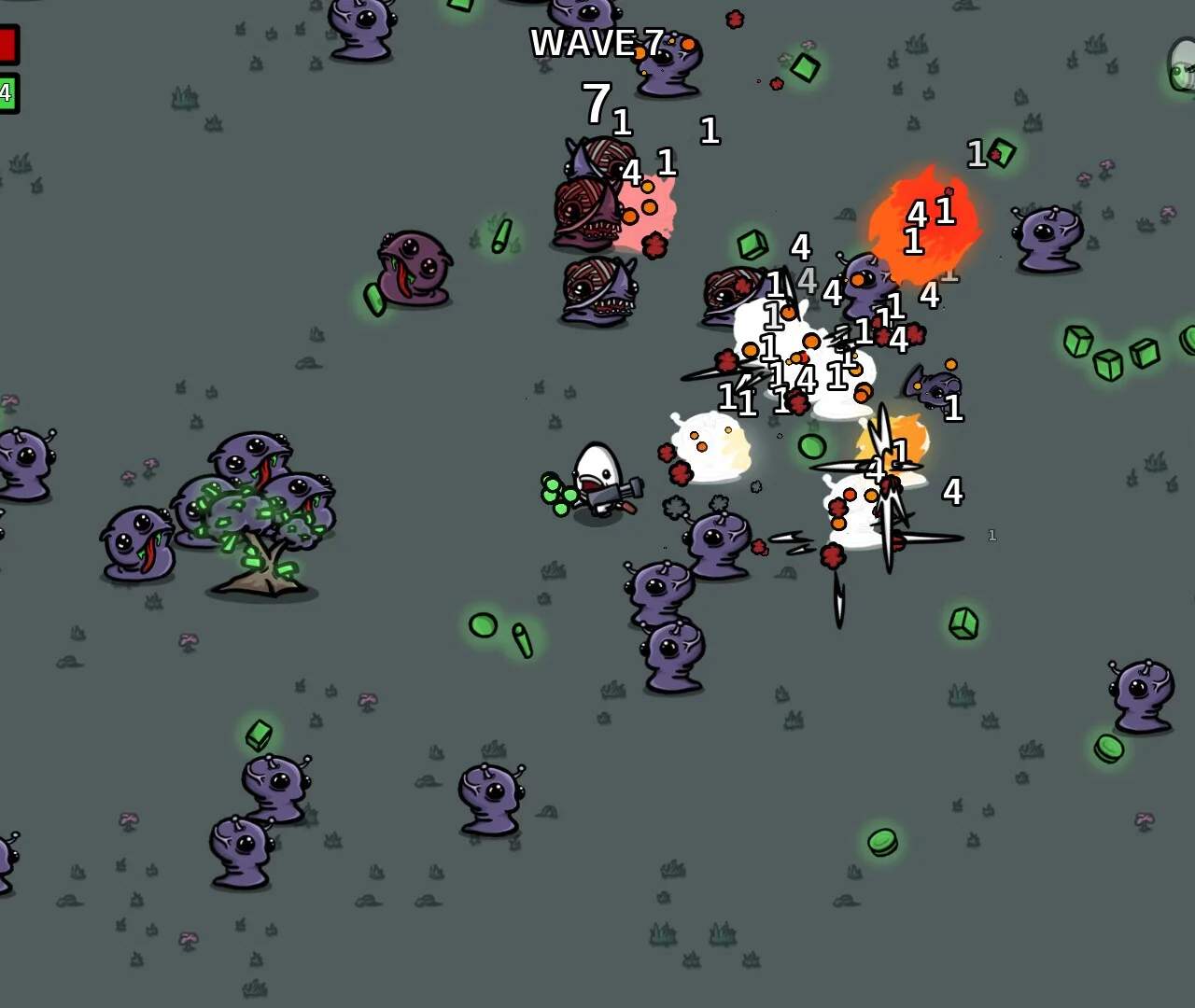
Experiencing choppiness during intense waves or when the screen is filled with enemies and projectiles can be frustrating. Here's how to improve your framerate:
- Adjust Graphics Settings:
- Navigate to the Options Menu from the main title screen.
- Select Video Settings.
- Lower the Particle Effects to Medium or Low. This is often the biggest culprit for slowdowns, especially with items like the Explosive Rounds or characters like the Demon.
- Reduce Resolution Scale if necessary, though this should be a last resort.
- Update Drivers: Ensure your graphics card drivers are up to date. Outdated drivers can significantly impact performance.
- Close Background Applications: Other programs running in the background can consume valuable system resources. Close any unnecessary applications before launching Brotato.
- Verify Game Files:
- If playing on Steam, right-click Brotato in your library.
- Go to Properties > Local Files > Verify integrity of game files... This can fix corrupted files that might be causing performance issues.
Game Crashes to Desktop
Sudden game closures can be indicative of several underlying problems. Try these steps:
- Check for Updates: Ensure both your game and operating system are fully updated. Developers frequently release patches to address stability issues.
- Disable Overlays: In-game overlays from platforms like Steam, Discord, or GeForce Experience can sometimes interfere with game stability. Try disabling them temporarily.
- Run as Administrator: Right-click the Brotato executable and select "Run as administrator." This can resolve permission-related crashes.
- Review System Requirements: While Brotato is not a graphically intensive game, ensure your PC meets the minimum system requirements.
Gameplay & Progression Hurdles
Difficulty Spikes & Feeling Underpowered
Finding yourself consistently overwhelmed, even on lower difficulties, is a common experience. This isn't necessarily a bug, but a sign to refine your strategy:
- Character Synergy:
- Weapon Choices: Are your weapons complementing your character's strengths? For example, the Soldier thrives with high-damage, low-fire-rate weapons like the Shotgun or Rocket Launcher, while the Crazy benefits from rapid-fire options like the SMG or Minigun.
- Item Synergies: Look for items that amplify your build. If you're focusing on Melee Damage, prioritize items like the Spiky Shield or Melee Weapon Damage upgrades. For Ranged builds, Glasses and Scope are excellent choices.
- Economy Management:
- Early Game: Prioritize purchasing HP Regeneration and Damage items in the early waves. Surviving the initial onslaught is crucial.
- Mid to Late Game: Start investing in defensive stats like Armor and Dodge, especially if you're frequently taking heavy damage. Don't neglect utility items like Speed or Harvesting to accelerate your economy.
- Adapt to Wave Modifiers: Pay attention to the wave modifiers displayed before each round. If enemies are faster, consider prioritizing movement speed or area-of-effect weapons. If they have more health, focus on single-target damage or armor penetration.
- Practice Dodging: Effective movement and dodging enemy attacks are paramount. Learn enemy attack patterns and prioritize avoiding damage over dealing it, especially with fragile characters.
Unresponsive Controls (Controller/Keyboard)
If your inputs aren't registering correctly, it can lead to frustrating deaths:
- Check Connections: Ensure your controller is securely plugged in or your keyboard/mouse connections are stable.
- Test Other Games: See if the issue persists in other games. If it does, the problem likely lies with your hardware.
- Reset Keybinds:
- Go to the Options Menu.
- Select Controls.
- Try resetting your keybinds to default. Sometimes custom configurations can become corrupted.
- Controller Configuration (Steam): If using a controller on Steam, go to Steam's Settings > Controller > General Controller Settings and ensure your controller type is correctly detected and configured. You might need to disable Steam Input for Brotato if it's causing conflicts.