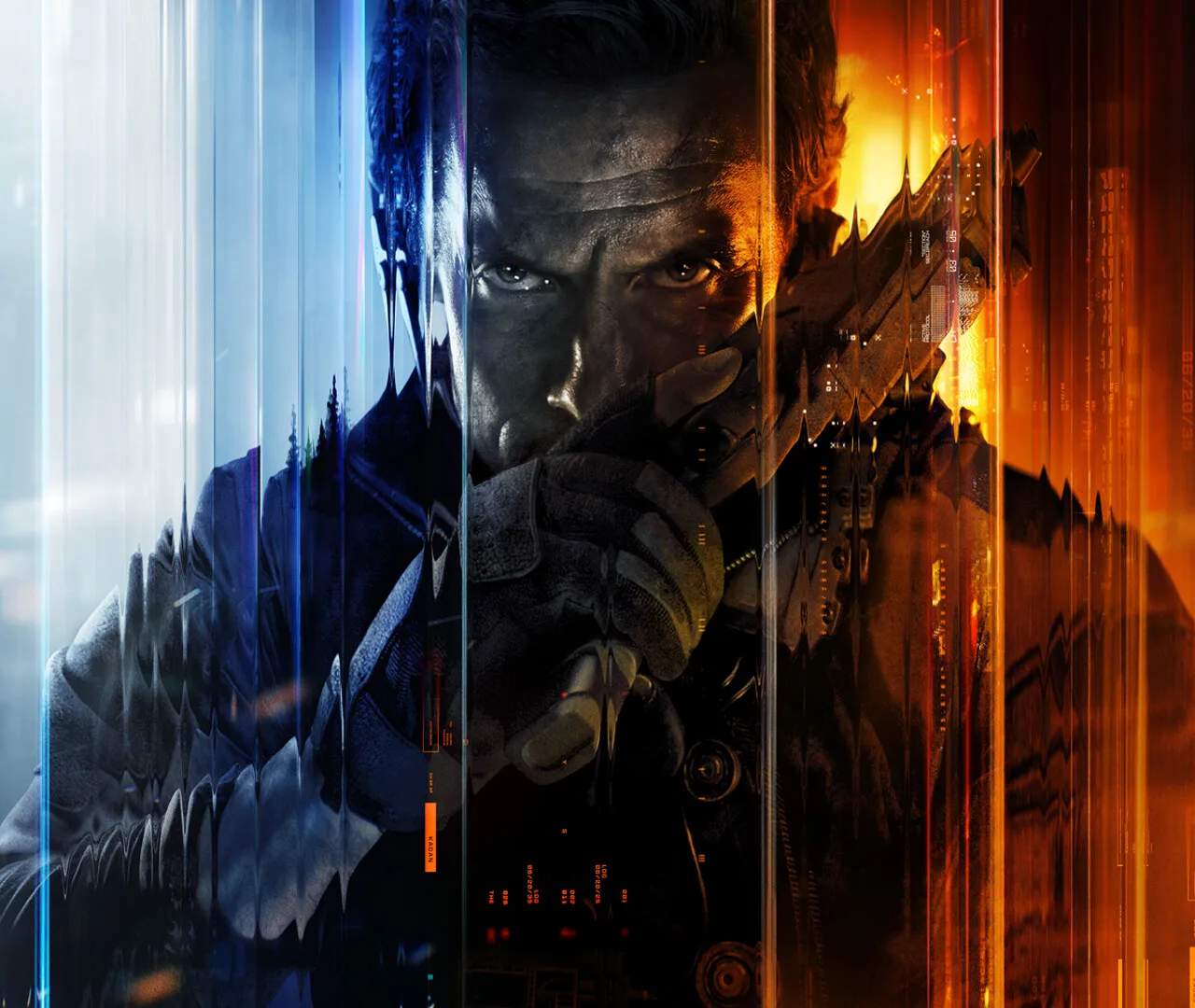
Introduction & Setup
Welcome, operative, to the definitive guide for Call of Duty: Black Ops 7! Whether you're a seasoned veteran of the Black Ops series or a fresh recruit stepping onto the battlefield for the first time, this guide will equip you with the knowledge to dominate. Before you jump into the heart-pounding action, a proper introduction and setup are crucial for maximizing your combat effectiveness and ensuring a smooth, optimized experience.
Initial Game Launch & Profile Creation
Upon your first launch of Call of Duty: Black Ops 7, you'll be prompted to complete a few essential setup steps. Do not rush these, as they lay the groundwork for your entire gameplay experience.
- Accept EULA & Privacy Policy: Read through the End User License Agreement and Privacy Policy. You must accept these to proceed.
- Activision Account Link/Creation:
- Existing Users: If you have an existing Activision account from previous Call of Duty titles, log in using your credentials. This will carry over any linked platforms (e.g., PlayStation Network, Xbox Live, Steam) and potentially some cosmetic unlocks or Battle Pass progression from other games.
- New Users: If you don't have an Activision account, you'll be prompted to create one. This is mandatory for online play and cross-platform progression. Choose a strong password and remember your login details.
- Player Handle Selection: You'll be asked to choose your in-game Player Handle. This is the name other players will see. While you can change it later (usually with a token or a cooldown period), pick something you'll be happy with.
- Initial Settings Configuration: The game will run an initial scan of your system (especially on PC) and suggest optimal graphics settings. While these are a good starting point, we'll delve into more detailed customization shortly.
Graphics & Performance Optimization (PC Specific)
For PC players, fine-tuning your graphics settings is paramount for achieving the best balance between visual fidelity and frame rate. A stable frame rate is critical for competitive play.
- Accessing Graphics Settings: From the main menu, navigate to
Settings>Graphics. - Key Settings to Adjust:
- Display Mode: Always set to
Fullscreen Exclusivefor maximum performance. - Render Resolution: Start at
100%. If you experience frame drops, consider lowering it slightly or enabling technologies like NVIDIA DLSS or AMD FSR if your GPU supports them. - Texture Resolution: This is often a VRAM-intensive setting. If you have 8GB+ VRAM,
HighorUltrais usually fine. For 6GB or less, considerNormal. - Shadow Quality: Shadows are performance heavy. Lowering this to
MediumorLowcan provide significant FPS gains with minimal visual impact during fast-paced gameplay. - Anti-Aliasing:
SMAA T2XorFilmic SMAA T2Xare good options. Experiment with these; some players prefer the sharper image of lower settings, while others prioritize smoothness. - Field of View (FOV): This is a personal preference but generally, a higher FOV (e.g.,
100-120) provides a wider view of the battlefield, which is advantageous. Be aware that very high FOV can slightly impact performance. - V-Sync: Turn
Offunless you experience severe screen tearing and your monitor doesn't support G-Sync/FreeSync. V-Sync introduces input lag. - NVIDIA Reflex Low Latency: If you have an NVIDIA GPU, set this to
Enabled + Boostfor reduced input lag.
- Display Mode: Always set to
- Benchmarking: Black Ops 7 includes an in-game benchmark tool (usually found within the Graphics settings). Run this after making changes to assess your performance impact. Aim for a consistent frame rate above 60 FPS, ideally matching your monitor's refresh rate.
Controller & Keybind Configuration
Your input method is your direct link to the game. Optimizing your controls is crucial for precision and responsiveness.
Controller Settings (Console & PC)
- Accessing Controller Settings: From the main menu, navigate to
Settings>Controller. - Sensitivity: This is highly personal. Start with a moderate setting (e.g.,
5-7 Horizontal/Vertical) and gradually adjust. Use the Firing Range to test your aim.- ADS Sensitivity Multiplier: Keep this around
0.80-1.00. A lower multiplier helps with precise aiming while scoped in.
- ADS Sensitivity Multiplier: Keep this around
- Button Layout:
- Tactical: Swaps Crouch/Slide with Melee. This is highly recommended for advanced players as it allows you to slide and drop-shot without taking your thumb off the right stick.
- Bumper Jumper Tactical: Swaps Jump with Left Bumper/L1, and Crouch/Slide with Right Stick. Excellent for players who want to jump and aim simultaneously.
- Vibration: Turn
Off. While immersive, vibration can be distracting and slightly impact aim. - Aim Assist: Ensure this is
StandardorBlack Ops. Experiment with both to see which feels more natural for your playstyle.
Keybinds (PC Specific)
- Accessing Keybinds: From the main menu, navigate to
Settings>Keyboard & Mouse. - Movement: Standard
WASDis universal. Consider bindingSprint/Tactical Sprintto a thumb button on your mouse if available, orShift. - Crouch/Slide: Many players prefer
Cfor crouch andCtrlfor prone, or vice-versa. Some bind slide to a mouse button. - Jump: Standard
Spacebar. - Melee: Often bound to
Vor a mouse button. - Grenades (Lethal/Tactical): Default
GandQare common, but consider binding them to easily accessible mouse buttons for quick deployment. - Weapon Swap:
1,2,3for primary, secondary, and special weapons. - Use/Reload: Standard
FandR.
Audio Settings
Sound is your early warning system in Black Ops 7. Proper audio setup can give you a significant advantage.
- Accessing Audio Settings: From the main menu, navigate to
Settings>Audio. - Audio Mix:
- Headphones: If you're using headphones (highly recommended), select the
HeadphonesorHeadphones Bass Boostmix. This optimizes directional audio. - Home Theater/Soundbar: If playing on speakers, choose the appropriate setting, but be aware that directional audio will be less precise.
- Headphones: If you're using headphones (highly recommended), select the
- Master Volume: Adjust to a comfortable level.
- Music Volume: Lower this significantly or turn it
Offduring gameplay. While the soundtrack is great, it can mask crucial in-game sound cues. - Dialogue Volume: Keep this at a moderate level so you can hear callouts and objective updates.
- Effects Volume: This is critical. Keep it at
100%. This controls footsteps, gunfire, explosions, and other vital sound effects. - Hit Marker Sound Effects: Choose a sound that is clear and distinct for confirming hits.
With these initial setup steps complete, you're now ready to dive into the intense world of Call of Duty: Black Ops 7. Remember to periodically revisit these settings as you gain experience and discover what works best for your individual playstyle. Good luck, operative!