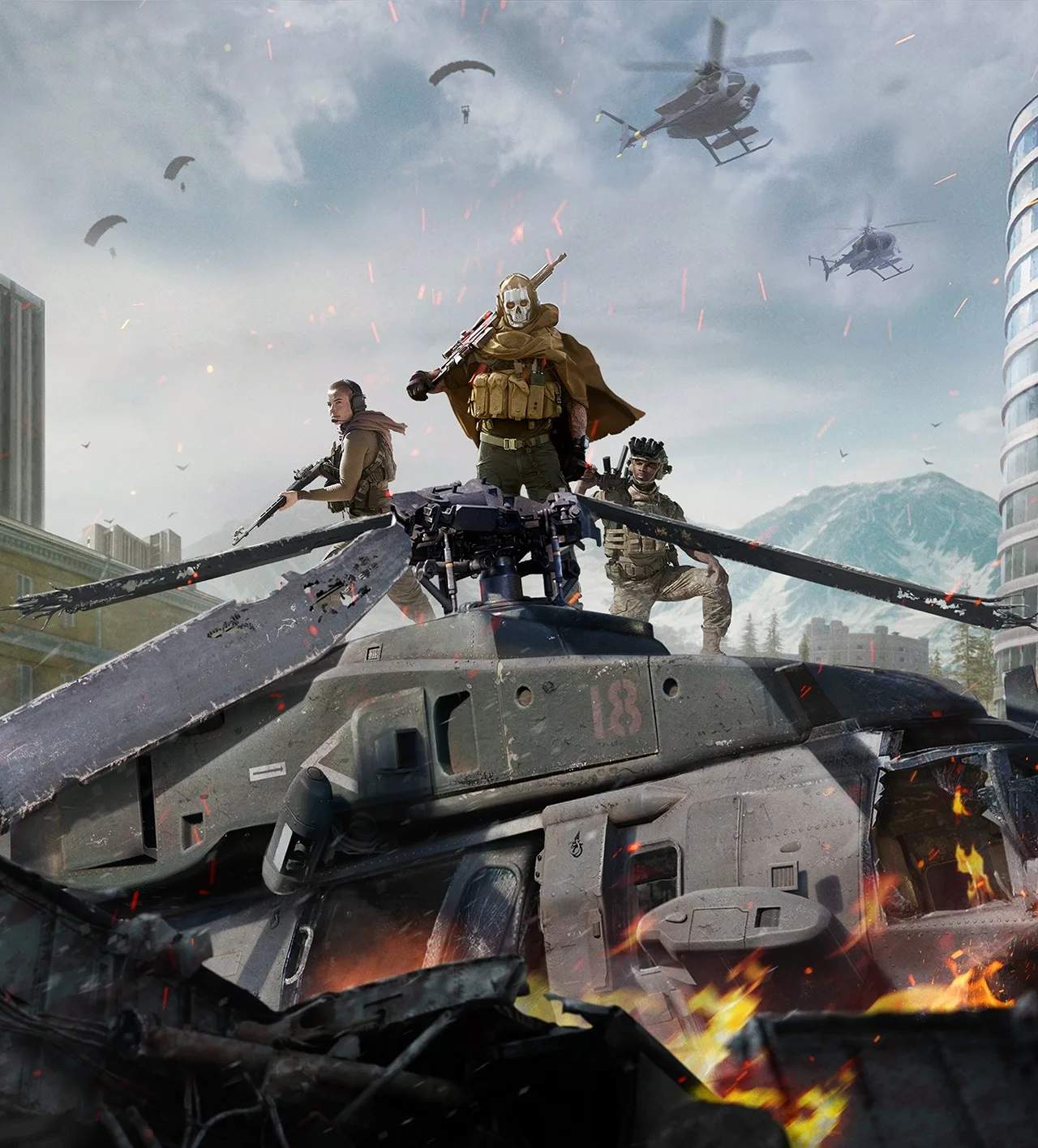
Controller Settings & Optimization
Optimizing your controller settings in Warzone is paramount to gaining a competitive edge. Even minor adjustments can significantly impact your aim, movement, and overall responsiveness. This detailed guide will walk you through the most impactful settings to tweak, ensuring your controller setup is perfectly tuned for victory.
Basic Controller Setup
Before diving into advanced options, let's establish a solid foundation for your controller preferences.
- Input Device: Ensure your preferred controller is selected.
- Vibration: We highly recommend disabling this. While it adds immersion, controller vibration can subtly throw off your aim, especially during intense firefights. Navigate to
Settings > Controller > Vibrationand set it toOff. - Controller Orientation: Keep this at
Defaultunless you have a specific reason to change it.
Sensitivity & Aiming
Finding your ideal sensitivity is a personal journey, but there are best practices to follow. The goal is to be able to track targets effectively without over-aiming or under-aiming.
- Horizontal Stick Sensitivity: Start with a value between
5-8. This controls how quickly your character turns left and right. Experiment in the Firing Range to find what feels comfortable for quick target acquisition. - Vertical Stick Sensitivity: Similar to horizontal, a range of
5-8is a good starting point. This affects how quickly you look up and down. - ADS Sensitivity Multiplier (Low Zoom): This is crucial for precise aiming with iron sights and low-magnification optics. A value between
0.70-0.90is generally recommended. This allows for finer adjustments while aiming down sights. - ADS Sensitivity Multiplier (High Zoom): For sniper scopes and high-magnification optics, a slightly lower multiplier (e.g.,
0.60-0.80) can help maintain control over long distances. - Aim Response Curve Type:
- Standard: The default option, offering a linear response. Good for beginners.
- Linear: Provides a direct 1:1 input-to-output ratio, meaning small stick movements result in small aim adjustments. This offers the most raw control and is favored by many experienced players for its predictability.
- Dynamic: This option accelerates your aim speed as you push the stick further, offering a blend of control and speed. Many top players prefer Dynamic for its ability to snap onto targets quickly while still allowing for fine adjustments. We highly recommend trying Dynamic first.
Aim Assist
Aim Assist is a powerful tool for controller players in Warzone. Understanding and optimizing it is key.
- Aim Assist: Always set this to
On. Disabling it puts you at a significant disadvantage against other controller players. - Aim Assist Type:
- Standard: The traditional aim assist that slows down your crosshair when near an enemy.
- Black Ops: Offers a stronger "sticky" aim assist, particularly noticeable when tracking moving targets. Many players find this to be the most effective for Warzone's fast-paced engagements.
- Focusing: Provides a stronger slowdown effect when aiming at targets, but with a smaller "bubble" than Standard.
- Precision: A very strong slowdown, but only when your aim is very close to the target. Less forgiving than others.
For most players, Black Ops is the recommended choice due to its strong tracking capabilities.
Movement & Behavior
These settings dictate how your character interacts with the environment and performs actions.
- Automatic Sprint:
- Automatic Tactical Sprint: This is a game-changer. Enable this (
Settings > Controller > Movement > Automatic Tactical Sprint: On). It automatically initiates Tactical Sprint when you push the left stick forward, freeing up your sprint button for other actions and reducing wear on your controller.
- Automatic Tactical Sprint: This is a game-changer. Enable this (
- Slide/Dive Behavior: Set this to
Tap to Slide. This allows for quick slides without holding the button, which is crucial for movement and breaking enemy aim. - Parachute Auto Deploy: Set this to
Off. This gives you full control over your parachute, allowing for lower drops and faster landings, which can be critical for securing early loot or escaping danger. You can manually deploy your parachute by pressing the jump button. - Interact/Reload Behavior: Set this to
Prioritize Interact. This ensures that a quick tap of your interact button will pick up items or open doors, while holding it will initiate a reload. This is invaluable in high-pressure situations where quick looting is essential.
Advanced Settings
Delve into these options for further fine-tuning.
- Deadzone Inputs:
- Left Stick Min Input Deadzone: Gradually increase this from
0.00until you no longer experience "stick drift" (unintended movement when your stick is not being touched). Keep it as low as possible for maximum responsiveness. - Right Stick Min Input Deadzone: Similar to the left stick, adjust this to eliminate any unwanted camera movement.
- Max Input Deadzones: Keep these at their default of
1.00unless you have a specific reason to change them.
- Left Stick Min Input Deadzone: Gradually increase this from
- L2/R2 Button Deadzones (Trigger Deadzones):
- L2 Button Deadzone: Reduce this to
0.00. This ensures your aim down sights (ADS) registers instantly, without any delay. - R2 Button Deadzone: Reduce this to
0.00. This ensures your firing registers instantly, giving you the fastest possible shot.
Note: If you experience accidental firing or ADS, slightly increase these values until the issue stops.
- L2 Button Deadzone: Reduce this to
By meticulously adjusting these controller settings, you'll create a personalized setup that enhances your performance and allows you to react faster and more precisely in the intense battles of Warzone.