Squad Management & Friends List
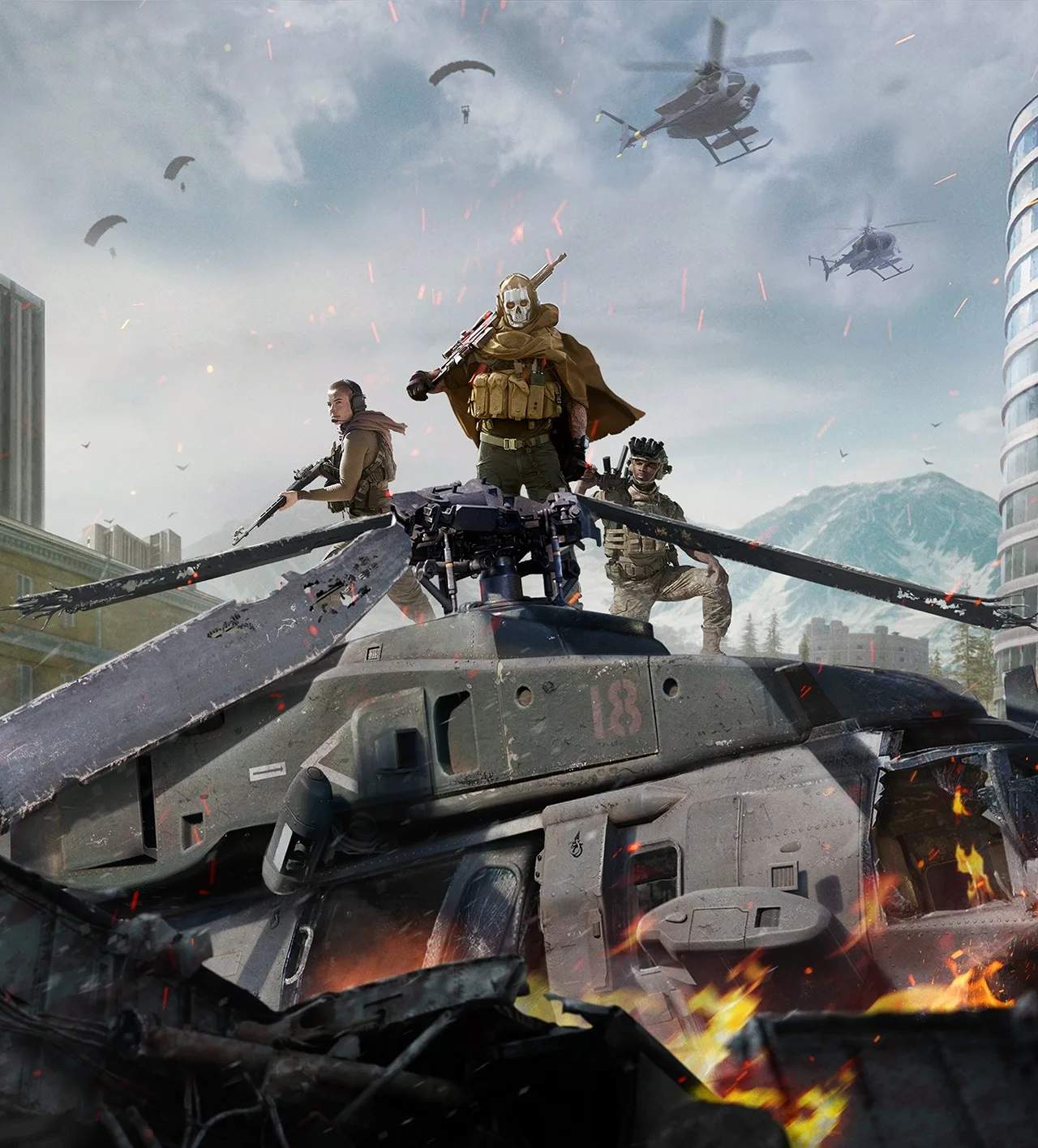
Effective squad management and leveraging your Friends List are crucial for success in Warzone's Battle Royale. Coordinating with trusted teammates can mean the difference between an early exit and a hard-fought victory. This section will guide you through adding friends, inviting them to your squad, and optimizing your pre-game lobby experience.
Adding Friends to Your Friends List
Before you can squad up, you'll need to add players to your in-game Friends List. Warzone supports cross-platform play, so you can add friends regardless of their preferred system (PC, PlayStation, Xbox).
- From the main Warzone lobby, navigate to the Social tab. This is usually represented by an icon resembling two people or a chat bubble.
- Select the Friends sub-tab.
- Choose Add Friends.
- You will be prompted to enter your friend's Activision ID. This ID typically follows the format
PlayerName#1234567. Ensure you include the numerical tag. - Once entered, send the friend request. Your friend will need to accept it from their own Social menu.
- For players you've recently played with, you can often find them under the Recent Players sub-tab within the Social menu. This allows for quick friend requests without needing their full Activision ID.
Strategy Tip: Regularly prune your Friends List. A cluttered list can make it harder to find active players for your squad. Consider grouping friends who play similar modes or at similar times for easier invites.
Inviting Friends to Your Squad
Once your friends are on your list, inviting them to your party is straightforward. A well-coordinated squad is your best asset in Verdansk or Rebirth Island.
- From the main Warzone lobby, locate the Party Members section, usually on the left side of your screen.
- You will see empty slots for your squad (e.g., "Player 2 Slot," "Player 3 Slot" for a Trios match).
- Click on an empty slot or select the Invite Players option.
- Your Friends List will appear. Scroll through or use the search bar to find the friend you wish to invite.
- Select their name and choose Invite to Party.
- Your friend will receive an in-game notification and can accept the invite to join your lobby.
- To remove a player from your party, highlight their name in the Party Members section and select Kick Player.
Strategy Tip: Before inviting, ensure your friends are online and available. Using external communication (like Discord or console party chat) to coordinate invites can save time and prevent accidental invites to AFK players.
Managing Your Squad in the Lobby
The pre-game lobby is more than just a waiting room; it's a critical phase for squad preparation. Use this time to discuss strategies, loadouts, and drop points.
- Party Leader: You who created the party is the Party Leader. Only the Party Leader can start the match, change game modes (e.g., from Battle Royale Solos to Trios), and adjust party privacy settings.
- Voice Chat: Ensure your in-game voice chat is working. Access your Audio Settings from the main menu to adjust microphone levels, voice chat volume, and toggle between "Open Mic" or "Push to Talk." For competitive play, "Push to Talk" is recommended to minimize background noise.
- Loadout Selection: Encourage your squad to finalize their preferred loadouts in the lobby. This prevents last-minute scrambling in the pre-game warm-up area. Discuss complementary loadouts – who is running a sniper, who has an SMG for close quarters, and who has a strong support weapon.
- Game Mode Selection: The Party Leader can change the game mode by selecting the large game mode tile (e.g., "Battle Royale Quads") in the lobby. Ensure everyone agrees on the mode before queuing up.
- Squad Fill: If you have fewer than the maximum players for a chosen mode (e.g., two players in a Trios match), the Party Leader can toggle Squad Fill on or off. With Squad Fill on, the game will automatically match you with random players. With it off, you will enter the match with fewer than the maximum squad members.
Strategy Tip: Establish a clear communication plan. Decide on callouts for enemies, loot, and points of interest. A unified strategy before dropping from the plane significantly increases your chances of survival and victory.