Understanding the User Interface (UI)
In the fast-paced world of Call of Duty on Xbox 360 and PlayStation 3, a clear understanding of your User Interface (UI) is paramount. Unlike modern iterations, the UI in these classic titles focused on delivering essential combat information efficiently, often through subtle visual cues rather than explicit meters. Mastering these elements will significantly enhance your situational awareness and combat effectiveness.
Core UI Elements and Their Functions
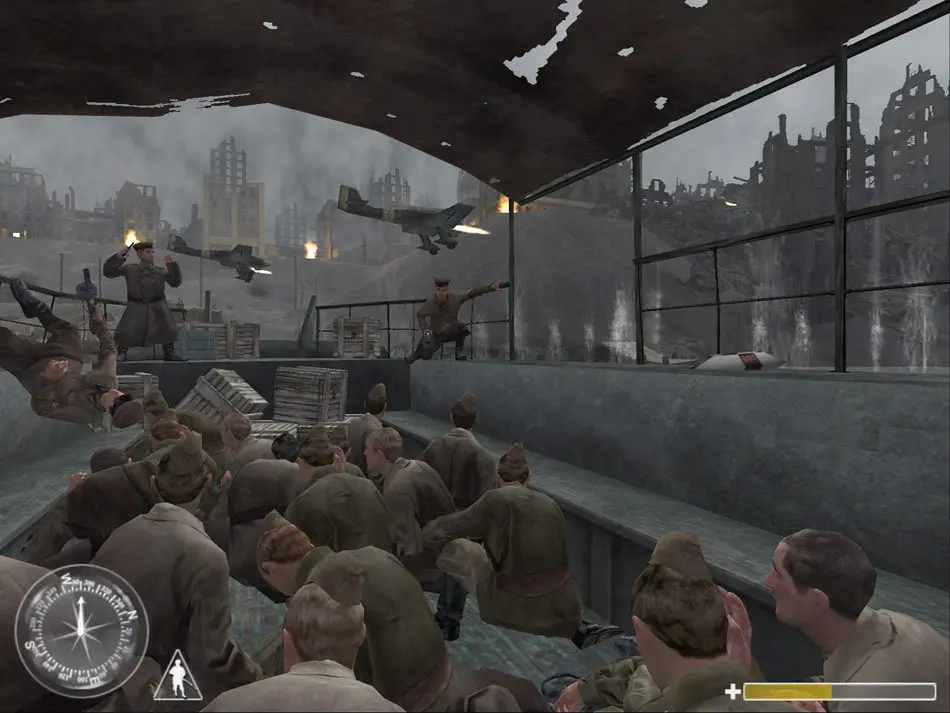
The following elements are consistently present across most Call of Duty titles from the Xbox 360/PS3 era, providing you with the data needed to make split-second decisions:
-
Minimap:
Located in the top-left corner of your screen, the minimap is your primary source of real-time tactical information. It displays:
- Teammate Positions: Represented by blue or green dots/chevrons, allowing you to coordinate pushes or cover flanks.
- Enemy Positions: Enemies who fire unsuppressed weapons or are revealed by UAVs (Unmanned Aerial Vehicles) will briefly appear as red dots. Pay close attention to these fleeting indicators.
- Objective Locations: Marked by specific icons (e.g., flags for Domination, bomb sites for Search & Destroy), guiding you to the current mission parameters.
- Spawn Points: Often indicated by small arrows or icons, helping you anticipate enemy movement or plan your next push.
Strategy Tip: Develop the habit of glancing at your minimap every few seconds. It's a powerful tool for predicting enemy rotations and avoiding ambushes.
-
Compass/Directional Indicator:
Positioned at the top-center of your screen, this horizontal bar indicates cardinal directions (N, S, E, W) and displays various markers:
- Objective Markers: Arrows or icons pointing towards your current objective, even if it's off-screen.
- Enemy Callouts: When teammates call out enemy positions, a small red indicator might briefly appear on the compass in that direction, helping you pinpoint threats.
- Killstreak Targets: If you've activated an aerial killstreak (like a Predator Missile or Airstrike), the compass will often guide you to potential targets.
Actionable Advice: Use the compass in conjunction with the minimap to get a complete picture of the battlefield. When communicating with teammates, refer to compass directions for precise enemy locations (e.g., "Enemy at 270 degrees!").
-
Health Status (Visual Cues):
Unlike modern titles, Call of Duty games on Xbox 360/PS3 primarily utilized a regenerating health system without an explicit health bar. Your health status is communicated through:
- Screen Blood Splatter/Red Tint: As you take damage, your screen will progressively become redder and show blood effects. The more intense the red, the lower your health.
- Muffled Audio: Taking significant damage often results in muffled sound effects, indicating a critical health state.
- Heartbeat Sound: In some titles, a faint, rapid heartbeat sound might accompany low health.
- Visual Distortion/Blur: Severe damage can sometimes cause temporary visual distortion or blurring around the edges of your screen.
Common Pitfall: Do not wait for a health bar to appear. When your screen turns red, immediately seek cover and allow your health to regenerate. Regeneration typically begins after a few seconds of not taking damage.
-
Ammunition Count:
Located in the bottom-right corner, this crucial display shows your weapon's current ammunition status:
- Current Magazine Capacity: The first number indicates how many rounds are left in your active magazine.
- Total Reserve Ammunition: The second number shows your total remaining ammunition for that weapon, stored in your inventory.
Strategy Tip: Always be aware of your ammo count. Reload proactively during lulls in combat, especially after an engagement, to avoid being caught with an empty magazine in a firefight. Listen for the distinct reload sound cue.
-
Killstreak Progress:
Typically displayed near the bottom-center or bottom-right of your screen, this element tracks your progress towards earning your selected Killstreaks. In the Xbox 360/PS3 era, this was usually a simple numerical counter:
- Each enemy kill without dying would increment this counter.
- Once you reached the required number of kills for a specific Killstreak (e.g., 3 for a UAV, 5 for an Airstrike), a prompt would appear, usually with a specific button input (e.g., "Press D-Pad Right for UAV").
Actionable Advice: Keep an eye on your killstreak counter. Once you earn a killstreak, consider when and where to deploy it for maximum impact. For example, a UAV is best used when your team is pushing an objective, while an Airstrike can clear out entrenched enemies.
-
Objective Markers & Prompts:
Throughout gameplay, various icons and text prompts will appear on your HUD and minimap to guide you:
- Objective Icons: Specific symbols indicating bomb sites, capture points, flag locations, or extraction zones.
- Contextual Prompts: Text like "Press X to Plant Bomb," "Hold Square to Defuse," or "Press [Button] to Interact" will appear when you are near an interactable objective.
- Score Updates: In objective-based modes, score updates and progress bars (e.g., for capturing a flag) will often appear centrally or at the top of the screen.
Strategy Tip: Always prioritize objectives. While kills are satisfying, securing objectives is often the key to victory in most game modes.
-
Scoreboard/Player List (Accessed Manually):
While not a constant UI element, pressing the "Back" button (Xbox 360) or "Select" button (PS3) will bring up the scoreboard. This displays:
- Player names, scores, kills, and deaths for both teams.
- Your current ping (latency).
- The overall game score and time remaining.
Actionable Advice: Check the scoreboard periodically to assess team performance, identify high-threat enemies, and understand the current state of the match. Just do so when you're in a safe location!
Customizing your HUD settings, if available in the specific title, can also help improve visibility and tailor the UI to your personal preferences. Familiarize yourself with these classic UI elements, and you'll be better equipped to dominate the battlefield in any Call of Duty title from this golden era.