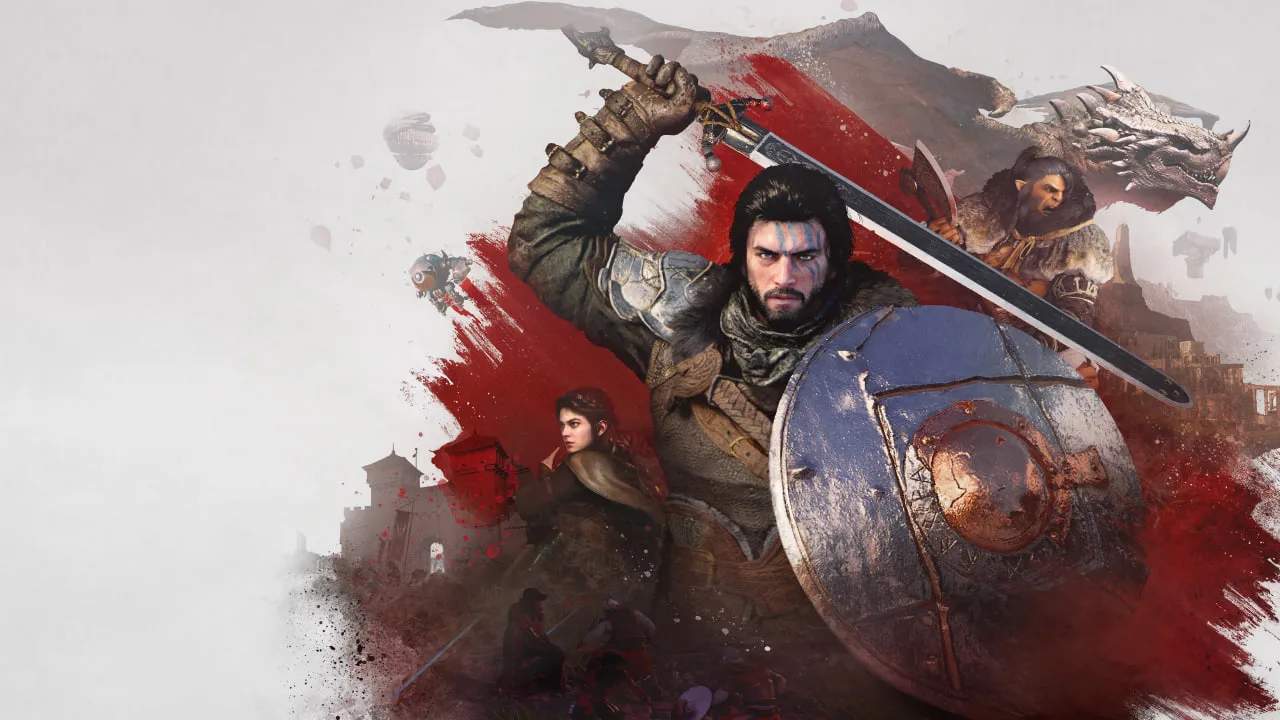
Navigating the interface and understanding the basic controls are the first steps to mastering Crimson Desert. The User Interface (UI) provides vital information at a glance, from your health and stamina to your current objectives and available abilities. Familiarizing yourself with these elements will significantly enhance your gameplay experience, allowing you to react quickly and efficiently in any situation. This section will break down the essential UI components and the fundamental controls that govern your character's actions.
The UI typically features a health bar, stamina gauge, mini-map, quest log, and quick-slot inventory. Understanding how to interpret these elements is crucial for survival and progression. Similarly, mastering the basic controls for movement, combat, and interaction will allow you to execute complex maneuvers and respond effectively to the dynamic challenges presented in the game world. We'll cover both keyboard and mouse for PC, as well as controller inputs for console players.
Movement & Interaction
Movement in Crimson Desert is fluid and responsive. You'll use standard directional inputs to walk, run, and sprint. Interacting with objects, NPCs, and environmental elements is typically mapped to a dedicated button. Pay attention to on-screen prompts, as these will indicate when an interaction is possible and which button to press. Mastering these basics will allow you to explore the vast world and engage with its inhabitants effectively.
Combat Interface
During combat, the UI becomes even more critical. Your health, stamina, and any active buffs or debuffs will be prominently displayed. Understanding your enemy's health bar and any visual cues they provide is essential for strategizing your attacks. The quick-slot inventory allows for rapid use of potions, bombs, and other consumable items, so ensure it's configured to your preference for quick access during intense encounters.