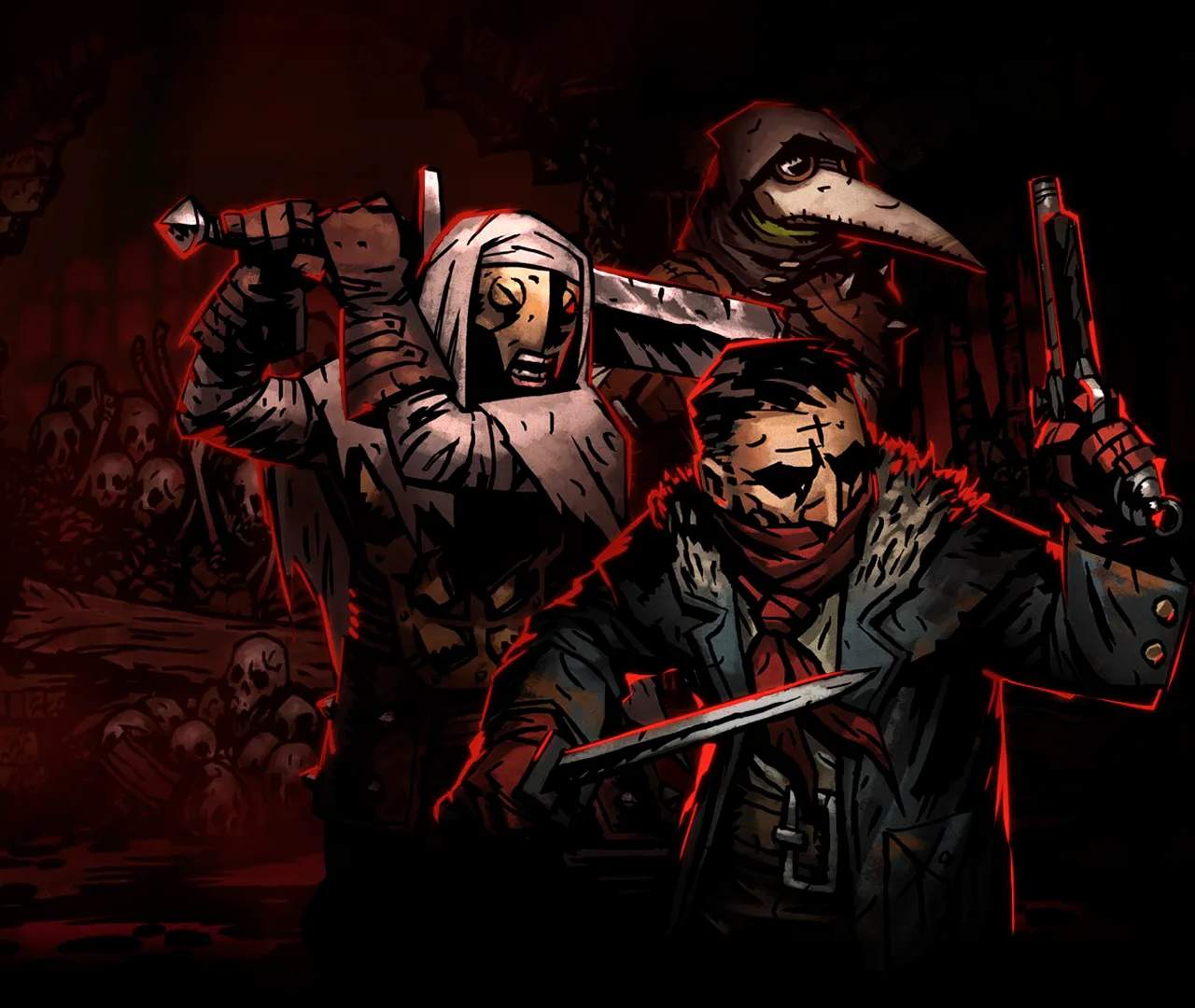
Modding & Community Content
While the Hamlet and its surrounding regions offer countless hours of challenge and despair, the Darkest Dungeon community has cultivated a vibrant ecosystem of modifications that can dramatically alter or enhance your experience. From quality-of-life improvements to entirely new classes and dungeons, modding can breathe new life into your campaigns. This guide will walk you through the essentials of accessing and utilizing this rich content.
Accessing Community Content: The Steam Workshop
The primary hub for Darkest Dungeon mods is the Steam Workshop. This integrated platform makes discovering, subscribing to, and managing mods remarkably straightforward. You won't need to delve into complex file structures or external websites for most modifications.
Step-by-Step: Subscribing to Mods
- Launch Steam: Open your Steam client and navigate to your Library.
- Locate Darkest Dungeon: Find Darkest Dungeon in your game list.
- Access the Workshop:
- Right-click on Darkest Dungeon in your Library and select "Community Hub." From the Community Hub page, click on the "Workshop" tab.
- Alternatively, from the game's store page, you can often find a direct link to the Workshop.
- Browse and Discover:
- The Workshop features various categories, filters, and search functions. You can sort by "Most Popular," "Newest," "Top Rated All Time," or search for specific keywords like "new class," "rebalance," or "cosmetic."
- Popular categories often include:
- New Classes: Introducing unique heroes with distinct skill sets and trinkets.
- New Monsters & Bosses: Expanding the roster of enemies you'll face in the Dungeons.
- Quality of Life (QoL): UI improvements, inventory management enhancements, or minor gameplay tweaks.
- Balance Changes: Reworks of existing heroes, trinkets, or mechanics to offer a different challenge.
- Cosmetic Mods: Alternate skins for heroes, redesigned UI elements, or new sound effects.
- Subscribe to a Mod: Once you find a mod you like, click on its page. On the mod's page, you'll see a large green "Subscribe" button. Clicking this will automatically download and install the mod to your game.
- Launch Darkest Dungeon: After subscribing, launch Darkest Dungeon. The game should automatically detect and load your subscribed mods.
Managing Your Mods In-Game
Upon launching Darkest Dungeon after subscribing to mods, you'll typically find a "Mods" or "DLC" option on the main menu (the exact location might vary slightly with game updates). This menu allows you to:
- Enable/Disable Mods: Toggle individual mods on or off without unsubscribing. This is crucial for troubleshooting or experimenting with different mod combinations.
- Adjust Load Order: For complex mods or those that modify similar game files, load order can be important. The game's mod manager usually allows you to drag and drop mods to change their priority. If two mods conflict, the one loaded later (lower on the list) typically takes precedence.
- Check for Updates: The Steam Workshop automatically handles mod updates. When a mod author pushes an update, Steam will download it for you.
Essential Modding Considerations
Before diving deep into the world of modding, keep these points in mind to ensure a smooth experience:
Compatibility and Conflicts
Not all mods play well together. Mods that alter the same game files or systems can cause conflicts, leading to crashes, unexpected behavior, or broken mechanics. Always read the mod descriptions carefully for any known incompatibilities or recommended load orders. The community forums (like those found on or the official Red Hook Studios forums) are excellent resources for troubleshooting.
Save Game Integrity
While many mods are safe to add or remove mid-playthrough, some can permanently alter your save file. It's highly recommended to:
- Backup Your Saves: Before installing any significant mods, especially those that add new classes, monsters, or alter core game mechanics, make a backup of your save files. These are typically located in
C:\Users\[YourUsername]\Documents\Darkest\profile_nameon Windows. - Start a New Campaign: For extensive overhauls or collections of many mods, starting a fresh campaign is often the safest and most recommended approach to avoid unforeseen issues.
Performance
While Darkest Dungeon is not an incredibly demanding game, adding a large number of complex mods, especially those with new art assets or intricate scripts, can sometimes impact performance. If you experience slowdowns, try disabling mods one by one to identify the culprit.
Beyond the Workshop: Community Resources
While the Steam Workshop is your primary tool, the broader Darkest Dungeon community offers invaluable support and additional content:
- Boards: Platforms like host active message boards for Darkest Dungeon. These are excellent places to ask for mod recommendations, troubleshoot issues, or discuss strategies related to specific mods. You'll often find threads dedicated to "A guide for new players" that might include modding advice.
- Official Forums & Discord: The official Red Hook Studios forums and community Discord servers are also great places to connect with mod authors and fellow players.
- Modding Guides: For those interested in creating their own content, various online resources and guides (often found on sites like or dedicated modding wikis) provide "Modding 101" introductions to topics like modeling, texturing, and scripting for Darkest Dungeon.
Embracing the modding community can significantly extend the life and variety of your Darkest Dungeon experience. Experiment, explore, and most importantly, have fun with the countless ways to customize your journey into the darkest reaches of the Estate!
Compare modding & community content inKenshi