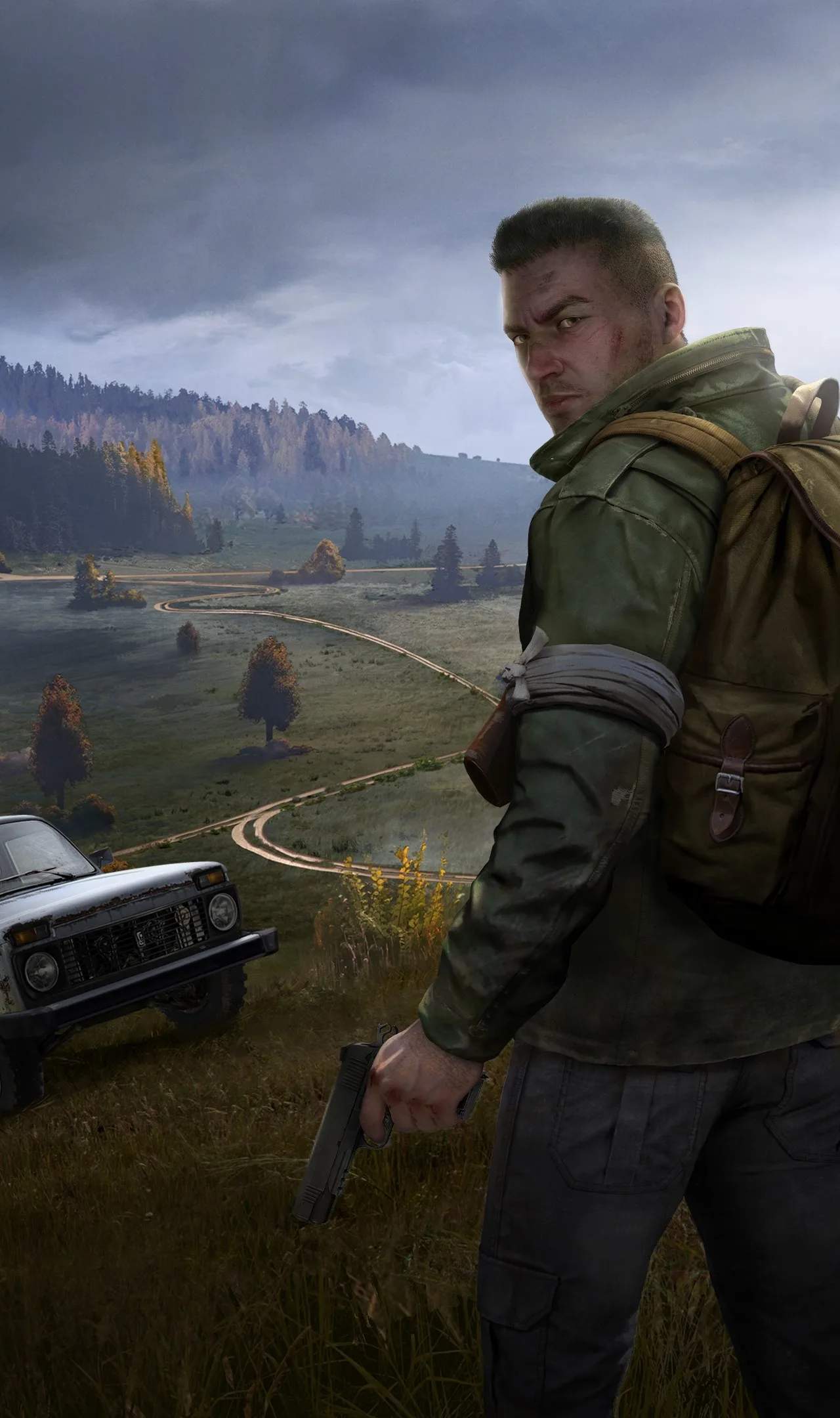
DayZ is a demanding survival simulation, and optimizing your game settings is crucial for a smooth and enjoyable experience. Proper configuration can sificantly improve performance, reduce input lag, and enhance visual clarity, giving you a competitive edge. essential game settings and optimization techniques to get the most out of your DayZ playthrough.
Video Settings for Performance
The core of optimization lies in balancing visual fidelity with frame rate. Start with these recommendations:
- Resolution: Set this to your monitor's native resolution for the sharpest image.
- Aspect Ratio: Usually "Automatic" or "Fill."
- Graphics Quality: This is a major performance slider. Start with "Medium" or "Low" and adjust upwards if your system can handle it.
- Texture Quality: "Medium" or "High" is often acceptable if you have sufficient VRAM. Lowering this can help on older GPUs.
- Shadows: "Low" or "Off." Shadows are incredibly performance-intensive.
- Object Detail: "Low" or "Medium." Reduces the complexity of rendered objects.
- View Distance: This sificantly impacts performance. Lowering it can drastically improve FPS, especially in open areas. Experiment to find a balance between visibility and performance.
- Post-Processing: "Low" or "Off." Effects like bloom and motion blur can be turned off.
- Anti-Aliasing: "Low" or "Off." While it smooths edges, it can be a performance hog.
- Vsync: "Off" is generally recommended for lower input lag, but can cause screen tearing. If tearing is unbearable, consider "Adaptive Vsync" in your GPU control panel.
Audio Settings
Sound is critical in DayZ for detecting zombies and other players. Ensure your audio is configured correctly:
- Master Volume: Adjust to your preference.
- Voice Chat Volume: Ensure you can hear your teammates clearly.
- Enable "Enable Voice" and "Enable Music": Music can be distracting; many players disable it.
Controls and Input
Fine-tuning your controls can improve reaction times:
- Mouse Sensitivity: Adjust to a comfortable level that allows for quick aiming and precise movements.
- Keybinds: Consider remapping frequently used actions to more accessible keys.
- Toggle vs. Hold: For actions like sprinting or aiming, decide whether you prefer to hold the key or toggle it.
System and Driver Optimization
Beyond in-game settings, external factors play a role:
- Update Graphics Drivers: Always ensure you have the latest drivers for your NVIDIA or AMD graphics card.
- Close Background Applications: Shut down unnecessary programs that consume CPU and RAM resources.
- Windows Game Mode: Ensure Windows Game Mode is enabled for potential performance boosts.
- Launch Options (Steam): For advanced users, specific launch options can sometimes improve performance, but use with caution and research thoroughly.
Testing and Tweaking
The best settings are often system-dependent. After applying these recommendations, load into the game and test your performance in different scenarios (e.g., in a town, in the wilderness). Use the in-game FPS counter (Ctrl+Alt+F) to monitor your frame rate and adjust settings incrementally until you find a satisfactory balance.