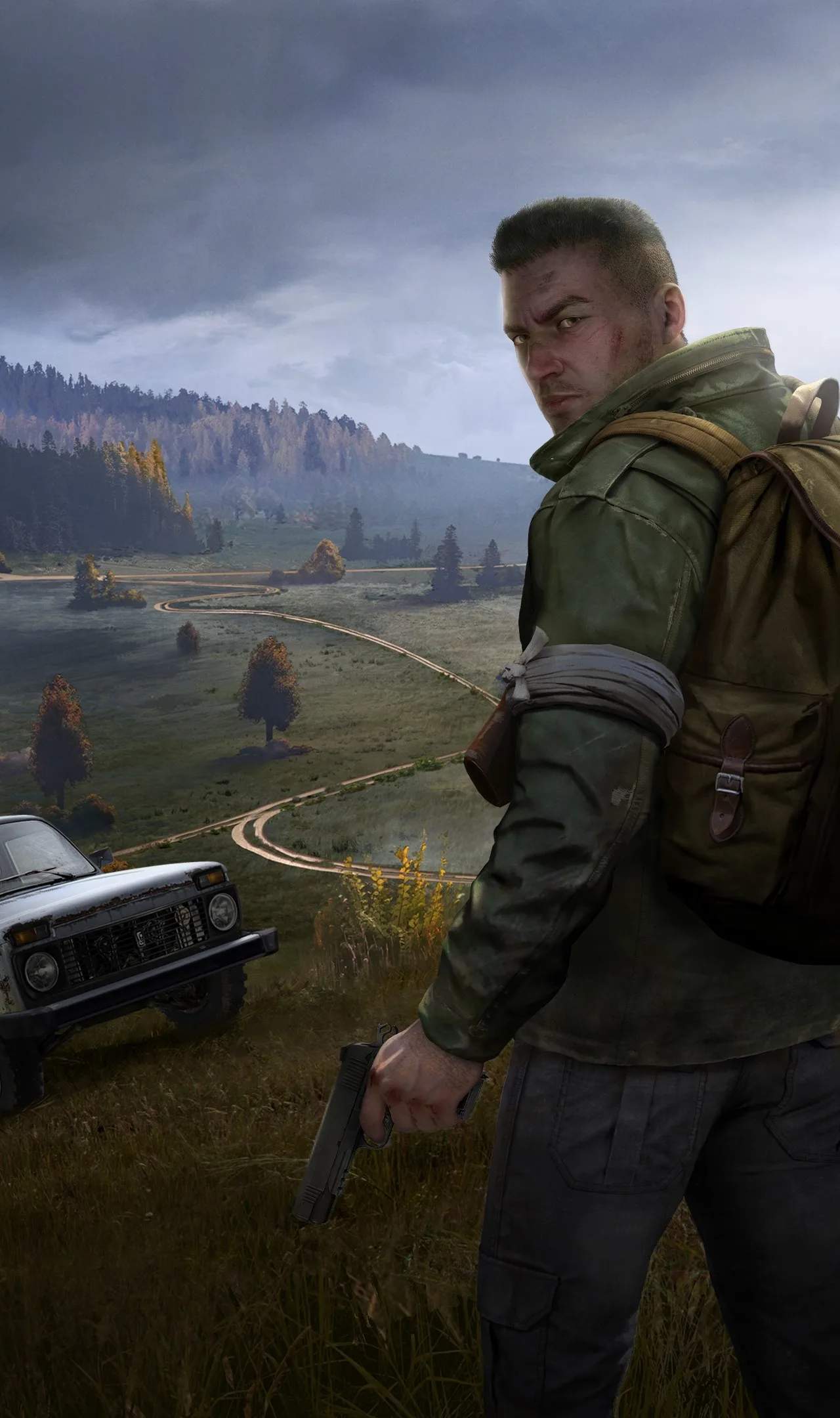
Ever dreamed of shaping your own DayZ experience? Creating your own server allows you to control the rules, mods, and gameplay settings, catering to a specific community or playstyle. This basic guide will walk you through the initial steps of setting up a DayZ server, focusing on the fundamental requirements and configuration options.
Prerequisites for Server Hosting
Before you can host a DayZ server, you'll need a few things:
- A Dedicated PC: While it's possible to host from your gaming PC, it's highly recommended to use a separate, powerful machine. This prevents performance issues on your gaming rig and ensures server stability.
- A Stable Internet Connection: A high-speed, low-latency internet connection is crucial for a smooth server experience for all players. Upload speed is particularly important.
- DayZ Server Files: These are available for free via Steam. You'll need to download the "DayZ Server" application from your Steam library.
- Basic Networking Knowledge: Understanding port forwarding and firewalls is essential.
Downloading and Installing Server Files
- Launch Steam.
- Go to your Library.
- Under the "Tools" category, find "DayZ Server."
- Install it. The server files will be downloaded to your computer.
Basic Server Configuration
Once installed, you'll find a folder containing the server files. The key configuration files are typically located within a "config" or "server" subfolder.
- serverDZ.cfg: This is the main configuration file. You'll edit this to set basic server parameters.
- Other .cfg files: Depending on your setup, you might have additional configuration files for specific mods or settings.
Key Settings in serverDZ.cfg:
| Parameter | Description | Example |
|---|---|---|
| name | The name of your server as it appears in the browser. | My Awesome DayZ Server |
| password | Set a password for private servers. Leave blank for public. | MySecretPassword |
| maxPlayers | The maximum number of players allowed. | 32 |
| voteKickAllowed | Enables or disables player voting to kick others. | 1 (Enabled) |
| disableVoN | Disables in-game voice chat. | 0 (Enabled) |
Port Forwarding
For players outside your local network to connect, you need to forward specific ports on your router to your server PC. The default ports for DayZ are:
- 2302 (UDP): For game traffic.
- 2303 (UDP): For server query.
- 2304 (UDP): For BattlEye anti-cheat.
Consult your router's manual or search online for instructions on how to port forward for your specific router model.
Launching the Server
You'll typically launch the server using a batch file (.bat). A basic launch command might look like this:
start DayZServer_x64.exe -config=serverDZ.cfg -port=2302 -dologs -adminLogFile=admin.log -playerLogFile=players.logThis command starts the server executable, points it to your configuration file, sets the port, and enables logging.
Next Steps and Further Learning
This is just the beginning. To run a fully functional and modded server, you'll need to explore:
- Mod Installation: Learning how to add and configure mods.
- Advanced Configuration: Tweaking loot tables, AI behavior, and other gameplay parameters.
- Server Management Tools: Using external tools for easier administration.
Creating a server is a rewarding experience, but it requires patience and a willingness to learn. Start with the basics, test thoroughly, and gradually expand your server's capabilities.