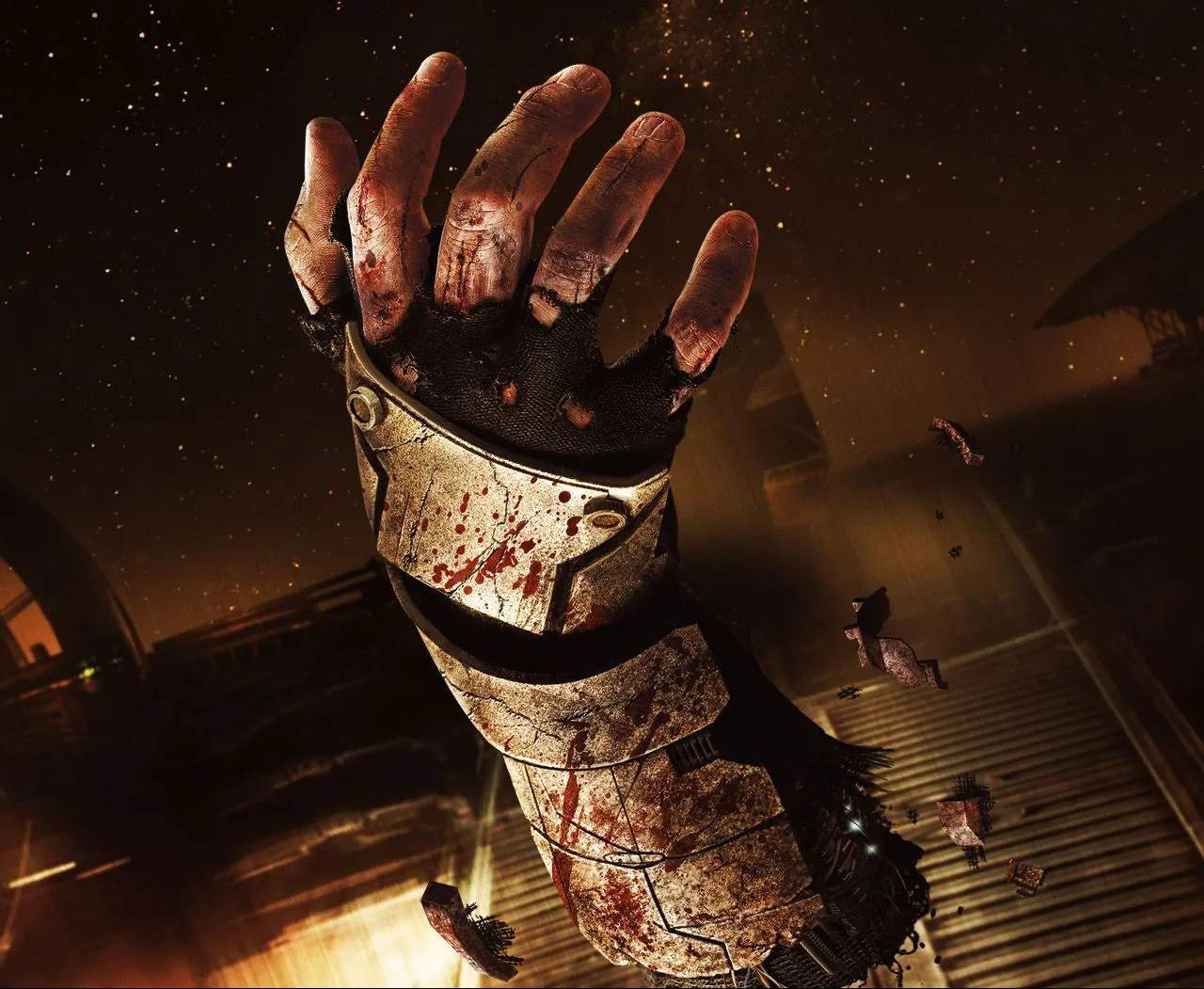
User Interface (UI) Explained — Dead Space (Remake) Guide
Master the interface of Dead Space (Remake) to stay informed and in control during your fight for survival. This guide breaks down every element of the UI, from health and ammo indicators to the vital RIG status and objective markers, ensuring you never miss a crucial piece of information.
The User Interface (UI) in Dead Space (Remake) is designed to be immersive, integrating vital information directly into Isaac's RIG suit and the game world. Understanding each component is crucial for managing your resources, tracking your health, and navigating the treacherous environment of the USG Ishimura. This guide will demystify the UI, empowering you to make informed decisions in the heat of battle.
Core UI Elements
The majority of your essential information is displayed directly on Isaac's RIG suit or within the game world, minimizing intrusive on-screen elements.
- Health Bar (On RIG Spine): Located on the back of Isaac's RIG suit, this bar visually represents his current health. It's segmented, with each segment indicating a portion of his total health. As Isaac takes damage, the bar depletes from right to left.
- Stasis Meter (On RIG Arm): Also displayed on Isaac's left arm, this meter shows the charge level of his Stasis Module. When full, you can deploy Stasis. It depletes with use and recharges over time or via specific pickups.
- Ammo Count (On Weapon): The current ammunition count for your equipped weapon is displayed directly on the weapon itself, usually near the magazine or barrel. This encourages you to visually check your ammo rather than relying solely on a HUD element.
- Objective Marker (In-World): A glowing beacon or directional arrow will appear in the game world, pointing towards your current objective. This is often integrated into the environment, such as a glowing line on the floor or a pulsating light.
Inventory and Menus
Accessing menus brings up more detailed information and management options.
- Inventory Screen: Accessed by pressing the desated button, this screen displays all your carried items, including weapons, ammunition, medkits, and power nodes. You can manage your loadout here, equip different weapons, and use items.
- Map: The in-game map is crucial for navigation. It shows your current location, the layout of the ship, and highlights your objectives, save stations, and stores. Unexplored areas are often shown in a darker shade.
- Upgrade Bench: This is where you'll spend Power Nodes to enhance your weapons and RIG suit. The UI here clearly shows available upgrades, their costs, and their effects.
- Store: The Store interface allows you to purchase and sell items using Credits. You can buy ammo, medkits, weapon schematics, and sell unwanted items or duplicates.
- RIG and Weapon Upgrade Screens: These dedicated screens detail the specific upgrades available for your suit and each weapon, along with their statistical benefits.
Other Important UI Indicators
- Damage Indicators: When Isaac takes damage, visual cues like screen distortion, red flashes, or impact effects will alert you.
- Interaction Prompts: When you are near an interactable object (e.g., a door, a terminal, an item), a prompt will appear, indicating the button to press.
- Status Effects: If Isaac is affected by status effects (e.g., poison, radiation), visual icons or on-screen text will appear to inform you.
Immersive Des Philosophy
Dead Space (Remake) prioritizes an immersive experience by minimizing traditional HUD elements. The information is woven into the fabric of the game, making You feel more present within Isaac's struggle. By paying close attention to the RIG's displays and the in-world cues, you'll be better equipped to survive the horrors of the Ishimura.