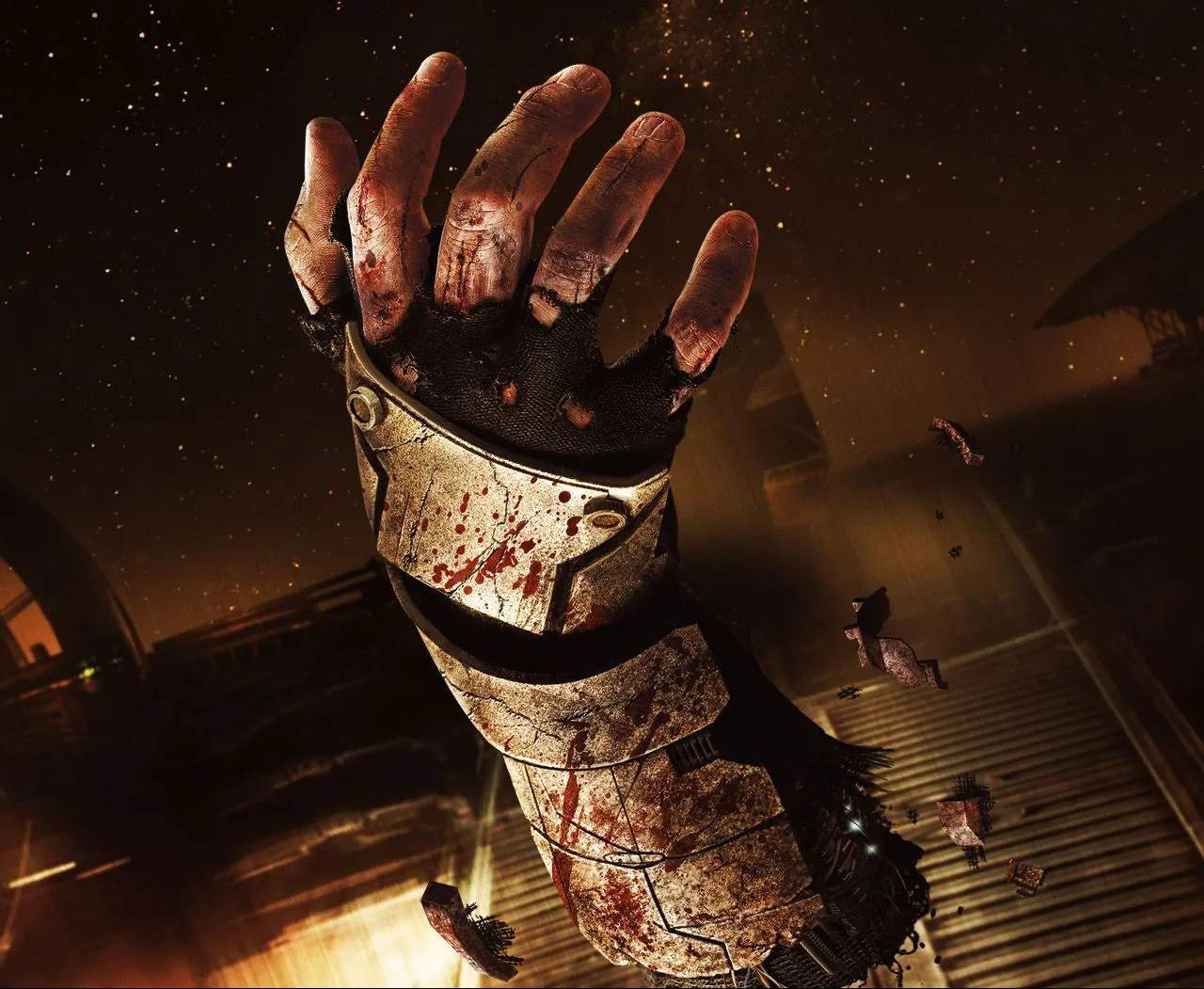
Experiencing technical difficulties on PC can be frustrating, especially when trying to immerse yourself in the terrifying world of Dead Space (Remake). This section provides common issues and their potential fixes to help you get back to surviving the Ishimura.
Common PC Issues and Solutions
Dead Space (Remake) is a demanding title, and various factors can lead to performance problems or crashes. Here are some of the most frequently encountered issues and their solutions:
1. Game Crashing or Freezing
- Outdated Graphics Drivers: Ensure your NVIDIA or AMD graphics drivers are up to date. Visit the manufacturer's website to download the latest versions.
- Overheating: Overheating components can cause instability. Monitor your CPU and GPU temperatures using software like MSI Afterburner or HWMonitor. Ensure your PC has adequate cooling and clean out dust from fans and heatsinks.
- Corrupted Game Files: Use the 'Verify Integrity of Game Files' option in Steam or the equivalent in your game launcher. This will check for and repair any damaged or missing game files.
- Background Applications: Close unnecessary background applications that might be consuming system resources.
- DirectX Issues: Ensure you have the latest version of DirectX installed.
2. Low Frame Rate (FPS) or Stuttering
- Graphics Settings: Lowering graphics settings such as texture quality, shadow detail, ambient occlusion, and anti-aliasing can significantly improve performance. Experiment with different settings to find a balance between visual fidelity and frame rate.
- Resolution Scaling: If your GPU struggles, consider using resolution scaling options if available in the game's settings. Lowering the rendering resolution can boost FPS.
- V-Sync: Try toggling V-Sync on or off. Sometimes, disabling it can reduce input lag and stuttering, though it might introduce screen tearing.
- Power Plan: Ensure your Windows power plan is set to 'High Performance' to prevent the CPU from throttling.
3. Input Lag or Unresponsive Controls
- Controller vs. Keyboard/Mouse: If using a controller, try a different USB port or a different controller if possible. If using keyboard and mouse, ensure no other input devices are interfering.
- Game Mode: Ensure Windows Game Mode is enabled.
- Graphics Driver Settings: Some graphics driver settings, like low latency modes, can be adjusted to improve responsiveness.
4. Shader Compilation Stuttering
Some games, especially those built on newer engines, may experience stuttering during the initial shader compilation phase. This usually happens when first launching the game or after a driver update. Allow the game to run for a while; the stuttering should decrease as shaders are compiled.
5. Audio Issues
- Audio Drivers: Update your sound card drivers.
- Audio Output Device: Ensure the correct audio output device is selected in both Windows and the game's audio settings.
- Spatial Audio: Some users report issues with certain spatial audio technologies. Try disabling them in Windows sound settings.
Troubleshooting Steps Summary
- Update Graphics Drivers.
- Verify Game Files.
- Adjust Graphics Settings.
- Monitor Temperatures.
- Close Background Applications.
- Check for Windows Updates.
If you continue to experience issues, consult the game's official support forums or community pages for more specific solutions related to your hardware configuration.