Installation and Launch
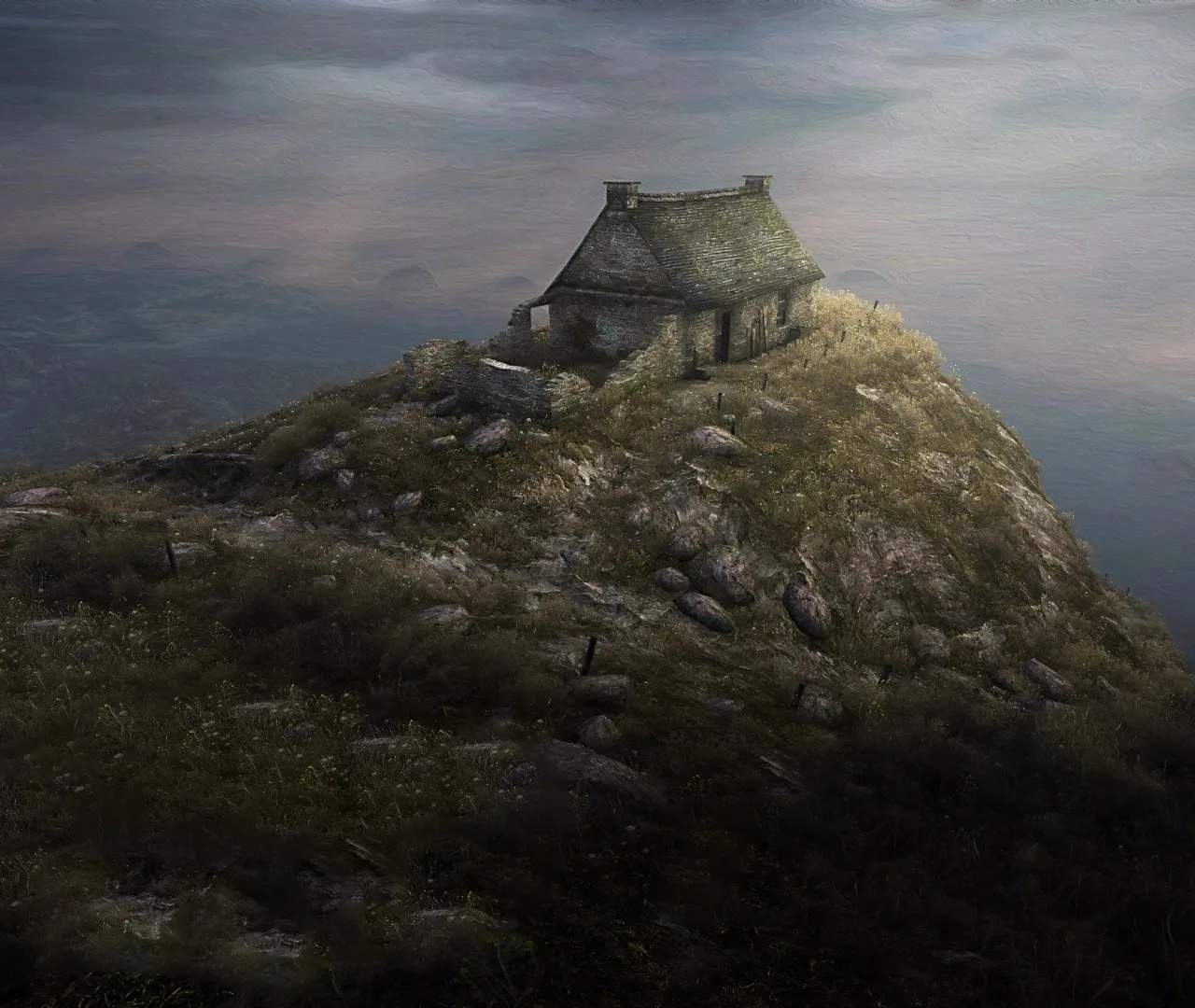
Embarking on the atmospheric journey of Dear Esther is a straightforward process, designed to immerse you quickly into its haunting narrative. This guide will walk you through the installation and launch procedures for all available platforms: PC (Windows), macOS, and iOS. Ensuring a smooth setup will allow you to fully appreciate the game's unique blend of exploration, evocative narration, and stunning visuals.
System Requirements: Ensuring a Smooth Experience
Before you begin, it's always wise to check if your system meets the minimum requirements. While Dear Esther is not a graphically demanding title by modern standards, meeting these specifications will prevent performance issues and ensure the best possible experience, particularly with its crucial visual and audio elements.
PC (Windows) Minimum Requirements:
- OS: Windows XP/Vista/7/8/10/11
- Processor: Intel Pentium 4 3.0 GHz or equivalent
- Memory: 2 GB RAM
- Graphics: DirectX 9 compatible graphics card with 128 MB video RAM (e.g., ATI Radeon X800 or NVIDIA GeForce 7600)
- DirectX: Version 9.0c
- Storage: 2 GB available space
- Sound Card: DirectX 9.0c compatible sound card
- Notes: An internet connection is required for initial activation and updates via Steam.
macOS Minimum Requirements:
- OS: macOS 10.6.6 or later
- Processor: Intel Core 2 Duo 2.4 GHz or equivalent
- Memory: 2 GB RAM
- Graphics: ATI Radeon HD 2400 / NVIDIA GeForce 8600M or better
- Storage: 2 GB available space
- Notes: An internet connection is required for initial activation and updates via Steam.
iOS Minimum Requirements:
- Device: iPhone 6S / iPad Air 2 / iPad Mini 4 or newer
- OS: iOS 13.0 or later
- Storage: Approximately 2 GB available space
- Notes: Performance may vary on older devices. Ensure your device has sufficient battery life or is connected to power for extended play sessions.
Pro Tip: For the most up-to-date and detailed system requirements, always refer to the official store page (Steam for PC/macOS, Apple App Store for iOS) as specifications can occasionally be updated.
Installation Guide: Getting the Game Ready
1. PC (Windows) & macOS Installation via Steam:
The PC and macOS versions of Dear Esther are primarily distributed through Steam, Valve's digital distribution platform. If you don't already have a Steam account and the client installed, you'll need to set those up first.
- Purchase the Game: Navigate to the Dear Esther store page on Steam. You can do this through the Steam client or via a web browser. Click the "Add to Cart" or "Buy Now" button and complete the purchase process.
- Access Your Library: Once purchased, the game will appear in your Steam Library. Open the Steam client and click on "Library" at the top of the window.
- Initiate Installation: Locate "Dear Esther" in your game list on the left-hand side. Click on it, then click the large "Install" button on the game's page.
- Choose Installation Location (Optional): Steam will prompt you to choose an installation directory. The default location is usually fine, but you can select a different drive or folder if you prefer.
- Monitor Download: The game will begin downloading. You can monitor its progress in the "Downloads" section of the Steam client (accessible by clicking "Downloads" at the bottom of the Steam window). The download size is approximately 2 GB.
- Completion: Once the download and installation are complete, the "Install" button will change to "Play".
2. iOS Installation via Apple App Store:
The iOS version of Dear Esther is available exclusively through the Apple App Store.
- Open the App Store: On your iPhone or iPad, tap the "App Store" icon.
- Search for Dear Esther: Tap the "Search" tab (magnifying glass icon) at the bottom of the screen. Type "Dear Esther" into the search bar and tap "Search".
- Locate the Game: Find "Dear Esther" by The Chinese Room in the search results. Tap on its icon to view the product page.
- Purchase and Download: Tap the price button (e.g., "$4.99") or the "GET" button if it's a free-to-play title (though Dear Esther is a premium game). You may be prompted to authenticate your purchase using Face ID, Touch ID, or your Apple ID password.
- Monitor Download: The app icon will appear on your Home Screen with a progress circle indicating the download status. Ensure you have a stable Wi-Fi connection for faster download times, especially for larger games like this.
- Completion: Once downloaded and installed, the app icon will be fully visible, and the progress circle will disappear.
Launching the Game: Stepping into the Hebrides
1. Launching on PC (Windows) & macOS:
After successful installation via Steam, launching Dear Esther is straightforward.
- From Steam Library: Open the Steam client, go to your "Library," select "Dear Esther" from your game list, and click the large "Play" button.
- From Desktop Shortcut (Optional): If you opted to create a desktop shortcut during installation, you can simply double-click that icon to launch the game.
Upon first launch, you might encounter a brief setup process for DirectX or other necessary components. Allow these to complete. The game will then proceed to the main menu.
2. Launching on iOS:
Once Dear Esther is installed on your iPhone or iPad, launching it is as simple as launching any other app.
- From Home Screen: Locate the Dear Esther app icon on your device's Home Screen or in your App Library and tap it.
The game will load directly into its main menu. There are no complex setup options; the game is designed to be immediately accessible, allowing you to dive straight into its unique narrative experience.
Initial Setup and Recommended Settings
While Dear Esther is designed for immediate play, a few initial considerations can enhance your experience:
- Audio Experience: We cannot stress this enough: play with headphones. The sound design in Dear Esther is not merely background noise; it is an integral part of the narrative, atmosphere, and emotional impact. Every whisper, wave crash, and distant echo contributes significantly to the immersion.
- Graphics Settings (PC/macOS): From the main menu, you can access "Options" or "Settings." Here, you can adjust display resolution, texture quality, shadow detail, and anti-aliasing. If you experience any performance issues, try lowering these settings. For a first playthrough, we recommend aiming for a stable frame rate over absolute maximum graphical fidelity.
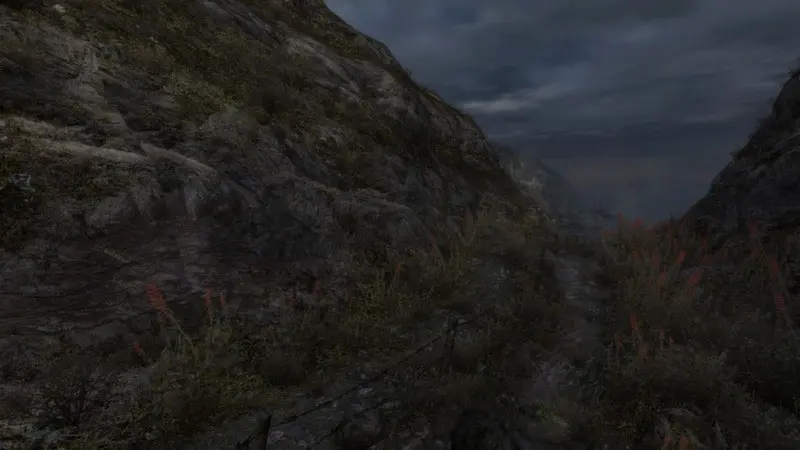
- Brightness/Gamma: The game features many dark, atmospheric areas. If you find it difficult to see, adjust the brightness or gamma settings in the game's options.
- Subtitles: While the narration is clear, enabling subtitles can be helpful for those who prefer to read along or in environments where audio might be difficult to hear clearly. This option is usually found in the "Audio" or "Display" settings.
With these steps completed, you are now fully prepared to begin your solitary journey across the desolate Hebridean island. Prepare for an experience unlike any other, where every step unveils a piece of a fragmented, poetic mystery.