Understanding the User Interface (UI) is crucial for managing your party, items, and progress. The UI in Deltarune is clean and straightforward, providing all necessary information without clutter.
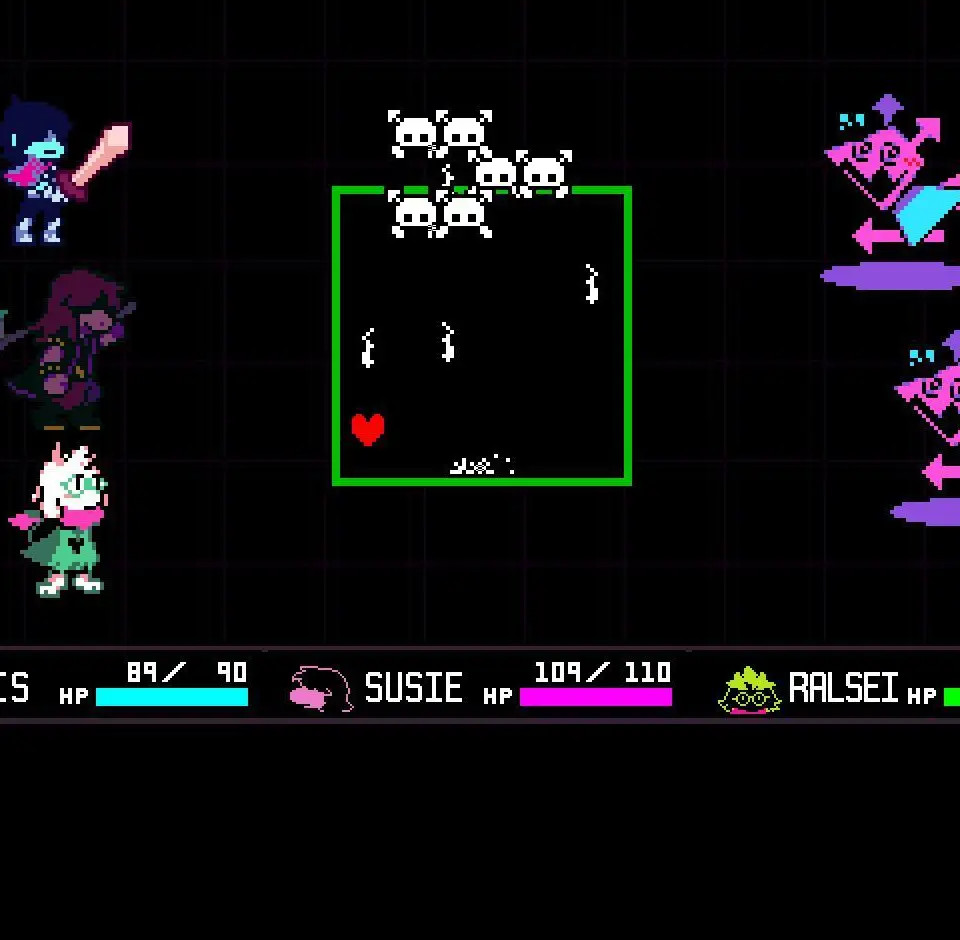
Main Screen UI:
- HP Bars: Located at the bottom left, these show the current health of Kris, Susie, and Ralsei. Keep an eye on these during combat.
- TP Bar: The blue bar next to your HP represents your Tension Points (TP). TP is gained by dodging attacks and is used to cast Ralsei's spells.
- Dialogue Box: Appears at the bottom of the screen during conversations, displaying character dialogue.
- Location Indicator: Sometimes appears at the top left, showing your current area.
Menu UI (Accessed by 'X' or 'Shift'):
- ITEMS: Manage your inventory, use consumables, and equip armor.
- SPARE: View the spare conditions for enemies you've encountered.
- EQUIP: Change Kris's, Susie's, and Ralsei's weapons and armor.
- STATS: Check your party members' current stats, including Attack, Defense, Magic, and Speed.
- SAVE: Save your game progress at designated save points (represented by a star).
- CONFIG: Adjust game settings like volume, display, and controls.
Familiarize yourself with these menus early on, especially the ITEMS and EQUIP sections, as managing your resources effectively is vital for survival.