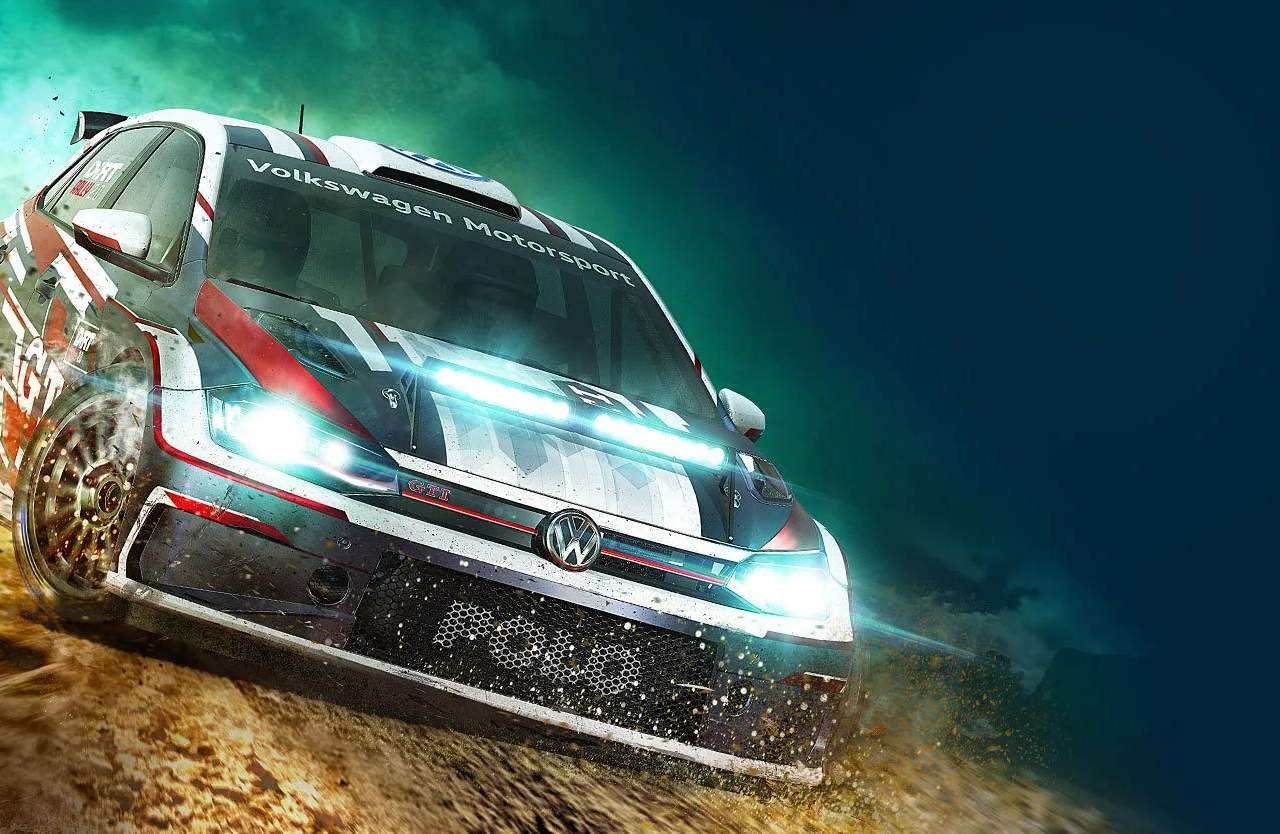
Replay System & Photo Mode
Dirt Rally 2.0 offers a robust Replay System and an integrated Photo Mode, allowing you to relive your most epic moments, analyze your driving, and capture stunning screenshots of your rally career. Mastering these tools can significantly enhance your understanding of track dynamics and provide a creative outlet for showcasing your skills.
Accessing Replays
After completing any stage, event, or championship race, you will be presented with the option to view a replay. This option typically appears on the post-race results screen, often labeled as "View Replay" or similar. You can also access saved replays from the main menu under the "My Profile" or "Extras" sections, depending on the game mode.
- Post-Race Screen: Immediately after finishing a stage, look for the "Replay" button.
- Main Menu: Navigate to "My Profile" > "Replays" to browse and load previously saved replays.
Replay Controls & Features
The replay system in Dirt Rally 2.0 is highly interactive, providing a suite of tools to control playback and camera angles. Familiarize yourself with these controls to get the most out of your replays:
- Playback Controls:
- Play/Pause: Standard button (e.g., Spacebar on PC, X/A on console) to start or stop the replay.
- Fast Forward/Rewind: Use dedicated buttons (e.g., Right/Left Arrow keys on PC, shoulder buttons on console) to quickly navigate through the timeline.
- Slow Motion: Often a toggle or hold button (e.g., 'S' key on PC) to view critical moments in greater detail.
- Timeline Scrubbing: A visual timeline allows you to jump to any point in the replay by dragging a cursor or using directional inputs.
- Camera Options:
- Dynamic Cameras: The default view, offering cinematic angles that automatically follow the action.
- Onboard Cameras: Switch between various in-car views, including cockpit, hood, and bumper cameras, to experience the stage from the driver's perspective.
- Chase Cameras: External views that follow your car from different distances and angles.
- Free Camera (Photo Mode): This is where the true power of the replay system lies. Activating Photo Mode (often by pressing a designated button like 'P' on PC or a specific controller input) grants you full control over the camera.
Utilizing Photo Mode
Photo Mode transforms your replay into a virtual photography studio. Once activated, you gain unparalleled control over camera placement and visual settings. This is ideal for capturing high-quality screenshots.
Photo Mode Controls:
- Camera Movement:
- Pan/Tilt: Use mouse or right analog stick to look around.
- Dolly/Zoom: Use keyboard keys (e.g., W, A, S, D) or left analog stick to move the camera closer/further or side-to-side.
- Height Adjustment: Dedicated keys (e.g., Q, E) or controller inputs to raise or lower the camera.
- Advanced Settings:
- Field of View (FOV): Adjust the lens angle to create wide shots or zoomed-in details.
- Depth of Field (DOF): Control the focus of your image, blurring the foreground or background to highlight your car.
- Exposure: Brighten or darken the scene.
- Color Grading/Filters: Apply various visual filters to change the mood and aesthetic of your shot.
- Vignette: Add a subtle darkening effect around the edges of the frame.
- Dirt/Dust Effects: Toggle or adjust the visibility of environmental particles for added realism.
Strategies for Capturing Great Shots:
- Find the Moment: Use the replay timeline to pinpoint exciting moments – a big jump, a dramatic slide, or a close call.
- Choose Your Angle: Experiment with different camera positions. A low angle can emphasize speed, while a higher angle provides a broader view of the environment.
- Composition is Key: Apply basic photography principles like the rule of thirds. Position your car off-center for a more dynamic image.
- Adjust Lighting: Pay attention to the in-game lighting. Golden hour (sunrise/sunset) often provides the most visually appealing light.
- Experiment with DOF: Use Depth of Field to draw attention to your car, blurring out distracting elements in the background or foreground.
- Utilize Filters: Don't be afraid to try different color grading options to enhance the mood of your shot.
- Hide UI: Before taking your screenshot, ensure all UI elements are hidden for a clean, professional look.
The Replay System and Photo Mode are invaluable tools for both analysis and creativity in Dirt Rally 2.0. Take the time to explore their features, and you'll not only improve your driving but also capture breathtaking memories of your rally journey.