Mastering the controls is crucial for efficient building and combat. The game uses a standard third-person perspective with intuitive controls. Here's a breakdown:
Movement & Interaction:
- Left Analog Stick: Move your Builder.
- Right Analog Stick: Control the camera.
- X (PlayStation) / A (Nintendo Switch): Jump.
- Square (PlayStation) / Y (Nintendo Switch): Attack/Mine/Break blocks. Hold for charged attack/faster mining.
- Circle (PlayStation) / B (Nintendo Switch): Place blocks/items. Hold to place multiple blocks quickly.
- Triangle (PlayStation) / X (Nintendo Switch): Open/Close Inventory.
- L1/R1 (PlayStation) / L/R (Nintendo Switch): Cycle through hotbar items.
- L2 (PlayStation) / ZL (Nintendo Switch): Target enemies (hold).
- R2 (PlayStation) / ZR (Nintendo Switch): Use equipped item (e.g., weapon, tool).
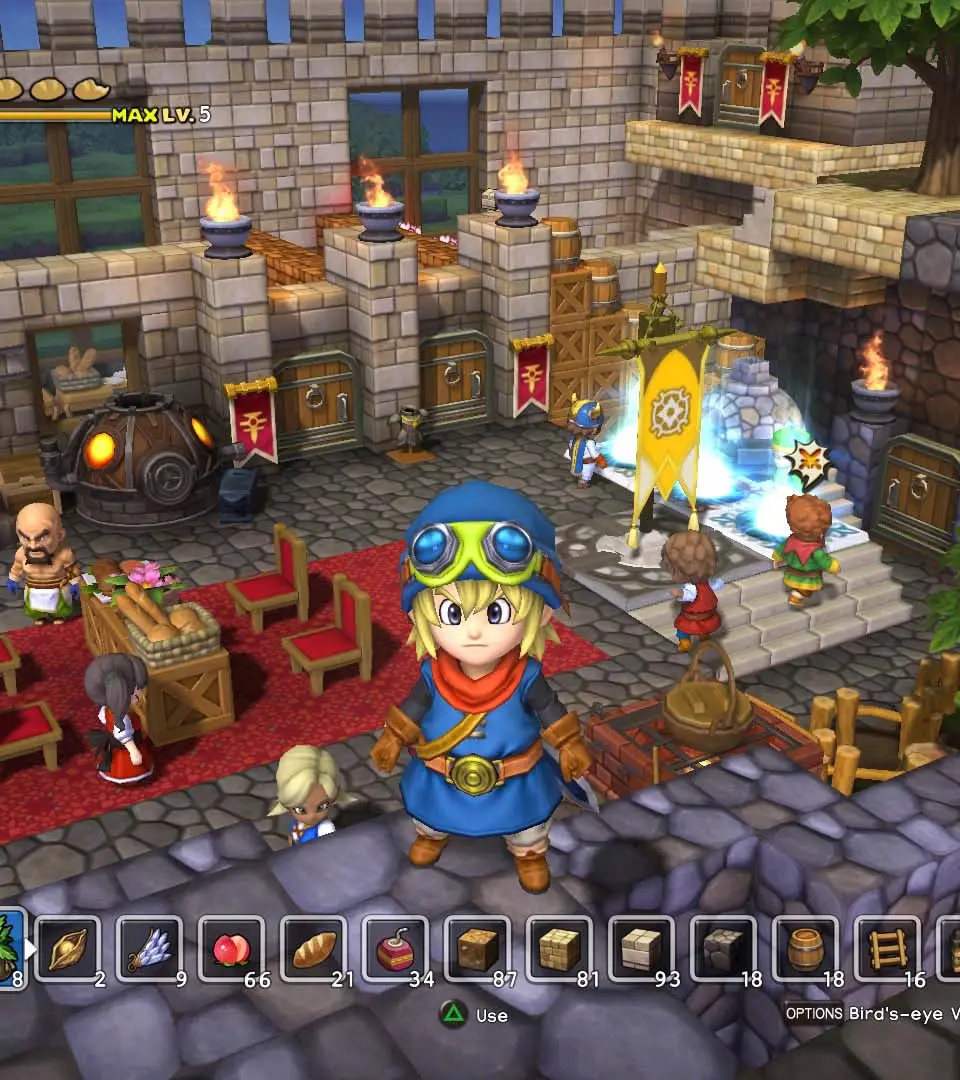
User Interface (UI) Elements:
- Top Left: Health Bar (red hearts), Hunger Bar (yellow meat icons).
- Top Right: Mini-map, showing nearby points of interest and your current objective marker.
- Bottom Left: Hotbar, displaying your currently equipped items.
- Bottom Right: Current objective, often with a hint.
- Center Screen: Crosshair for precise block placement and targeting.
Pay close attention to your health and hunger. Running out of either can be detrimental to your progress. The mini-map is your best friend for navigation, especially in new areas. Get comfortable with switching between items on your hotbar quickly, as this will be vital for both building and combat encounters.