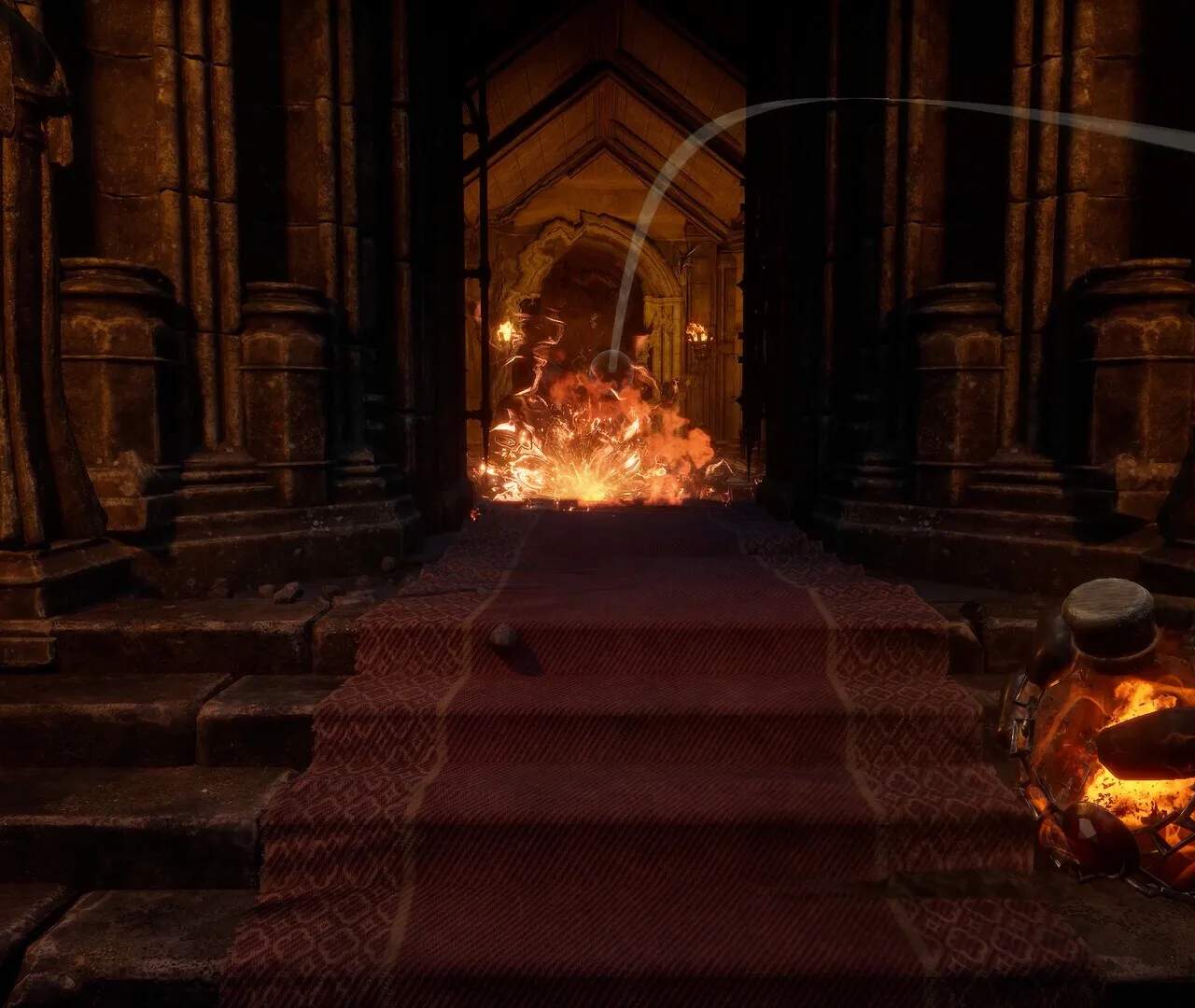
Dungeonborne: Best PC Settings for Max FPS
Achieving the highest possible frame rate (FPS) in Dungeonborne is crucial for a smooth and responsive gaming experience, especially in fast-paced combat scenarios. Optimizing your PC settings can make a significant difference in performance, allowing you to react quicker and enjoy the game more fluidly.
This guide focuses on adjusting in-game graphics settings and some system-level configurations to maximize your FPS. While the ideal settings can vary slightly depending on your specific hardware, these recommendations provide a solid foundation for achieving optimal performance. The goal is to find a balance between visual fidelity and raw frame rate.
In-Game Graphics Settings:
Navigate to the graphics or video settings menu within Dungeonborne. Here are the key settings to adjust:
- Resolution: Set this to your monitor's native resolution for the sharpest image. Lowering resolution can significantly boost FPS but will reduce visual clarity.
- Display Mode: Always use 'Fullscreen' mode. Borderless Windowed can sometimes introduce slight performance overhead.
- V-Sync: Turn V-Sync OFF. While it prevents screen tearing, it can cap your FPS and introduce input lag. If screen tearing is unbearable, consider using adaptive sync technologies like G-Sync or FreeSync if your monitor and GPU support them.
- Graphics Quality Presets: Start with a 'Low' or 'Medium' preset and then fine-tune individual settings.
- Texture Quality: Set to 'Low' or 'Medium'. High textures consume a lot of VRAM and can impact performance, especially on older cards.
- Shadow Quality: Set to 'Low' or 'Off'. Shadows are one of the most performance-intensive settings.
- Anti-Aliasing: Set to 'Off' or the lowest available setting (e.g., FXAA). Anti-aliasing smooths jagged edges but can be a significant FPS drain.
- Post-Processing Effects: Turn off or set to 'Low'. Effects like bloom, motion blur, and depth of field can impact performance. Motion blur is often a personal preference but generally reduces clarity.
- View Distance/Draw Distance: Set to 'Low' or 'Medium'. This affects how far away objects are rendered.
- Particle Effects: Set to 'Low'. Explosions and spell effects can be very demanding.
- Ambient Occlusion: Set to 'Off'. This adds subtle shading but is computationally expensive.
- Environmental Details: Lower settings for foliage, water, and other environmental elements.
System-Level Optimizations:
- Update Graphics Drivers: Ensure you have the latest drivers for your NVIDIA, AMD, or Intel graphics card. Drivers often include performance optimizations for new games.
- Close Background Applications: Before launching Dungeonborne, close any unnecessary programs running in the background (web browsers, chat applications, etc.) that consume CPU and RAM.
- Power Plan: Set your Windows power plan to 'High Performance' or 'Ultimate Performance'.
- Game Mode: Ensure Windows Game Mode is enabled.
- Overclocking (Advanced): If you are comfortable with it, consider overclocking your CPU and GPU, but do so cautiously and monitor temperatures.
By systematically adjusting these settings, you should be able to achieve a significant boost in your FPS, leading to a smoother and more enjoyable Dungeonborne experience.