Modding and Customization
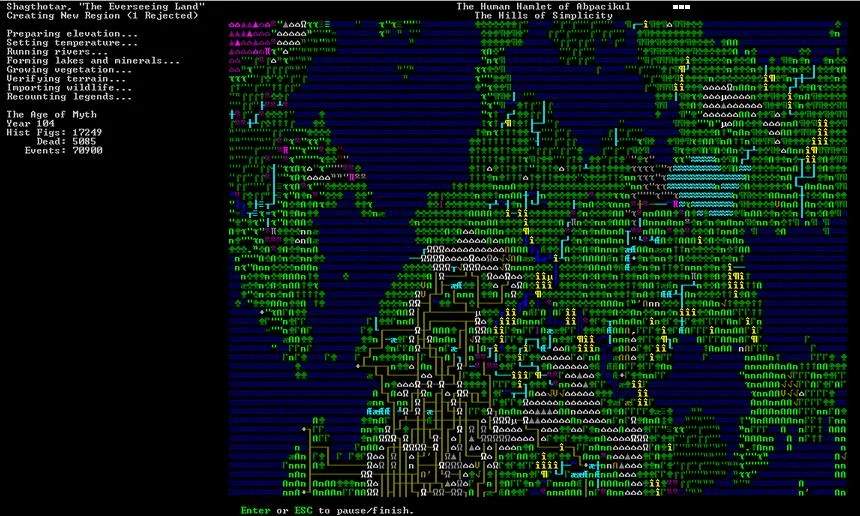
Dwarf Fortress, in its raw ASCII glory, can be a challenging visual experience for newcomers. Thankfully, the community has embraced customization, offering a wealth of options to enhance your gameplay. From graphics packs that transform the game's appearance to utility tools that streamline complex tasks, modding can significantly improve your enjoyment and understanding of this deep simulation.
Getting Started with Graphics Packs
One of the most immediate and impactful ways to customize your Dwarf Fortress experience is by installing a graphics pack. These packs replace the default ASCII characters with more intuitive sprites, making it easier to identify objects, creatures, and terrain.
Finding a Graphics Pack
The Dwarf Fortress community is a vibrant source of custom content. Here’s how to find a suitable graphics pack:
- The Dwarf Fortress Wiki: This is your primary resource. Navigate to the Dwarf Fortress Wiki and search for "graphics pack" or "tile set." The wiki typically hosts a comprehensive list of available packs, often categorized by style (e.g., pixel art, isometric) and compatibility with different game versions.
- Community Forums: Websites like boards (e.g., the Dwarf Fortress board) and the official Bay 12 Games forums are excellent places to find recommendations and direct download links from other players. Look for threads discussing "graphics packs" or "tile sets."
Installation Steps (Standard Method)
While specific instructions may vary slightly between packs, the general installation process is as follows:
- Download the Pack: Obtain the graphics pack archive (usually a .zip or .rar file) from your chosen source.
- Locate Your Dwarf Fortress Directory: This is the folder where you extracted your Dwarf Fortress game files.
- Extract the Pack:
- Open the downloaded graphics pack archive.
- Inside, you'll typically find a folder named
data. - Crucially, merge this
datafolder with the existingdatafolder in your Dwarf Fortress directory. Do not simply replace the entiredatafolder, as this can remove essential game files. Allow your system to merge the contents, overwriting any conflicting files (which are usually the tile sets). - Some packs might have their own specific folder structure; always check the pack's included README file for precise instructions.
- Configure
init.txt:- Navigate to your Dwarf Fortress directory and then into the
data/initfolder. - Open the
init.txtfile with a plain text editor (like Notepad on Windows). - Look for lines related to
[GRAPHICS]and[FONT]. - Change the value of
[GRAPHICS:NO]to[GRAPHICS:YES]. - Adjust the
[FONT:]and[FULLFONT:]entries to match the font file names provided by your graphics pack. These are usuallycurses_640x300.pngor similar, but again, refer to the pack's documentation.
- Navigate to your Dwarf Fortress directory and then into the
- Launch Dwarf Fortress: Start the game. If installed correctly, you should see the new graphics immediately.
Understanding Utility Tools
Beyond visual enhancements, several utility tools exist to simplify various aspects of Dwarf Fortress gameplay. These tools often run alongside the game or process game files to provide additional information or automation.
Recommended Utility Tools
- Dwarf Therapist: This external application is a must-have for managing your dwarf's professions, skills, and labor assignments. It provides a clear, sortable interface that makes micromanaging your fortress population significantly easier than the in-game menus. You can find it on community forums and dedicated Dwarf Fortress utility sites.
- DFHack: A powerful memory utility that offers a wide array of commands and scripts to enhance gameplay, debug issues, and even automate certain tasks. DFHack can be used for things like revealing the map, instantly building structures, or even fixing minor bugs. It's often bundled with popular community packs or available as a standalone download.
- Legends Viewer: For those interested in the rich history and lore generated by Dwarf Fortress, Legends Viewer is an invaluable tool. It allows you to browse and visualize the entire history of your world, including civilizations, historical figures, and significant events, in a much more accessible format than the in-game Legends mode.
Installation and Usage of Utility Tools
Installation procedures for utility tools can vary, but generally involve:
- Download the Tool: Obtain the latest version of the tool from its official source or a trusted community repository.
- Extract to Dwarf Fortress Folder: Many tools, especially DFHack, are designed to be extracted directly into your main Dwarf Fortress game directory. This allows them to interact with the game's files and memory.
- Run the Tool:
- For tools like Dwarf Therapist, you typically run its executable file (e.g.,
DwarfTherapist.exe) *after* launching Dwarf Fortress. It will then connect to your running game. - DFHack is often integrated into a custom launcher or run via a script (e.g.,
DFHack.exeor a batch file) that starts Dwarf Fortress with DFHack enabled. - Legends Viewer is a standalone application that processes your world's
legends_plus.xmlfile, which you generate from within Dwarf Fortress's main menu under "Export Local and Detailed World History."
- For tools like Dwarf Therapist, you typically run its executable file (e.g.,
Advanced Customization: Raw Files
For the truly adventurous, Dwarf Fortress allows direct modification of its "raw" text files. These files define nearly everything in the game, from creature attributes and material properties to building recipes and civilization types. Modifying raw files allows for deep, personalized changes to the game's mechanics.
Locating Raw Files
All raw files are located within your Dwarf Fortress directory, specifically in the data/vanilla/raw/objects folder. Inside, you'll find various subfolders:
creature: Defines all creatures, including dwarves, goblins, and wildlife.item: Defines all items, from weapons and armor to food and tools.material: Defines all materials, their properties, and reactions.plant: Defines all plants and their characteristics.building: Defines all buildable structures.- And many more, each controlling a specific aspect of the game.
Making Changes (with Caution!)
Modifying raw files requires a good understanding of their syntax and structure. Always back up any files you intend to modify before making changes.
- Choose a File: For example, to change dwarf attributes, you would open
creature_standard.txt. - Identify the Entry: Locate the specific entry you wish to modify (e.g.,
[CREATURE:DWARF]). - Edit Tags: Within the creature's definition, you'll find various tags like
[BODY:HUMANOID],[MAXAGE:150:175], or[SKILL_RATES:100:100:100]. You can adjust these values to your liking. For instance, increasing[SKILL_RATES]would make dwarves learn faster. - Save and Restart: Save the modified raw file and restart Dwarf Fortress. The changes will only take effect in newly generated worlds, or if you're modifying aspects that don't require a world regeneration (e.g., certain building definitions).
Important Note: Extensive raw file modification can lead to game instability or unexpected behavior. Always consult the Dwarf Fortress Wiki's "Modding" section for detailed guides and best practices when delving into raw file editing.