Navigating the User Interface (UI) in Dwarf Fortress
The Dwarf Fortress user interface, while initially appearing complex due to its ASCII graphics, is surprisingly deep and navigable. Mastering its various menus and keybindings is essential for effectively managing your fortress and its inhabitants.
The game primarily uses keyboard commands for interaction. The 'Esc' key is your universal 'back' or 'options' button. Pressing 'Esc' from the main game screen will bring up the options menu, where you can save, quit, adjust settings, and access other game-related functions. Pressing 'Esc' again or right-clicking will close the menu.
Menu navigation often involves using arrow keys or the mouse to select options. Once an option is highlighted, pressing 'Enter' or left-clicking typically confirms the selection. Scrolling through menus can be done with the mouse wheel or Shift + mouse wheel for faster page scrolling.
Key screens and their access:
- Units Screen ('u'): Lists all dwarves and other creatures, allowing you to manage labors, view status, and track individuals.
- Desations Menu ('d'): Used for tasks like mining, chopping trees, and digging.
- Building Menu ('b'): For constructing workshops, furniture, and other structures.
- Jobs Screen (via 'Esc'): Shows all active and pending tasks in the fortress.
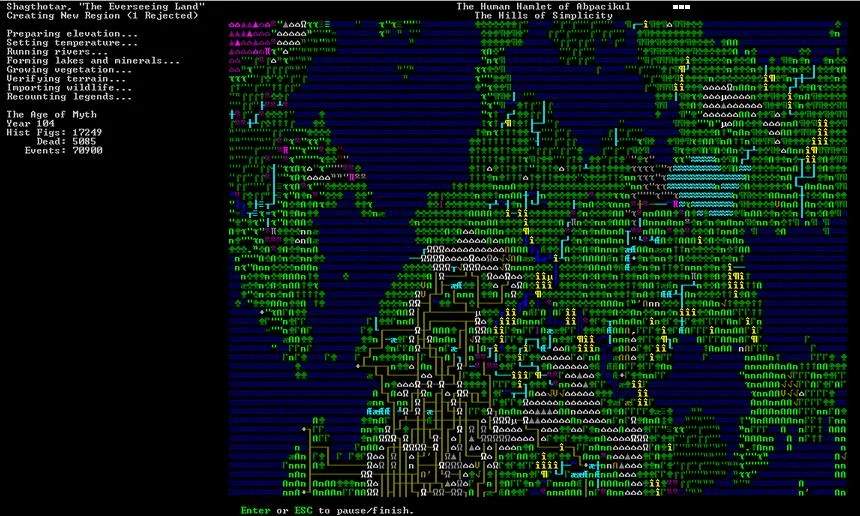
The game also utilizes color coding and specific ASCII characters to convey information. For example, different colored rectangles on the embark map indicate the suitability of a site. Understanding these visual cues is crucial for quick assessment.
While the UI can seem daunting, consistent practice and referring to in-game prompts will quickly make it second nature. The depth of information available through the UI is a testament to the game's simulation complexity.