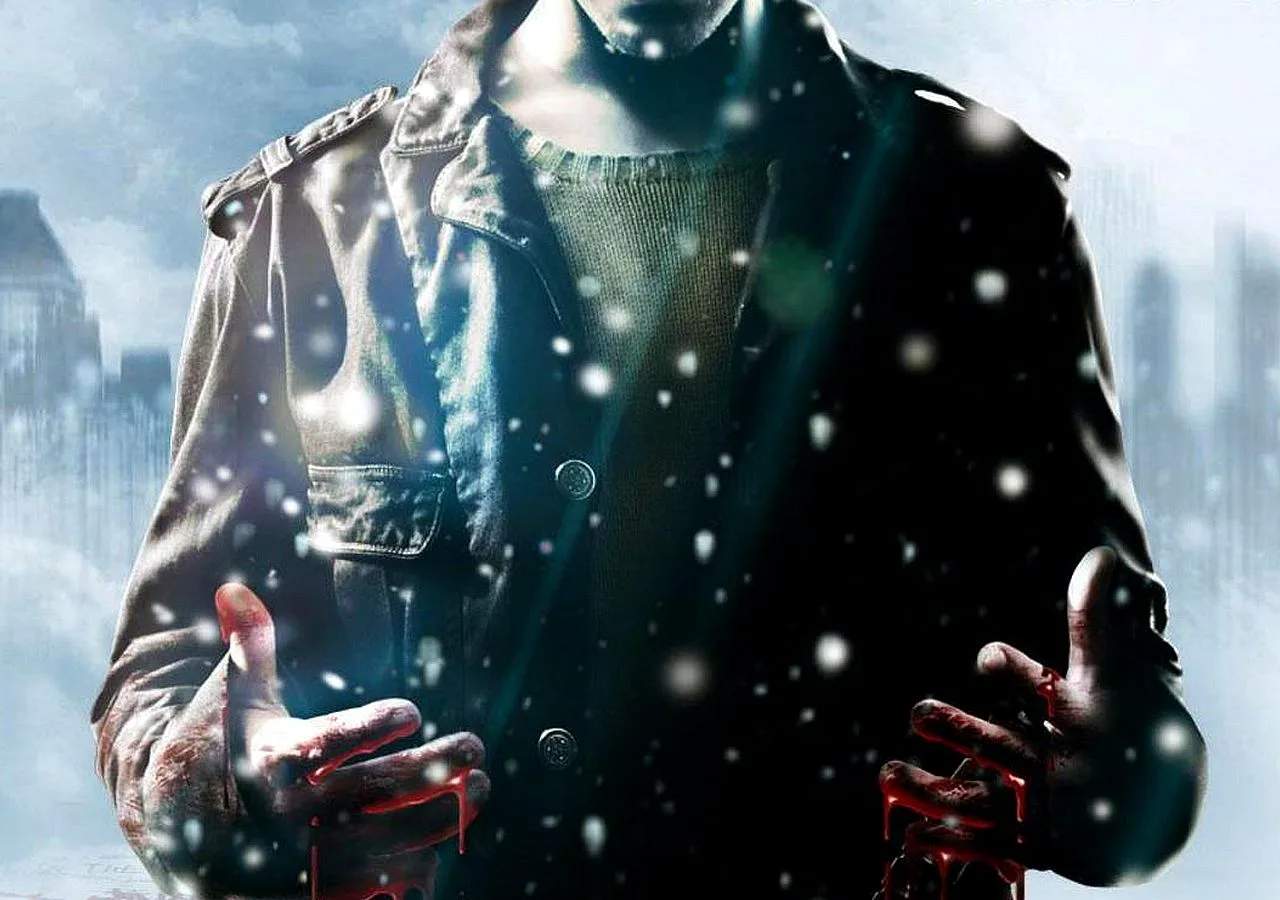
Mastering the controls and understanding the user interface (UI) are fundamental to navigating the immersive world of Fahrenheit: Indigo Prophecy. This guide breaks down the input methods, camera controls, and on-screen indicators that are crucial for interacting with the environment, engaging in combat, and managing Lucas Kane's mental state.
Core Control Scheme
Fahrenheit: Indigo Prophecy utilizes a unique control scheme that emphasizes player immersion and interaction. The game primarily uses the analog sticks for movement and camera control, but with a twist:
- Left Analog Stick: Controls Lucas's movement. Pushing the stick in a direction will make him walk or run in that direction.
- Right Analog Stick: Controls the camera. Moving the stick will pan the camera around Lucas. However, in many situations, the camera is semi-fixed, and the right stick is used to direct Lucas's gaze or actions within the immediate environment.
Context-Sensitive Actions and Quick-Time Events (QTEs)
A hallmark of Fahrenheit is its reliance on context-sensitive actions and Quick-Time Events (QTEs). When interacting with objects or engaging in dynamic situations, prompts will appear on screen:
- Action Prompts: These usually involve pressing a specific button or moving the analog stick in a particular direction to perform an action, such as opening a door, picking up an item, or interacting with a character.
- QTEs: During combat, chases, or tense moments, a series of button prompts or directional inputs will flash on screen. Successfully executing these inputs in time is crucial for Lucas's survival and success. Missing QTEs can lead to Lucas taking damage, failing objectives, or even game over.
- Analog Stick Gestures: Some actions, particularly those involving Lucas's psychic abilities or more complex physical maneuvers, require specific analog stick movements, often depicted as circular or sweeping motions.
User Interface (UI) Elements
The UI in Fahrenheit is designed to be minimalist, keeping the focus on the game world. However, several key elements are vital to understand:
- Health/Stamina Bar: While not always explicitly displayed, Lucas has a health and stamina system. Taking damage or performing strenuous actions will affect his condition. This is often indicated through visual cues like Lucas's breathing, posture, and screen effects (e.g., blurring, red tint).
- Sanity Meter: This is a crucial UI element that represents Lucas's mental state. It's often depicted as a subtle visual effect or an abstract representation. High sanity allows for clearer thinking and better control of abilities, while low sanity can lead to erratic behavior, hallucinations, and difficulty performing actions. Certain actions and events will impact sanity.
- Objective Markers: The game may provide subtle objective markers or hints on screen to guide players towards their next goal. These are often integrated into the environment rather than being overt icons.
- Interaction Highlights: Interactive objects in the environment are usually subtly highlighted or indicated when Lucas is near them and looking in their direction.
Camera Control and Perspective
The camera in Fahrenheit is dynamic and often shifts to provide the best view of the action or environment. While you have some control, the game frequently employs cinematic camera angles to enhance the mood and storytelling. Understanding how the camera behaves is important for anticipating enemy movements or spotting environmental clues.
Tips for Effective Control
- Practice QTEs: The more you play, the better you'll become at reacting to QTE prompts. Don't be discouraged by early failures.
- Observe Environmental Cues: Pay attention to how Lucas reacts to his surroundings. His posture, breathing, and visual effects often communicate his status.
- Experiment with Interactions: Don't be afraid to try interacting with different objects. Many puzzles and progression points rely on creative use of the environment.
- Understand Sanity's Impact: Be mindful of your sanity. Try to perform actions calmly and avoid unnecessary stress to maintain a higher sanity level.
| Control Element | Action |
|---|---|
| Left Analog Stick | Movement |
| Right Analog Stick | Camera / Action Direction |
| Face Buttons (e.g., X, O, Triangle, Square) | Contextual Actions, QTEs |
| Shoulder Buttons (e.g., L1, R1) | Often used for specific actions like aiming or special abilities. |