Troubleshooting & Glitches
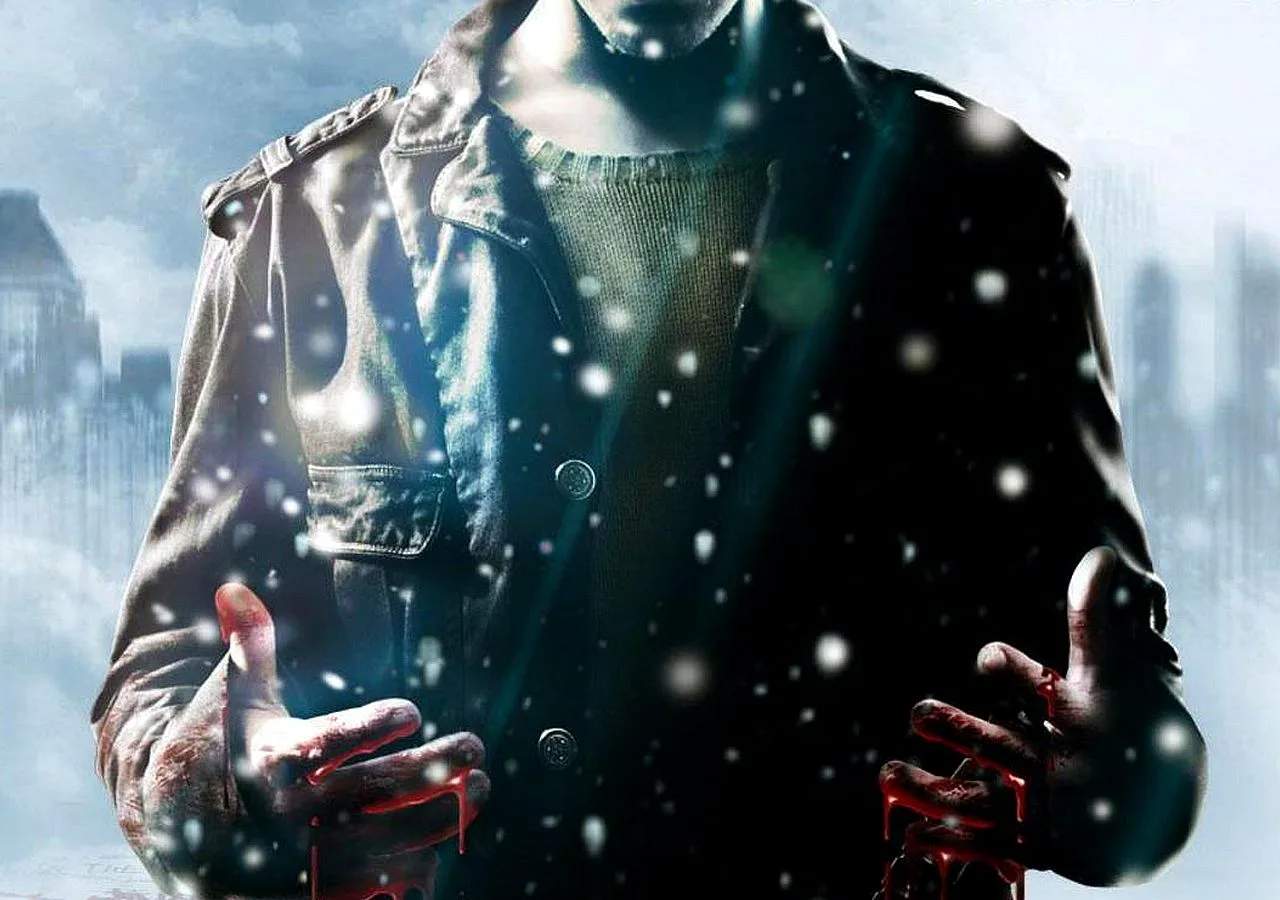
Even the most atmospheric and narrative-driven games can encounter technical hiccups. Fahrenheit: Indigo Prophecy, with its intricate branching storylines and Quick Time Events (QTEs), is no exception. This section aims to provide comprehensive solutions for common issues and workarounds for known glitches, ensuring your descent into Lucas Kane's fractured reality is as smooth as possible.
General Performance Issues & Crashes
Many performance problems stem from outdated drivers or system incompatibilities. Always ensure your system meets the minimum requirements before proceeding with advanced troubleshooting.
Graphics Driver Updates
- Action: Update your graphics card drivers to the latest version available from your manufacturer (NVIDIA, AMD, Intel).
- Strategy: A clean installation is often best. Use the driver installer's option to perform a "clean install" to remove old driver files that might cause conflicts.
DirectX & Visual C++ Redistributables
- Action: Ensure you have the correct versions of DirectX and Microsoft Visual C++ Redistributables installed.
- Location: These are typically found in the game's installation directory, often in subfolders like
_CommonRedistorSupport. - Strategy: Run the installers for
DXSETUP.exeand anyvcredist_x86.exeorvcredist_x64.exefiles you find. Even if you think you have them, reinstalling can resolve corrupted files.
Compatibility Mode (PC)
- Action: If experiencing frequent crashes or graphical anomalies on newer operating systems (Windows 7, 8, 10, 11), try running the game in compatibility mode.
- Steps:
- Navigate to the game's executable file (e.g.,
Fahrenheit.exeorIndigoProphecy.exe) in your installation folder. - Right-click the executable and select "Properties."
- Go to the "Compatibility" tab.
- Check the box for "Run this program in compatibility mode for:" and select "Windows XP (Service Pack 3)" or "Windows 2000."
- Also, try checking "Run this program as an administrator."
- Click "Apply" and then "OK."
- Navigate to the game's executable file (e.g.,
In-Game Resolution & Display Settings
- Action: Lowering the in-game resolution or switching to windowed mode can sometimes prevent crashes, especially during scene transitions or intensive QTE sequences.
- Strategy: Access the game's "Options" or "Settings" menu from the main title screen. Experiment with different resolutions. If the game crashes before you can access these, you might need to edit configuration files directly (advanced users only, back up files first).
Specific Glitches & Workarounds
Stuck Character/Invisible Walls
Occasionally, characters (especially Lucas or Carla) can become stuck on environmental objects or encounter invisible barriers, halting progress.
- Action: Attempt to move the character in all directions. Often, a slight adjustment or a quick tap of the movement keys can free them.
- Strategy: If that fails, try initiating an interaction with a nearby object or person, even if it's not relevant to your current objective. Sometimes this "resets" the character's position. As a last resort, reloading your most recent save is usually effective.
QTE Input Lag/Unresponsive Controls
The game's reliance on Quick Time Events means precise input is crucial. Lag or unresponsive controls can lead to frustrating failures.
- Action (PC):
- Ensure no background applications are consuming significant CPU or GPU resources. Close web browsers, streaming services, and other demanding programs.
- If using a USB controller, try a different USB port.
- Verify your keyboard and mouse drivers are up to date.
- Action (Console - PS2/Xbox):
- Ensure your controller is properly connected and batteries (if wireless) are charged.
- Clean the controller's contacts if you suspect a hardware issue.
- Strategy: For persistent issues, especially on PC, reducing graphical settings can sometimes alleviate input lag by freeing up system resources.
Audio Desynchronization
Dialogue or sound effects occasionally fall out of sync with character animations or on-screen actions.
- Action: This is often a temporary glitch. Try pausing and unpausing the game.
- Strategy: If the issue persists across multiple scenes, saving your game, exiting to the main menu, and then reloading your save can often resynchronize the audio.
Missing Textures/Graphical Artifacts
Characters or environments may display incorrect textures, appear as solid colors, or show flickering artifacts.
- Action: Update your graphics drivers (as detailed above).
- Strategy: If the problem began after changing graphical settings, revert them to default or lower settings. Sometimes, verifying the integrity of game files (if purchased digitally through a platform like Steam) can redownload corrupted assets.
Save Game Corruption
While rare, save files can become corrupted, preventing loading or causing crashes upon loading.
- Action: Always maintain multiple save files, especially at critical junctures.
- Strategy: If a save file won't load, try an older one. If all saves are affected, you may need to reinstall the game. Before reinstalling, back up your save game folder (usually located in "My Documents" or the game's installation directory) just in case.
Reporting Bugs
If you encounter a new or unlisted bug, consider reporting it to the game's publisher or developer (if still supported) or relevant community forums. Provide as much detail as possible, including:
- Your system specifications (OS, CPU, GPU, RAM).
- The exact location and circumstances under which the bug occurred.
- Any error messages displayed.
- Steps to reproduce the bug.