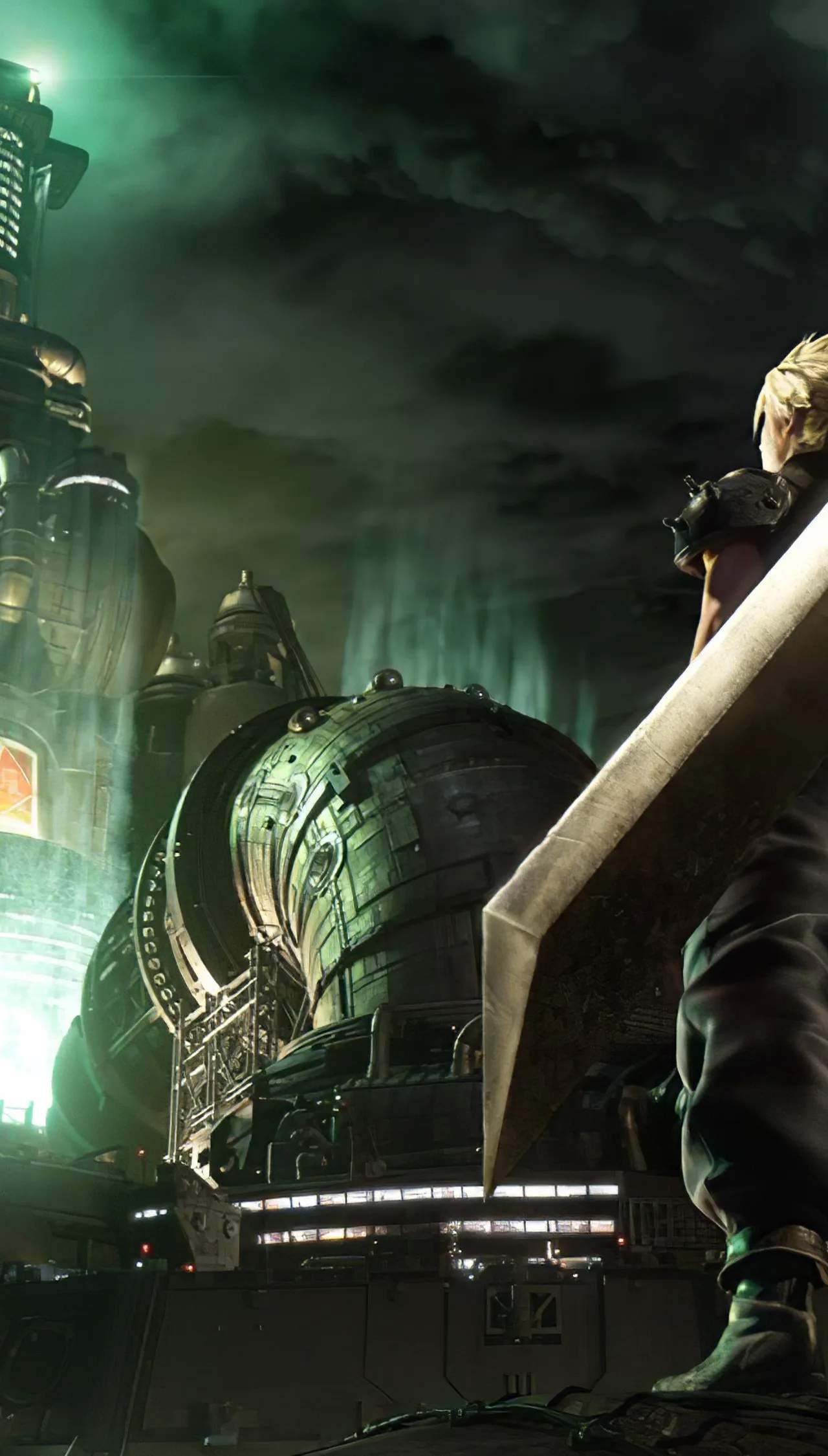
Photo Mode Guide
Final Fantasy VII Remake offers a robust Photo Mode, allowing players to capture stunning in-game moments and create cinematic screenshots. This guide will walk you through its features and provide strategies for taking the best possible photos of Cloud, Aerith, Tifa, Barret, and the vibrant world of Midgar.
Accessing Photo Mode
To activate Photo Mode, simply pause the game by pressing the OPTIONS button on your PlayStation controller. From the main pause menu, navigate down and select "Photo Mode." The game world will freeze, and you'll be presented with a suite of tools to compose your shot.
Photo Mode Controls
Understanding the controls is key to mastering Photo Mode. Here's a quick rundown:
Left Stick: Move the camera horizontally and vertically.
Right Stick: Rotate the camera around its current position.
L1 / R1: Adjust camera height.
L2 / R2: Zoom in and out.
Square: Reset camera to default position.
Triangle: Toggle UI on/off (for a clean screenshot).
X: Confirm selection/Apply changes.
Circle: Cancel/Go back.
Touchpad: Open/Close Photo Mode menu.
Key Photo Mode Settings
The Photo Mode menu offers several options to fine-tune your shots. Experiment with these settings to achieve different artistic effects:
Camera Settings
- Field of View (FOV): Adjusts the camera's lens angle. A wider FOV (lower value) can capture more of the environment, while a narrower FOV (higher value) creates a more zoomed-in, cinematic look, perfect for character close-ups.
- Roll: Tilts the camera horizontally, allowing for dynamic angled shots.
- Depth of Field (DoF): Controls the amount of blur in the background or foreground.
- Focus Distance: Determines the point at which the image is sharpest.
- Aperture: Controls the intensity of the blur. A lower aperture value (e.g., f/1.8) creates a stronger, creamier bokeh effect, ideal for isolating characters.
Visual Filters & Effects
- Filters: Apply various color grading presets like "Sepia," "Monochrome," "Vivid," or "Cool" to change the mood and tone of your image.
- Exposure: Brightens or darkens the overall image. Useful for correcting overly bright or dim scenes.
- Contrast: Adjusts the difference between light and dark areas. Higher contrast can make details pop, while lower contrast creates a softer look.
- Saturation: Controls the intensity of colors. Increase for vibrant shots, decrease for a more desaturated, gritty feel.
- Vignette: Adds a darkened border around the edges of the frame, drawing attention to the center.
- Grain: Introduces a film grain effect for a retro or gritty aesthetic.
Strategies for Epic Screenshots
To truly elevate your Photo Mode game, consider these advanced strategies:
Timing is Everything
The best photos often capture dynamic moments. During combat, pause the game just as a character performs a powerful ability like Cloud's "Braver" or Tifa's "Omnistrike." For environmental shots, look for specific lighting conditions, like the golden hour in the Sector 7 Slums or the dramatic glow of Mako Reactor 1's destruction.
Character Posing and Expressions
While you can't manually pose characters, you can leverage their in-game animations. During cutscenes or character interactions, pause at key emotional moments to capture expressive faces. For action shots, aim for poses that convey movement and power.
Environmental Storytelling
Midgar is a character in itself. Use Photo Mode to highlight its intricate details. Capture the sprawling slums, the towering Shinra Building, or the subtle graffiti on a wall. Think about how the environment contributes to the narrative of your shot.
Rule of Thirds and Leading Lines
These classic photography composition techniques can greatly improve your images. Imagine a 3x3 grid over your screen. Place your subject at one of the intersections (Rule of Thirds) for a more balanced and engaging composition. Use elements in the environment, like pipes or pathways, to create "leading lines" that guide the viewer's eye towards your subject.
Experiment with Camera Angles
Don't just stick to eye-level shots. Try low-angle shots to make characters appear more imposing, or high-angle shots to emphasize the scale of the environment. A Dutch angle (using the Roll setting) can add tension or dynamism.
Removing the UI for Clean Shots
Remember to press Triangle to hide the Photo Mode UI before taking your final screenshot. On PlayStation, you can then use the SHARE button to capture the image.
With these tips and tools, you're now equipped to become a master photographer in Final Fantasy VII Remake. Go forth and capture the beauty, action, and emotion of Midgar!