Springtrap's Movement Patterns
Springtrap is the singular, primary antagonist of Five Nights at Freddy's 3, and understanding his movement is paramount to survival. Unlike previous games with multiple animatronics, Springtrap's behavior is more nuanced, relying on audio lures and ventilation management. He will always attempt to reach your office (CAM 10) via the quickest available path, and his movement is primarily triggered by audio cues and your failure to manage the ventilation system.
Understanding Springtrap's Pathing
Springtrap moves through the ventilation system and the main hallways of Fazbear's Fright. His movement is generally linear, always aiming for your office. He can be in one of several key locations:
- Main Hallway Cameras: CAM 01, CAM 02, CAM 03, CAM 04, CAM 05
- Ventilation System Cameras: CAM 06, CAM 07, CAM 08, CAM 09
- Your Office: CAM 10 (your direct threat zone)
He will always try to move to the camera closest to your office that is not currently occupied by him. For example, if he is on CAM 02, he will attempt to move to CAM 01. If he is in the vents at CAM 07, he'll aim for CAM 08 or CAM 09, depending on the path.
Key Strategies for Management
1. Audio Lures (Play Audio)
The "Play Audio" function on your monitor is your most powerful tool against Springtrap. When Springtrap is visible on a camera, playing an audio cue on an adjacent camera will cause him to move towards the sound. This is crucial for diverting him away from your office.
- Timing is Everything: Only play audio when Springtrap is visible on a camera. Playing it blindly or when he's already in the vents can be counterproductive.
- Strategic Placement: Always lure him to cameras further away from your office. For instance, if he's on CAM 02, play audio on CAM 03 or CAM 04 to pull him back.
- Vent Luring: If Springtrap enters the ventilation system (e.g., from CAM 05 to CAM 06), you can use audio lures within the vents to redirect him. However, be cautious; if he's in the vent directly connected to your office (CAM 09), luring him elsewhere might be too late.
- Office Proximity: If Springtrap reaches CAM 01 (the camera directly outside your office), immediately play audio on CAM 02 or CAM 03 to pull him back into the main hallway. Failure to do so will result in a quick jumpscare.
2. Ventilation System Management
Springtrap can use the ventilation system as a shortcut to your office. This is where the "Ventilation Error" and "Ventilation Reboot" come into play.
- Monitoring Vents: Regularly check the ventilation cameras (CAM 06, CAM 07, CAM 08, CAM 09). If Springtrap is in the vents, you'll see him there.
- Sealing Vents: Unlike previous games, you cannot manually seal individual vents. Instead, you must rely on audio lures to prevent him from entering or progressing through them.
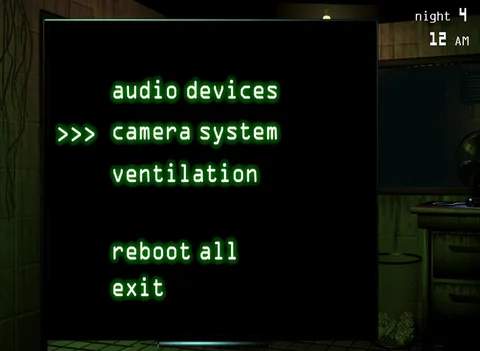
- Ventilation Errors: A "Ventilation Error" (indicated by a red exclamation mark on your monitor) will make Springtrap move faster and more aggressively. It also makes it harder to hear his footsteps, which are a subtle indicator of his movement. Prioritize fixing this immediately via the "Reboot All" or "Reboot Ventilation" options on your Maintenance Panel.
3. Audio System Errors
An "Audio Error" will disable your ability to use audio lures, leaving you vulnerable. If this occurs:
- Immediate Reboot: Access your Maintenance Panel and select "Reboot Audio" or "Reboot All" to restore functionality.
- Increased Vigilance: While the audio is down, you must rely solely on visual tracking and hope Springtrap doesn't make a direct beeline for your office. Keep an eye on CAM 01 especially.
4. The Office Door
There is no physical door to close in your office. Your only defense against Springtrap once he reaches CAM 01 and enters your office is to quickly lure him away using audio. If he appears in the doorway, you have a very limited window to play an audio cue on an adjacent camera (like CAM 02) to force him back. If he fully enters the office, it's game over.
5. Phantom Animatronics and Distraction
While not directly Springtrap's movement, the Phantom Animatronics play a crucial role in your ability to manage him. Each Phantom jumpscare causes a system error (Audio, Camera, or Ventilation), forcing you to divert attention to the Maintenance Panel. This gives Springtrap valuable time to move closer to your office. Therefore, avoiding Phantom jumpscares is indirectly a part of managing Springtrap's movement.
- Phantom Freddy: Appears walking across the window. Look away quickly.
- Phantom Chica: Appears on CAM 07. Switch cameras immediately.
- Phantom Foxy: Appears in your office doorway if you don't look at CAM 01 for too long.
- Phantom Balloon Boy: Appears on any camera. Switch cameras quickly.
- Phantom Mangle: Appears on CAM 04. Switch cameras quickly.
- Phantom Puppet: Appears on CAM 08. Switch cameras quickly.
By mastering the art of audio lures, diligent ventilation monitoring, and swift error correction, you can effectively control Springtrap's pathing and survive your shift at Fazbear's Fright.