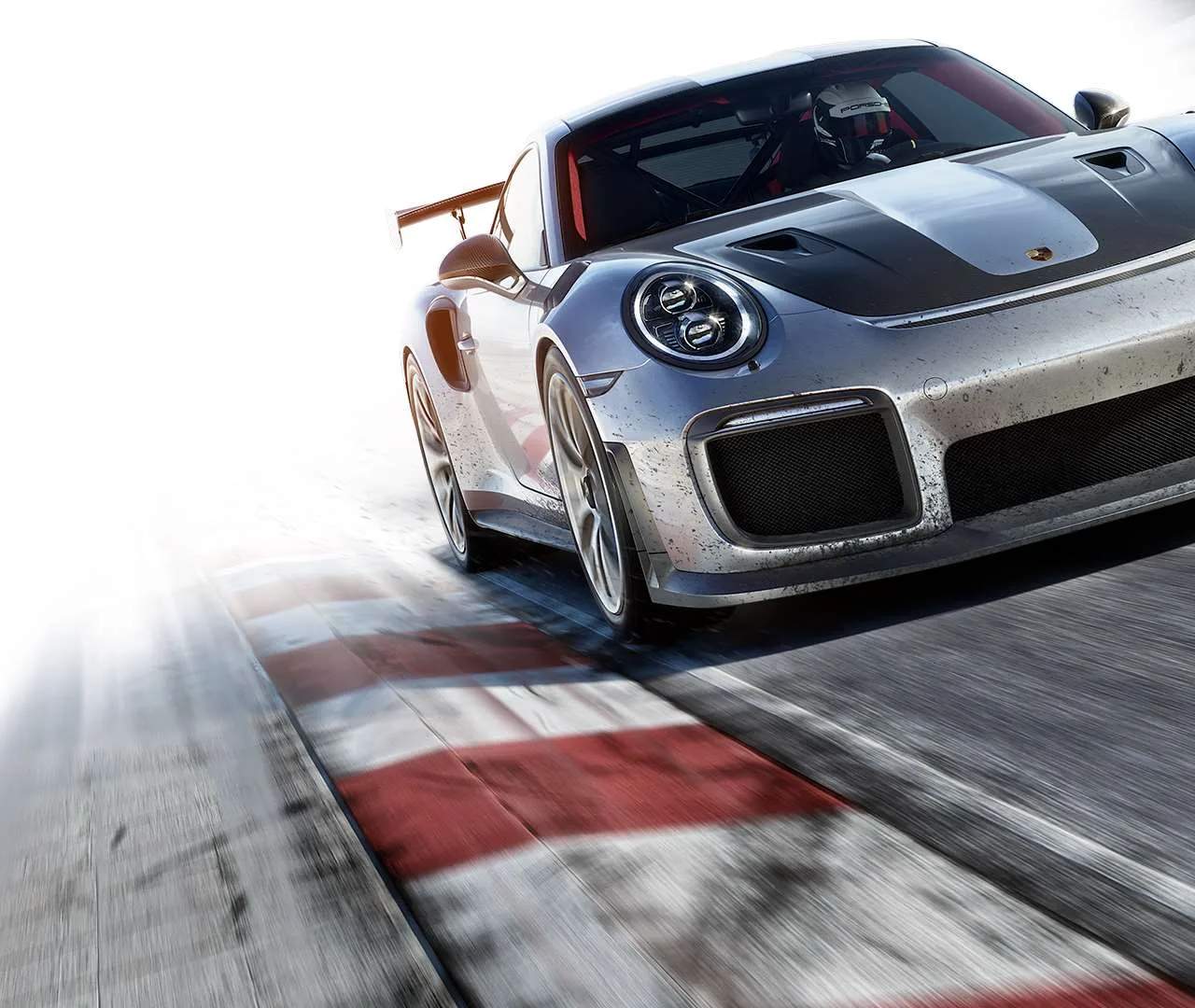
Replays & Photo Mode
Forza Motorsport 7 isn't just about the thrill of the race; it's also a powerful tool for capturing and immortalizing your most epic moments. The Replay and Photo Mode features allow you to revisit your triumphs, analyze your lines, and create stunning visual masterpieces of your favorite cars and tracks. Mastering these tools will elevate your Forza experience, whether you're aiming for better lap times or a perfect screenshot.
Accessing Replays
After completing any race event in Forza Motorsport 7, you'll be presented with the "Race Results" screen. From here, you have two primary options for accessing your replay:
- "Watch Replay" Button: This prominent button, usually located on the bottom left or center of the screen, will immediately launch you into the replay of the race you just finished.
- "Save Replay" Option: If you want to keep a particular race for future viewing or analysis, select this option before exiting the results screen. Saved replays can be accessed later from the "Forza TV" section within the main menu.
Replay Controls & Features
Once in a replay, you have a comprehensive suite of controls to navigate and manipulate the footage:
- Camera Views: Cycle through various camera angles using the D-Pad Left/Right or designated buttons (often A/X on Xbox controllers). These include:
- Chase Cam: Follows your car from behind.
- Bumper Cam: A low-angle view from the front bumper.
- Cockpit Cam: Immersive view from inside the car.
- Hood Cam: View from the car's hood.
- Trackside Cams: Dynamic camera angles positioned around the track.
- Free Cam: Allows you to move the camera freely around the track and cars (see "Free Cam Controls" below).
- Playback Speed: Adjust the replay speed using the D-Pad Up/Down or corresponding buttons. Options typically include 0.25x, 0.5x, 1x (normal), 2x, and 4x. This is invaluable for analyzing specific corners or incidents.
- Fast Forward/Rewind: Use the Left/Right Triggers to quickly scrub through the replay.
- Pause/Play: The A Button (Xbox) or equivalent will pause and resume playback.
- Telemetry Overlay: While watching a replay, you can often toggle on a telemetry overlay (check the on-screen prompts, usually View Button or Back Button). This displays crucial data like speed, RPM, gear, throttle/brake input, and tire temperatures, which is excellent for self-analysis and improving your driving.
Free Cam Controls (within Replay)
The Free Cam is your gateway to cinematic replay shots and detailed analysis:
- Activate Free Cam: Cycle through camera views until you reach "Free Cam."
- Move Camera: Use the Left Analog Stick to move the camera horizontally and vertically.
- Rotate Camera: Use the Right Analog Stick to pan and tilt the camera.
- Zoom In/Out: Often mapped to the Left/Right Bumpers or LT/RT when not used for scrubbing.
- Focus on Car: You can usually select a specific car to "follow" with the free cam, even while maintaining manual control over its position relative to the car. Look for on-screen prompts to switch target cars.
Photo Mode
Photo Mode is where you transform your replay footage into stunning photographs. It can be accessed from two main locations:
- During a Replay: At any point during a replay, press the designated button (often the Menu Button or Start Button) to enter Photo Mode.
- From the Main Menu: Navigate to "Forza TV" and select a saved replay. From there, you can launch the replay and then enter Photo Mode.
Photo Mode Controls & Settings
Once in Photo Mode, the replay pauses, and you gain access to a powerful suite of photographic tools:
- Camera Movement: The controls are very similar to the Free Cam in replays. Use the Left Analog Stick to move, the Right Analog Stick to rotate, and Bumpers/Triggers to zoom.
- Focus & Aperture:
- Focus Mode: Choose between "Auto Focus" and "Manual Focus."
- Focus Distance: In Manual Focus, adjust the distance at which the camera is focused.
- Aperture (f-stop): Controls the depth of field. A lower f-stop (e.g., f/2.8) creates a shallow depth of field, blurring the background and foreground (bokeh effect), making your car stand out. A higher f-stop (e.g., f/16) keeps more of the scene in focus.
- Exposure: Adjust the overall brightness of the image.
- Contrast: Controls the difference between the lightest and darkest parts of the image.
- Color:
- Brightness: Fine-tune the overall light intensity.
- Saturation: Adjust the intensity of colors. Higher saturation makes colors more vibrant.
- Temperature: Shifts the color balance towards warmer (orange/red) or cooler (blue) tones.
- Effects:
- Vignette: Adds a darkening effect around the edges of the frame.
- Sepia/Black & White: Apply classic photographic filters.
- Grain: Adds a film grain effect for a more vintage look.
- Shutter Speed (Motion Blur): This is a crucial setting for conveying speed.
- Slow Shutter Speed: Creates significant motion blur, especially on the wheels and background, making the car appear to be moving at high speed.
- Fast Shutter Speed: Freezes the action, capturing sharp details even on fast-moving objects.
- Steering Angle: Adjust the steering wheel position of the car in your shot to create more dynamic poses.
- Headlights On/Off: Toggle the car's headlights.
- Save Photo: Once you're satisfied with your composition and settings, select the "Save Photo" option (usually A Button or specific prompt). Your photos are saved to your Forza Gallery and can be shared online.
Tips for Great Photos
- Rule of Thirds: Imagine your screen divided into nine equal segments by two horizontal and two vertical lines. Place your subject (the car) at the intersections of these lines for a more balanced and engaging composition.
- Leading Lines: Use track lines, barriers, or other elements in the environment to draw the viewer's eye towards your car.
- Dynamic Angles: Experiment with low angles, high angles, and Dutch tilts (slightly rotated horizons) to add visual interest.
- Lighting is Key: Pay attention to the time of day and weather conditions in the replay. Golden hour (sunrise/sunset) often provides the most dramatic and flattering light.
- Experiment with Shutter Speed: Don't be afraid to play with motion blur. A perfectly still car can look static, but a slight blur can convey immense speed.
- Tell a Story: Think about what you want your photo to convey. Is it the raw power of the engine, the beauty of the car's design, or the intensity of a close race?