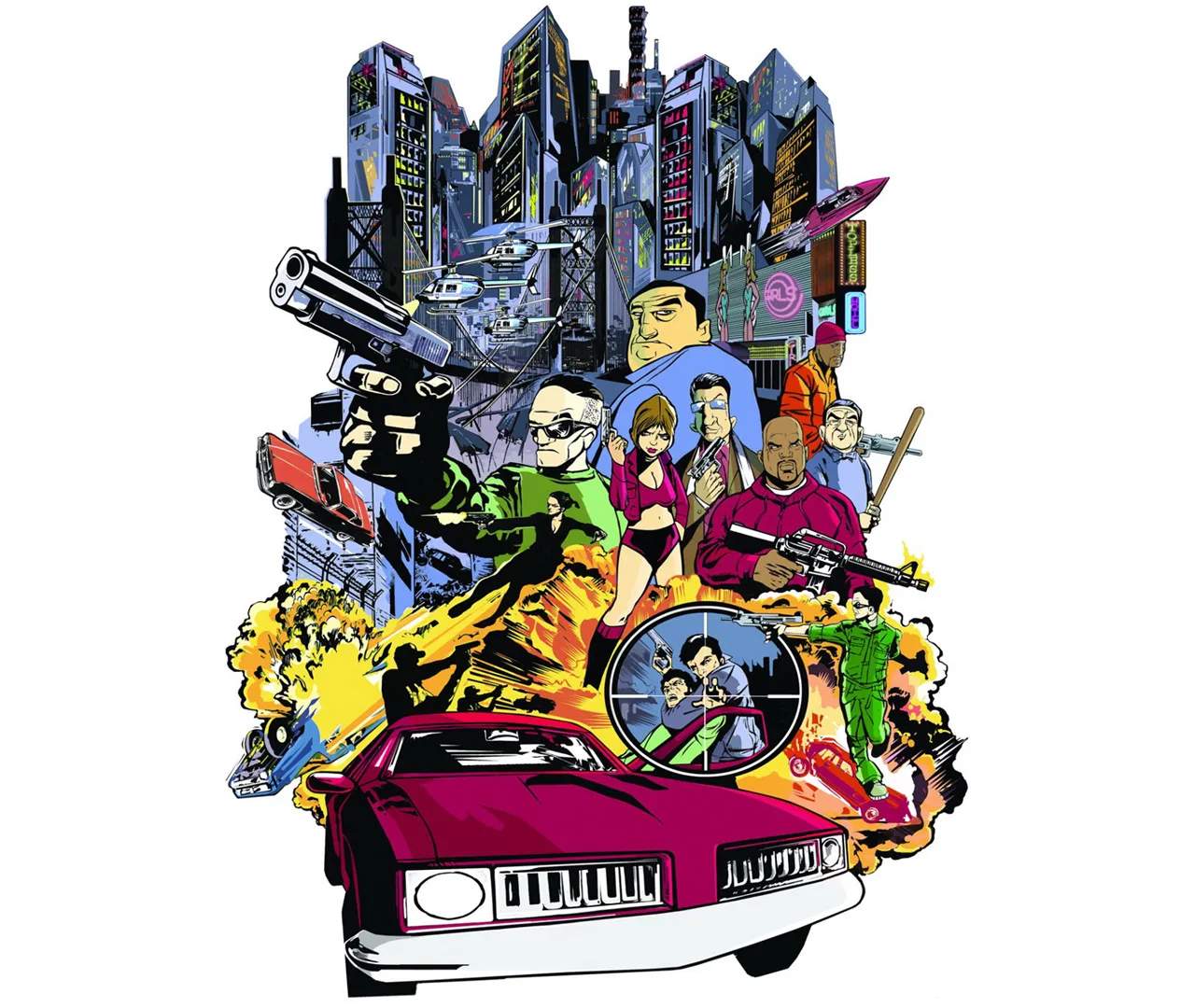
Navigating the world of Grand Theft Auto III is made intuitive through its well-desed controller layout. Whether you're driving, shooting, or interacting with the environment, understanding the button mapping is essential for smooth gameplay. This guide breaks down the typical controller layout for PlayStation 2 and its common PC/Xbox equivalents.
Driving Controls
When behind the wheel of any vehicle, the controls are desed for responsive handling:
| Action | PlayStation 2 | PC (Default) |
|---|---|---|
| Accelerate | R2 | W / Up Arrow |
| Brake/Reverse | L2 | S / Down Arrow |
| Steer Left | Left Analog Stick Left | A / Left Arrow |
| Steer Right | Left Analog Stick Right | D / Right Arrow |
| Handbrake | X | Spacebar |
| Horn | Circle | H |
| Radio Station Change | R1 | E / Q |
| Camera Control | Right Analog Stick | Mouse Movement |
| Look Left/Right (in car) | L1/R1 (while steering) | Mouse Movement |
On-Foot Controls
When Claude is on foot, the controls shift to facilitate combat and interaction:
| Action | PlayStation 2 | PC (Default) |
|---|---|---|
| Move | Left Analog Stick | W, A, S, D |
| Jump/Enter Vehicle | X | Spacebar |
| Crouch/Exit Vehicle | Circle | C |
| Sprint | (Hold Left Analog Stick Forward) | (Hold Shift) |
| Target Lock-on | R1 | Right Mouse Button |
| Fire Weapon | R2 | Left Mouse Button |
| Switch Weapon | L1 | Tab / Mouse Wheel |
| Melee Attack | Square | F |
| Throw Grenade/Molotov | Triangle | G |
| Look Behind | L2 | B |
UI Elements
The Heads-Up Display (HUD) provides crucial information:
- Radar: Located in the top right, showing your location, mission objectives, and nearby vehicles/pedestrians.
- Health & Armor: Displayed in the bottom right.
- Wanted Level: Stars indicating police attention, also in the bottom right.
- Weapon & Ammo: Shown in the bottom left.
Familiarizing yourself with these controls will make your experience in Liberty City much smoother and more enjoyable. Experiment with them to find what feels most comfortable for your playstyle.