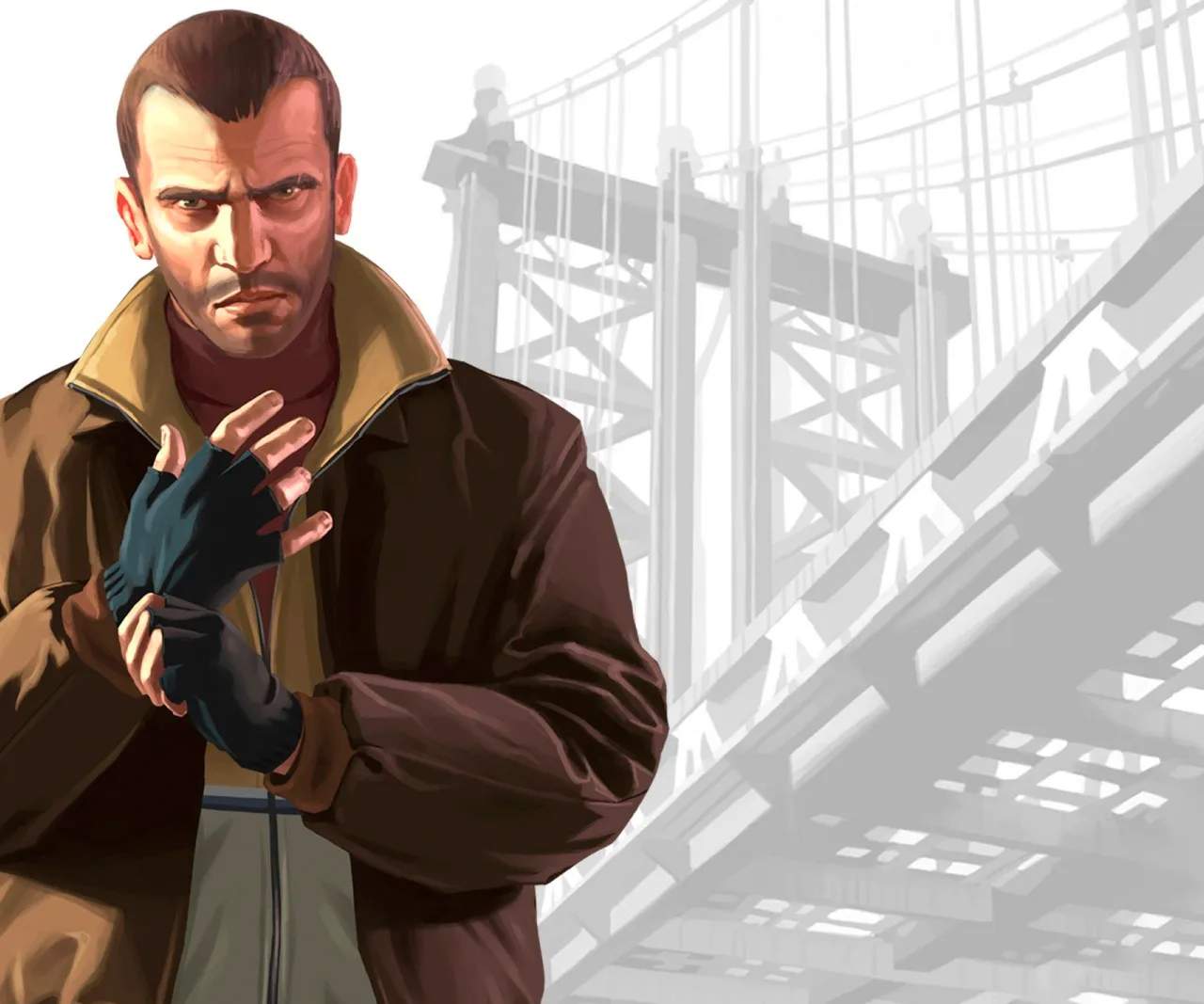
Game Settings & Options
Optimizing your game settings in Grand Theft Auto IV can significantly enhance your experience, whether you're looking for smoother gameplay, better visuals, or more personalized controls. This section will walk you through each main category of the in-game settings menu, providing actionable advice on what to adjust and why.
Accessing the Settings Menu
To access the game settings, pause the game at any time during gameplay. This will bring up the main pause menu. Navigate to the "Options" selection and press the appropriate button (e.g., 'A' on Xbox 360, 'X' on PlayStation 3, or 'Enter' on PC). From there, you'll see several sub-menus:
- Display
- Audio
- Controls
- Camera
- Game
- Multiplayer (if applicable)
Display Settings
These settings control the visual fidelity and presentation of Liberty City. Adjusting these can have a major impact on performance.
- Resolution: Set this to your monitor's native resolution for the sharpest image. Lowering it can improve performance on less powerful systems.
- Aspect Ratio: Match this to your display (e.g., 16:9 for widescreen, 4:3 for older monitors). Incorrect settings will stretch or squash the image.
- Brightness: Adjust to your preference. A good test is to ensure the Rockstar logo in the brightness calibration screen is barely visible.
- Contrast: Controls the difference between light and dark areas. Experiment to find a balance that suits your display.
- Saturation: Adjusts the intensity of colors. Higher values make colors more vibrant, while lower values desaturate them.
- Draw Distance: This determines how far into the distance objects and textures are rendered. Higher values offer a more immersive experience but can significantly impact frame rate. On consoles, this is often a fixed value, but PC players have more granular control.
- Shadow Quality: Controls the resolution and fidelity of shadows. Lowering this can provide a noticeable performance boost.
- Texture Quality: Affects the detail of in-game textures. High settings require more VRAM.
- Water Quality: Influences the appearance of water bodies like the Humboldt River and the Atlantic Ocean.
- Reflection Quality: Determines the detail of reflections on surfaces like vehicles and windows.
- VSync: Vertical Synchronization. Enabling this can prevent screen tearing but may introduce input lag. Disable it if you experience lag, especially in fast-paced combat or driving.
Audio Settings
Customize your sound experience, from radio stations to environmental effects.
- Master Volume: Overall game volume.
- Music Volume: Controls the volume of in-game radio stations.
- Dialogue Volume: Adjusts the volume of character speech.
- Sound Effects Volume: Controls gunshots, explosions, vehicle sounds, and environmental noises.
- Radio Station Selection: You can toggle individual radio stations on or off. If there's a station you particularly dislike, turn it off here to avoid hearing it.
- Speaker Setup: Choose between Stereo, Surround, or Headphones, depending on your audio hardware.
Controls Settings
Personalize your control scheme for walking, driving, and combat.
- Controller Layout: View and select different pre-set control schemes (e.g., Standard, Classic, Southpaw). Experiment to find what feels most comfortable.
- Invert Look: For players who prefer inverted vertical camera controls.
- Look Sensitivity: Adjusts how quickly the camera moves when you look around. Higher sensitivity allows for faster turns.
- Aiming Mode: Choose between "Assisted Aiming" (default, helps snap to targets) and "Free Aim" (more challenging, but offers greater precision for skilled players). For a true challenge, switch to Free Aim.
- Vibration: Toggle controller vibration on or off.
- Driving Controls: Specific options for vehicle handling, such as steering sensitivity.
- Keyboard/Mouse (PC Only): Extensive remapping options for individual keys and mouse sensitivity.
Camera Settings
Fine-tune how the camera behaves during gameplay.
- Vehicle Camera Height: Adjusts how high the camera sits behind your vehicle.
- Vehicle Camera Distance: Controls how far back the camera is from your vehicle.
- On-Foot Camera Height: Similar to vehicle camera, but for when Niko is on foot.
- On-Foot Camera Distance: Controls the distance of the camera from Niko when on foot.
- Auto-Center Camera: When enabled, the camera will automatically re-center behind Niko or his vehicle after a short period. Disable this if you prefer full manual camera control.
- First-Person Camera (PC Only): For a more immersive driving experience, though not available for on-foot gameplay.
Game Settings
General gameplay preferences and accessibility options.
- Subtitles: Toggle subtitles for dialogue on or off. Useful for understanding accents or playing in noisy environments.
- Radar Mode: Choose between "Expanded" (larger radar with more detail) or "Normal" (smaller, default radar).
- GPS Route: Toggle the GPS route line on the mini-map on or off. Essential for navigation during missions.
- Targeting Mode: Similar to Aiming Mode in Controls, but often a broader setting affecting all targeting.
- Auto Save: Enable or disable the automatic saving feature. It's highly recommended to keep this on to avoid losing progress, especially after completing challenging missions.
- Language: Change the game's display language.
Multiplayer Settings (if applicable)
If you're diving into Liberty City's online world, these settings are crucial.
- Matchmaking Preferences: Set your preferred game modes (e.g., Team Deathmatch, Race, Free Mode) and player count.
- Voice Chat: Adjust voice chat volume and toggle push-to-talk if available.
- Player Blips: Choose whether to display all player blips on the radar or only those of your crew/friends.
- Friendly Fire: Toggle friendly fire on or off in certain game modes.
By taking the time to explore and adjust these settings, you can tailor Grand Theft Auto IV to your specific playstyle and hardware, ensuring the most enjoyable and optimized experience possible as you navigate the treacherous streets of Liberty City.