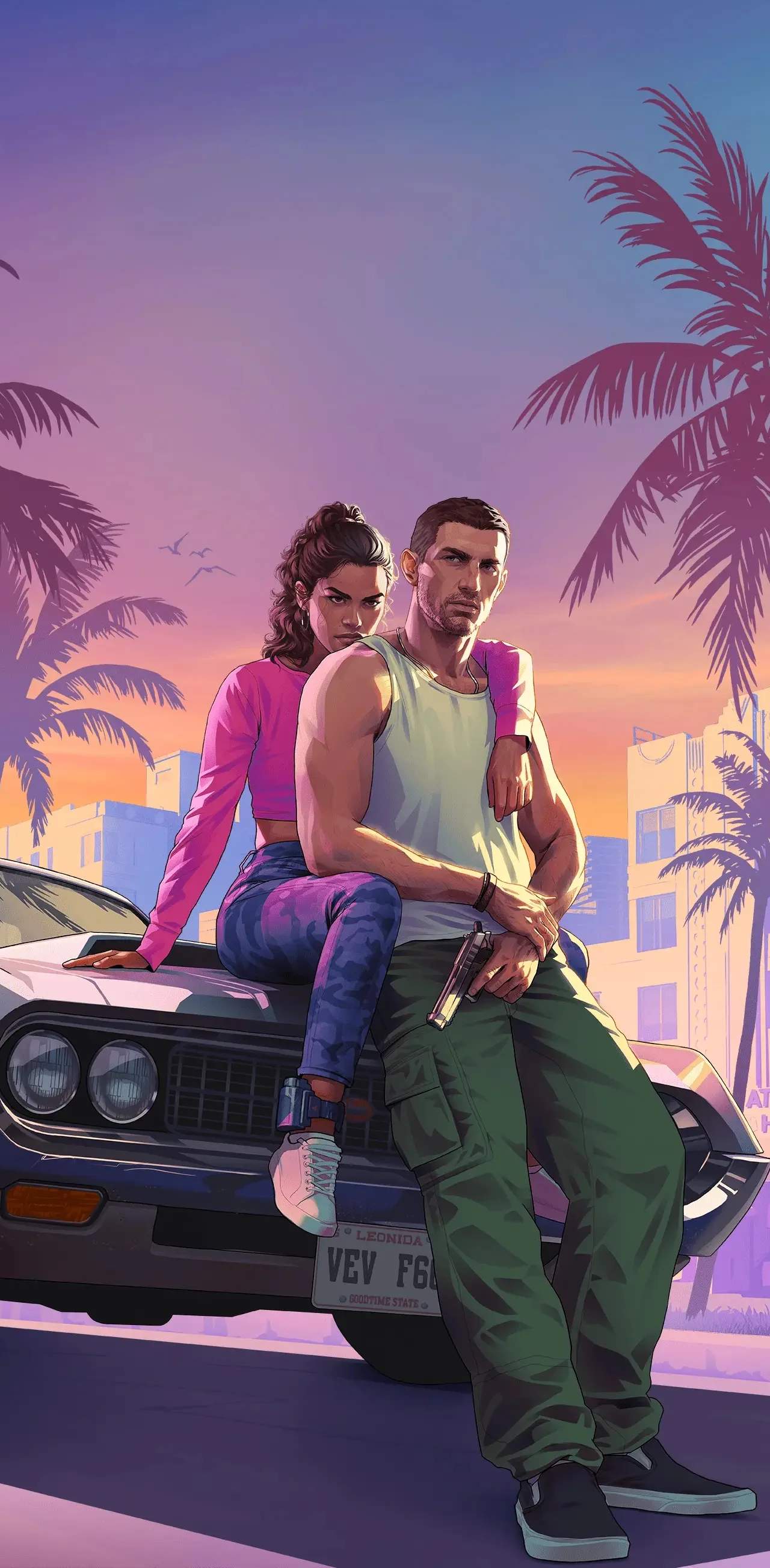
Photo Mode & Social Features
Vice City is a sprawling, vibrant metropolis, and capturing its essence (or your most chaotic moments) is easier than ever with the robust Photo Mode and integrated Social Features in Grand Theft Auto VI. This section will guide you through mastering your in-game photography and sharing your exploits with the world.
Accessing Photo Mode
Entering Photo Mode is quick and intuitive, allowing you to snap a perfect shot at a moment's notice. There are two primary ways to activate it:
- Quick Access (Gameplay): While in active gameplay, press and hold the Down D-Pad (console) or the 'P' key (PC) to bring up the Photo Mode overlay. This is ideal for capturing spontaneous action or scenic views without fully pausing the game.
- Pause Menu (Comprehensive): For more deliberate setup, pause the game by pressing the Options button (PlayStation), Menu button (Xbox), or 'Esc' key (PC). Navigate to the "Camera" tab, then select "Photo Mode". This method offers the same tools but from a paused state.
Photo Mode Controls & Features
Once in Photo Mode, you'll have a suite of tools at your disposal to craft your perfect image. The controls are displayed on-screen, but here's a breakdown of the key functionalities:
Camera Controls
- Move Camera: Use the Left Analog Stick (console) or WASD keys (PC) to pan the camera around your character or the scene.
- Rotate Camera: Use the Right Analog Stick (console) or Mouse (PC) to adjust the camera's orientation.
- Zoom In/Out: Use L2/R2 (PlayStation), LT/RT (Xbox), or the Mouse Wheel (PC) to adjust the focal length.
- Tilt Camera: Press L1/R1 (PlayStation), LB/RB (Xbox), or 'Q'/'E' keys (PC) to tilt the camera for dynamic angles.
- Reset Camera: Press the Right Analog Stick button (R3 on PlayStation, RS on Xbox) or 'R' key (PC) to quickly reset the camera to its default position relative to your character.
Editing & Effects
The true power of Photo Mode lies in its extensive editing options, accessible via tabs at the top of the screen. Cycle through these tabs using the Left/Right Bumper buttons (console) or 'Tab' key (PC).
- Filters: Apply various visual filters like "Vintage Vice," "Neon Noir," "Gritty Street," or "Sun-Kissed Beach" to instantly change the mood. Each filter has adjustable intensity.
- Depth of Field: Adjust the Aperture and Focus Distance to create professional-looking bokeh effects, blurring the background or foreground to highlight your subject.
- Exposure & Contrast: Fine-tune the brightness and contrast of your image to ensure optimal lighting.
- Color Grading: Independently adjust Saturation, Temperature, and Tint to achieve specific color palettes.
- Vignette: Add a subtle dark or light vignette around the edges of your photo to draw attention to the center.
- Frames & Logos: Choose from a selection of stylish frames or add subtle Grand Theft Auto VI logos to your shots.
- Character Expressions: If your character is the subject, you can often cycle through a limited set of expressions or poses using the Up/Down D-Pad (console) or Arrow Keys (PC) to add personality.
Saving & Sharing Your Photos
Once you've composed and edited your masterpiece:
- Press the 'X' button (PlayStation), 'A' button (Xbox), or 'Enter' key (PC) to capture the photo.
- A prompt will appear, allowing you to "Save to Gallery" or "Share to Social Club."
- Saving to Gallery: This stores the image locally on your console or PC. You can access these photos later through the in-game "Gallery" app on your iFruit phone.
- Sharing to Social Club: This uploads your photo directly to the Rockstar Social Club, making it visible to your friends and the wider GTA VI community. You can add a caption and tags before uploading.
Social Features: The iFruit Phone & Social Club Integration
Your in-game iFruit phone is more than just a communication device; it's your portal to Vice City's digital social landscape and the Rockstar Social Club.
iFruit Phone Apps
- Snapmatic: This is your primary in-game social media app. All photos saved to your gallery can be viewed here, and you can apply additional filters or stickers before sharing them directly to your Snapmatic feed. Friends can "Like" and comment on your posts.
- Contacts: Call friends for co-op missions, set up impromptu meetups, or just chat. New contacts are added as you progress through the story and meet various NPCs.
- Web Browser: Access in-game websites, check your stocks, or browse the latest news and gossip from Vice City. Some websites offer unique photo opportunities or challenges.
- Gallery: View all photos you've taken and saved. You can delete unwanted photos from here.
Rockstar Social Club Integration
Linking your game to the Rockstar Social Club unlocks a host of community features:
- Crew Management: Create or join a Crew with your friends. Crews can earn bonus RP and cash in GTA Online, and your Crew emblem can be displayed on vehicles and clothing.
- Leaderboards: Track your progress against friends and the global community in various activities, from races to shooting ranges.
- Challenges & Events: Participate in weekly or special events hosted by Rockstar, often with exclusive rewards. Many of these involve Photo Mode challenges, encouraging creative captures of specific locations or scenarios.
- Photo Feed: View photos uploaded by other players, including those from your friends and Crew members. You can like and comment on their posts directly from the Social Club website or app.
- Custom Content: Access player-created jobs, races, and deathmatches through the Social Club, expanding your gameplay options.
Tips for the Aspiring Vice City Photographer
- Explore Unique Locations: Vice City is packed with iconic landmarks and hidden gems. Head to the neon-lit streets of Downtown Vice City, the pristine beaches of Vice Beach, or the murky swamps of Gator Keys for diverse backdrops.
- Time of Day & Weather: Experiment with different times of day (dawn, midday, sunset, night) and weather conditions (rain, fog, clear skies) to drastically alter the mood of your photos. Sunset over the Ocean View Hotel is always a classic.
- Action Shots: Use Photo Mode during intense shootouts, high-speed chases, or spectacular explosions. The ability to pause time and adjust the camera allows for truly cinematic captures.
- Character Interaction: Capture your character interacting with NPCs, performing stunts, or simply posing with their custom vehicles.
- Vehicle Showcases: Show off your prized custom cars and bikes. Find a scenic spot, adjust the lighting, and highlight your vehicle's unique modifications.
- Story Moments: capture key story moments or memorable mission sequences. These make for great personal keepsakes.
With these tools and tips, you're ready to become Vice City's premier photographer and social media sensation. Get out there and start snapping!