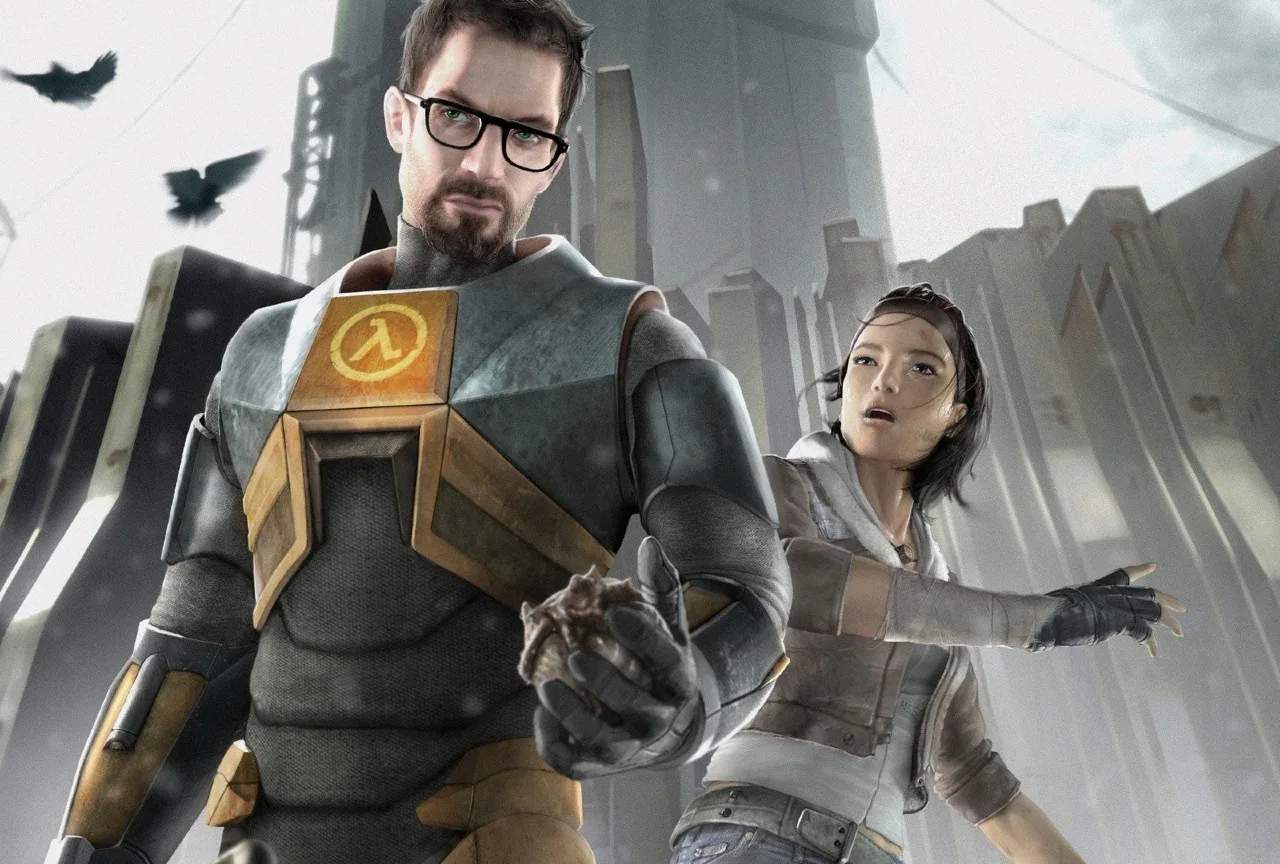
Encountering technical issues while playing Half-Life 2 can be frustrating, but most common problems have straightforward solutions. Whether it's performance drops, graphical glitches, or crashes, understanding basic troubleshooting steps can get you back into the game quickly. This guide covers common issues and provides actionable advice for resolving them, ensuring a smoother and more enjoyable experience with Gordon Freeman's adventures.
Common Half-Life 2 Technical Issues
Players often report the following problems:
- Low Frame Rate/Performance Issues: The game runs slowly, with stuttering or lag.
- Graphical Glitches: Textures not loading, flickering artifacts, or incorrect rendering.
- Crashes to Desktop: The game unexpectedly closes.
- Sound Problems: Missing audio, distorted sound, or no sound at all.
- Input Lag: A delay between player input and in-game action.
Troubleshooting Steps for Performance Issues
If Half-Life 2 is running slowly, try these steps:
- Lower Graphics Settings: Reduce resolution, texture quality, anti-aliasing, and shadow detail in the game's video options.
- Update Graphics Drivers: Ensure your NVIDIA, AMD, or Intel graphics drivers are up to date. Visit the manufacturer's website for the latest versions.
- Close Background Applications: Free up system resources by closing unnecessary programs running in the background.
- Verify Game Files: In Steam, right-click Half-Life 2, go to Properties > Local Files > Verify integrity of game files. This checks for and repairs corrupted files.
- Check System Requirements: Ensure your PC meets the minimum or recommended system requirements for Half-Life 2.
Resolving Graphical Glitches and Crashes
For visual anomalies or frequent crashes:
- Update DirectX: Ensure you have the latest version of DirectX installed.
- Run in Compatibility Mode: Right-click the Half-Life 2 executable, select Properties > Compatibility, and try running it in compatibility mode for an older version of Windows.
- Disable Overlays: Disable Steam Overlay, Discord overlay, or any other in-game overlays.
- Check for Overheating: Ensure your CPU and GPU are not overheating, as this can cause instability. Clean dust from your PC components.
- Reinstall the Game: As a last resort, uninstall and reinstall Half-Life 2.
Sound and Input Lag Solutions
If you're experiencing audio problems or input lag:
- Update Audio Drivers: Ensure your sound card drivers are up to date.
- Check Audio Settings: Verify that the correct audio output device is selected in both Windows and the game's audio settings.
- Adjust Mouse Sensitivity: If experiencing input lag, try adjusting mouse sensitivity in-game or in your mouse software. Ensure your mouse polling rate is set appropriately.
- Disable V-Sync: In some cases, disabling V-Sync in the game's advanced video options can reduce input lag.
If these steps don't resolve your issue, consider searching online forums for specific error messages or consulting the Steam support pages for Half-Life 2.