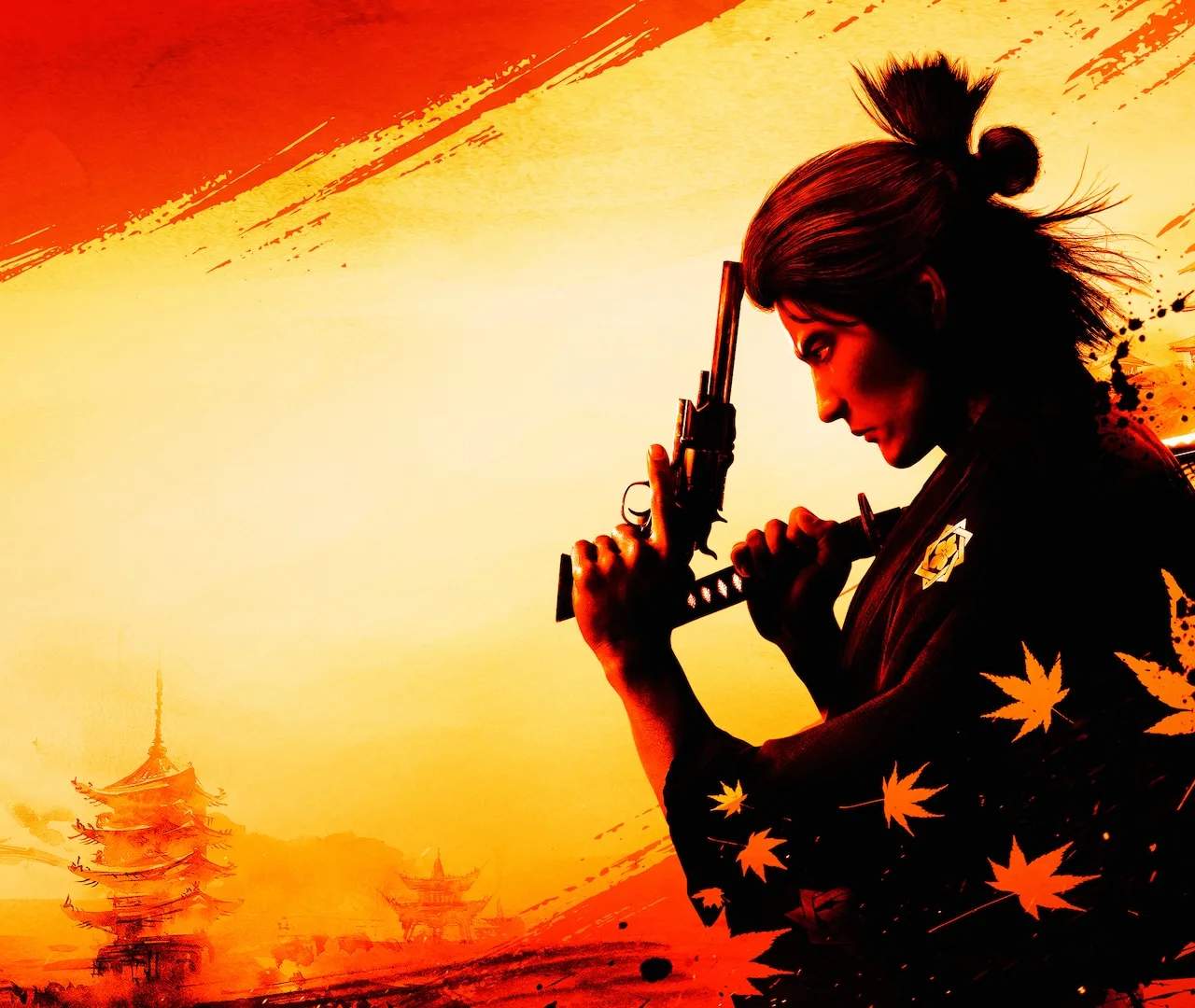
Photo Mode Guide
Step into the shoes of a Meiji-era photographer and capture the vibrant world of Kyo with Like a Dragon: Ishin!'s robust Photo Mode. This guide will walk you through accessing and utilizing all the features to snap the perfect shot, whether it's a dramatic battle pose or a serene landscape.
Accessing Photo Mode
There are two primary ways to enter Photo Mode:
- From the Pause Menu: At any point during gameplay, press the Options button (PlayStation) or Menu button (Xbox) to bring up the Pause Menu. Navigate down and select "Photo Mode." This is ideal for capturing spontaneous moments or setting up a scene without immediate combat pressure.
- During Combat (Heat Actions): For truly dynamic shots, Photo Mode can be activated during certain Heat Actions. As the Heat Action animation plays, a prompt will briefly appear on screen (usually a specific button press like R3/Right Stick Click). Pressing this prompt will freeze the action and immediately enter Photo Mode, allowing you to capture the intensity of Ryoma's finishing moves.
Photo Mode Controls & Interface
Once in Photo Mode, the game world will freeze, and a dedicated interface will appear. Familiarize yourself with these controls:
- Camera Movement: Use the Left Analog Stick to move the camera horizontally and vertically, and the Right Analog Stick to pan and tilt.
- Zoom In/Out: Use L2/LT to zoom out and R2/RT to zoom in.
- Rotate Camera: Use L1/LB and R1/RB to rotate the camera left and right.
- Toggle UI: Press the Touchpad (PlayStation) or View button (Xbox) to hide or show the Photo Mode interface, allowing for a clean screenshot.
- Take Photo: Press the Share button (PlayStation) or Xbox button (Xbox) to take a screenshot using your console's native functionality.
- Exit Photo Mode: Press the Circle button (PlayStation) or B button (Xbox) to return to gameplay.
Key Photo Mode Settings
The Photo Mode interface offers several categories of settings to fine-tune your images. Navigate between these categories using the D-Pad Left/Right.
1. Camera Settings
- Field of View (FOV): Adjusts the camera's lens angle. A wider FOV (lower value) can capture more of the environment, while a narrower FOV (higher value) can create a more cinematic, focused shot.
- Roll: Tilts the camera along its axis, useful for dynamic angles or Dutch tilts.
- Depth of Field (DOF): Controls the amount of blur in the foreground and background.
- DOF Strength: Increases or decreases the intensity of the blur.
- Focus Distance: Determines the point at which the image is sharpest. Experiment with this to highlight specific characters or objects.
2. Character & Pose Settings
This is where you can truly personalize your shots, especially when Ryoma is the subject.
- Character Visibility: Toggle the visibility of Ryoma and other NPCs in the scene. Useful for capturing pure environmental shots or focusing on a specific character.
- Expression: Change Ryoma's facial expression. Options range from "Neutral" to "Angry," "Happy," "Sad," and more. Experiment to match the mood of your photo.
- Pose: Select from a variety of pre-set poses for Ryoma. These can range from action-oriented stances to more relaxed, contemplative positions.
- Weapon Visibility: Toggle whether Ryoma's equipped weapons are visible.
- Outfit Visibility: If Ryoma has multiple outfits equipped, you can toggle their visibility here.
3. Lighting & Environment
- Time of Day: Adjust the time of day to dramatically alter the lighting and atmosphere of your scene. From the golden hour of "Sunset" to the dramatic shadows of "Night," each setting offers unique photographic opportunities.
- Weather: Change the weather conditions. Options like "Rainy" or "Snowy" can add significant mood and visual interest.
- Ambient Light: Controls the overall brightness of the scene.
- Directional Light: Adjusts the angle and intensity of the primary light source, allowing you to create dramatic shadows or highlights.
4. Filters & Effects
- Color Filter: Apply various color filters to change the overall tone and mood of your image. Options include "Sepia," "Monochrome," "Vivid," and more.
- Film Grain: Adds a classic, cinematic film grain effect.
- Vignette: Darkens the edges of the frame, drawing attention to the center of the image.
- Frame: Apply decorative frames to your photos for an artistic touch.
Pro-Tips for Masterful Photos
- Scout Locations: Kyo is full of picturesque spots. Take note of beautiful temples, bustling market streets, and serene riverbanks. The Teradaya Inn, Fushimi Ichibangai, and the Shinsengumi Barracks all offer unique backdrops.
- Utilize Heat Actions: As mentioned, activating Photo Mode during a Heat Action is your best bet for capturing incredible, dynamic combat shots. Practice the timing!
- Experiment with Expressions and Poses: Don't just stick to neutral. A well-chosen expression or pose can tell a story within your photo.
- Play with Lighting: The "Time of Day" and "Directional Light" settings are incredibly powerful. A dramatic shadow can be just as impactful as a bright highlight.
- Rule of Thirds: Imagine your screen divided into nine equal sections by two horizontal and two vertical lines. Placing your subject along these lines or at their intersections often creates a more balanced and visually appealing composition.
- Hide the UI: Always remember to toggle off the Photo Mode interface before taking your final screenshot for a clean, professional look.
With these tools and tips, you're ready to immortalize your journey through Bakumatsu-era Japan. Happy snapping!