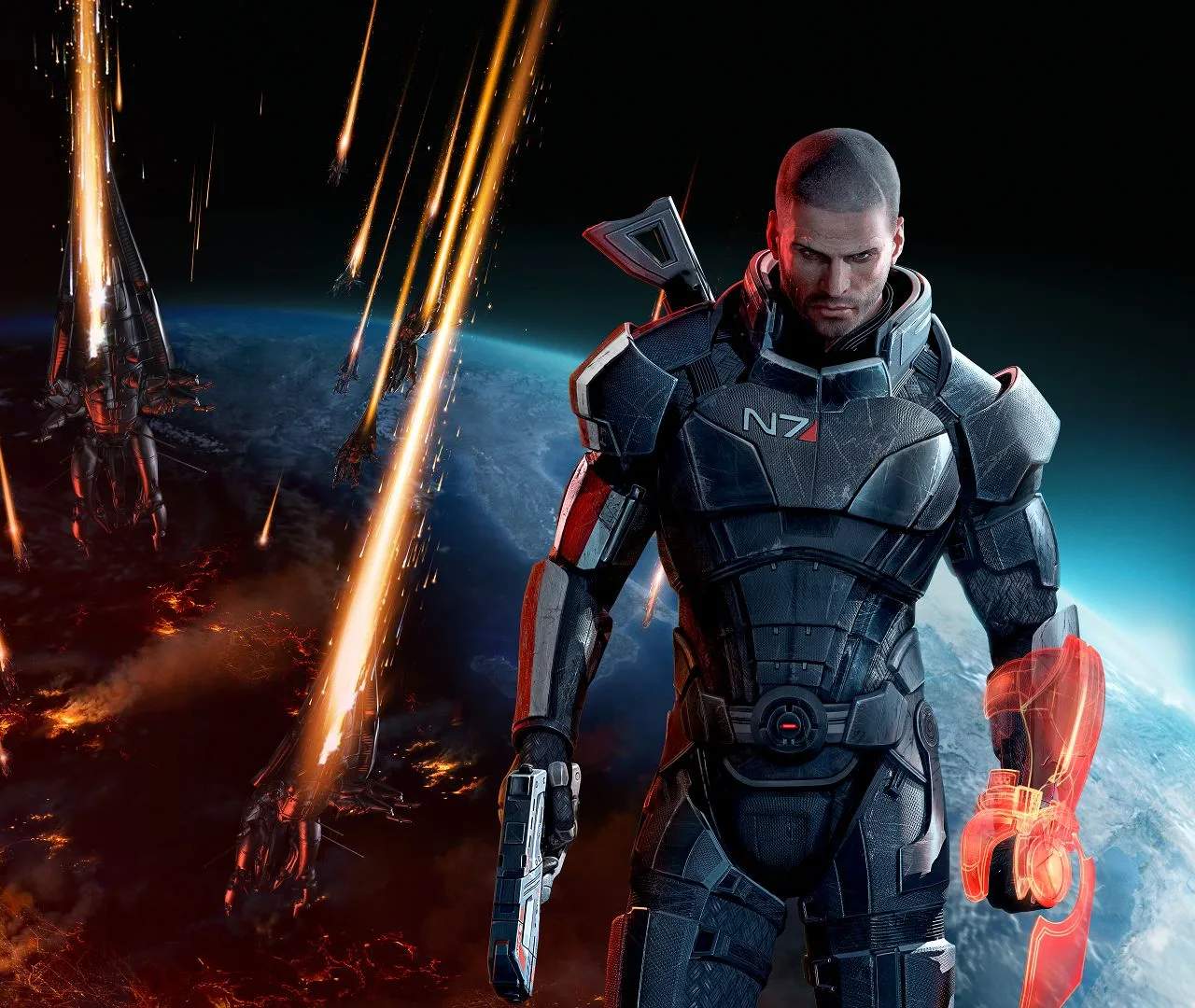
Performance Optimization Tips
To ensure a smooth and immersive experience in Mass Effect 3, especially when playing the Legendary Edition, optimizing your game's performance is key. This involves adjusting graphical settings, managing background processes, and ensuring your system meets the recommended specifications. Even on powerful hardware, tweaking certain settings can yield significant improvements in frame rates and reduce stuttering.
The most impactful adjustments typically involve graphical settings. Lowering settings like texture quality, shadow detail, and ambient occlusion can significantly reduce the load on your GPU. While high settings offer visual fidelity, finding a balance between visual appeal and performance is crucial. Experiment with anti-aliasing options; while it smooths edges, it can be resource-intensive. Consider using FXAA or SMAA over MSAA if you need a performance boost.
Resolution also plays a major role. Running the game at a lower resolution, such as 1080p instead of 1440p or 4K, will drastically improve performance. If you have a high refresh rate monitor, capping your frame rate to match your monitor's refresh rate (e.g., 60 FPS) can prevent screen tearing and provide a more consistent experience, even if it means sacrificing a few extra frames.
Beyond in-game settings, optimizing your operating system and drivers is essential. Ensure your graphics drivers are up-to-date, as manufacturers frequently release updates that improve performance and compatibility with new games. Closing unnecessary background applications, such as web browsers, streaming services, or other launchers, can free up valuable CPU and RAM resources. Consider using Windows' Game Mode, which prioritizes game performance.
For PC players, checking the game's configuration files can sometimes reveal hidden settings or allow for further tweaks. However, proceed with caution, as incorrect modifications can lead to instability. Verifying the integrity of game files through your game launcher (e.g., Steam, Origin) is also a good troubleshooting step if you encounter performance issues or crashes. Ultimately, consistent testing and adjustment of these settings will help you find the optimal balance for your specific hardware.
| Optimization Area | Recommended Actions |
|---|---|
| Graphics Settings | Lower textures, shadows, ambient occlusion; adjust anti-aliasing. |
| Resolution | Reduce resolution if necessary; consider native resolution for best clarity. |
| Frame Rate | Cap FPS to monitor refresh rate for consistency. |
| System Optimization | Update graphics drivers; close background applications; use Game Mode. |
| Game Files | Verify integrity of game files. |