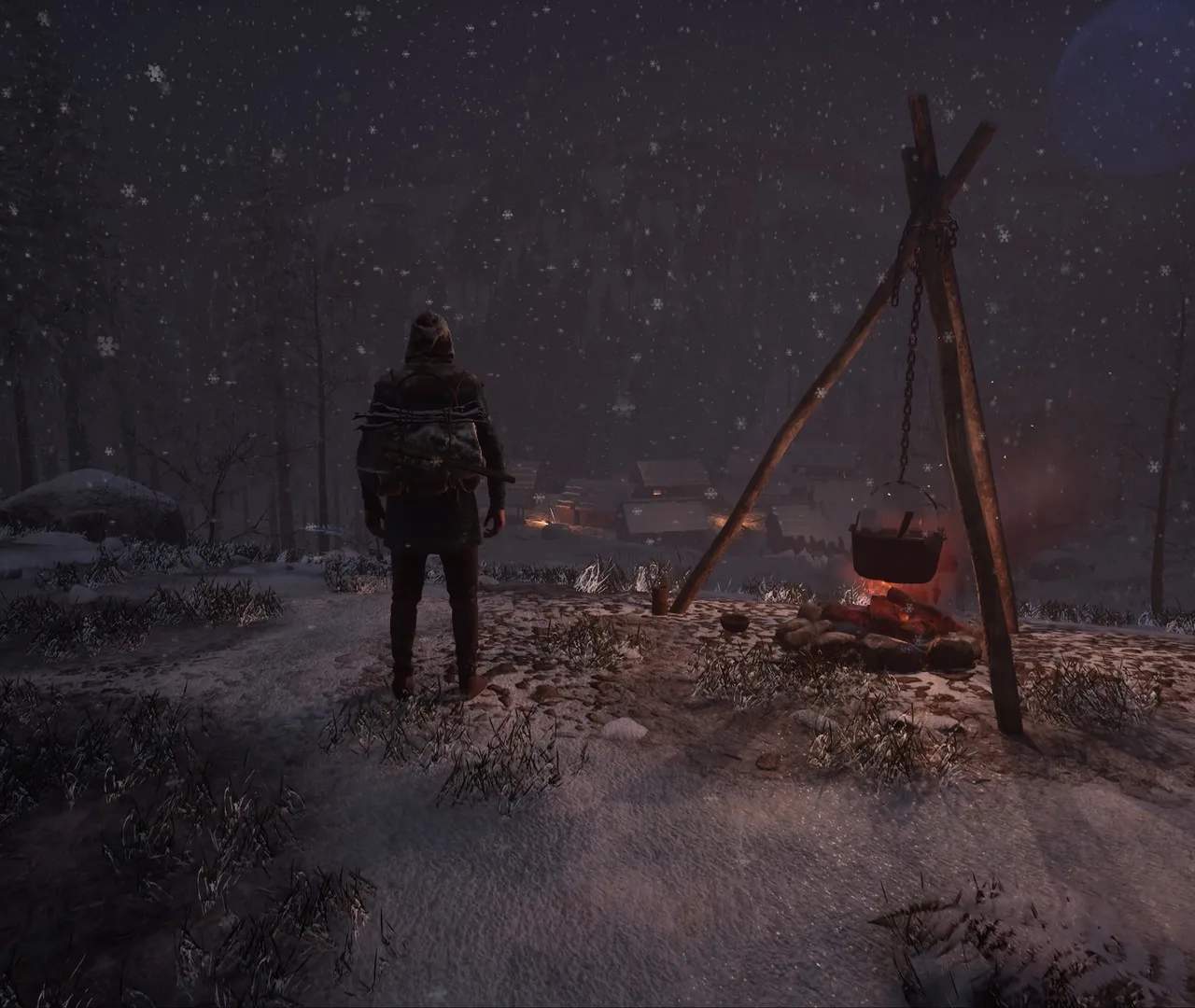
Controls Customization
Tailoring your controls in Medieval Dynasty can significantly enhance your gameplay experience, especially when managing your burgeoning village, hunting in the wilderness, or engaging in dialogue. The default keybindings are a good starting point, but personalizing them to your playstyle can make the game feel much more intuitive and responsive. This section will guide you through accessing and optimizing your control settings.
Accessing the Control Settings
To begin customizing your controls, follow these steps:
- Pause the Game: Press the ESC key to bring up the main menu.
- Navigate to Options: From the main menu, select "Options."
- Select Controls: Within the Options menu, locate and click on the "Controls" tab. This will open a comprehensive list of all assignable actions.
Key Customization Strategies
The Controls menu is divided into several categories, making it easier to find specific actions. Here are some key areas to consider for customization:
- Movement: While most players are comfortable with the standard W, A, S, D for movement, consider remapping sprint (Left Shift by default) or crouch (Left Ctrl by default) if they feel awkward during prolonged use. Some players prefer toggle options for these actions, which can also be found in the Gameplay settings.
- Interaction and Inventory:
- Interaction Key: The default interaction key (E) is crucial for gathering resources, talking to NPCs, and interacting with objects. If you find yourself accidentally interacting with the wrong items, consider if a different key might feel more precise.
- Inventory: Accessing your inventory (I) frequently is a given. Ensure this key is easily reachable.
- Quick Slots: The quick slot bar (1-8) is vital for tool and weapon switching. If you have a mouse with extra buttons, assigning some quick slots there can be incredibly efficient, especially during combat or rapid resource gathering.
- Building and Crafting:
- Building Menu: The building menu (Q) is where you'll spend a lot of time planning your dynasty. Ensure its access is comfortable.
- Crafting: While crafting is often done at specific stations, the ability to quickly open your personal crafting menu (often tied to the inventory key or a separate menu key) is important for on-the-go repairs or simple item creation.
- Combat and Tools:
- Attack/Use Tool: The primary action for attacking or using a tool (Left Mouse Button) is generally universal. However, consider if a secondary attack or aim button (Right Mouse Button) could be placed elsewhere if you find it uncomfortable.
- Sheathe/Unsheathe Weapon: Quickly putting away or drawing your weapon/tool (X by default) can be important for immersion and avoiding accidental actions in safe zones.
- Management Menus:
- Management Menu: The comprehensive management menu (M) is where you oversee your village, assign villagers, and track progress. This key should be easily accessible for frequent checks.
- Map: Accessing the map (M or K depending on context) is crucial for navigation. If you prefer a dedicated map key separate from your management menu, you can reassign it.
Tips for Effective Customization
- Consider Your Hardware: If you have a gaming mouse with programmable buttons or a specialized keyboard, leverage these for frequently used actions like quick slots, sprint, or even opening specific menus.
- Avoid Overlapping Keys: The game will warn you if you try to assign a key that is already in use. While some overlap is acceptable (e.g., a key used for one action when a specific menu is open, and another when it's closed), try to minimize conflicts for a smoother experience.
- Test Thoroughly: After making changes, exit the options menu and play for a while. See if your new keybindings feel natural. Don't be afraid to go back and adjust them until they are perfect.
- Document Your Changes: For extensive rebinds, it can be helpful to make a small note of your custom layout, especially if you play on multiple machines or take breaks from the game.
By taking the time to customize your controls, you can significantly improve your efficiency and enjoyment in Medieval Dynasty, allowing you to focus more on building your legacy and less on fumbling with keybindings.