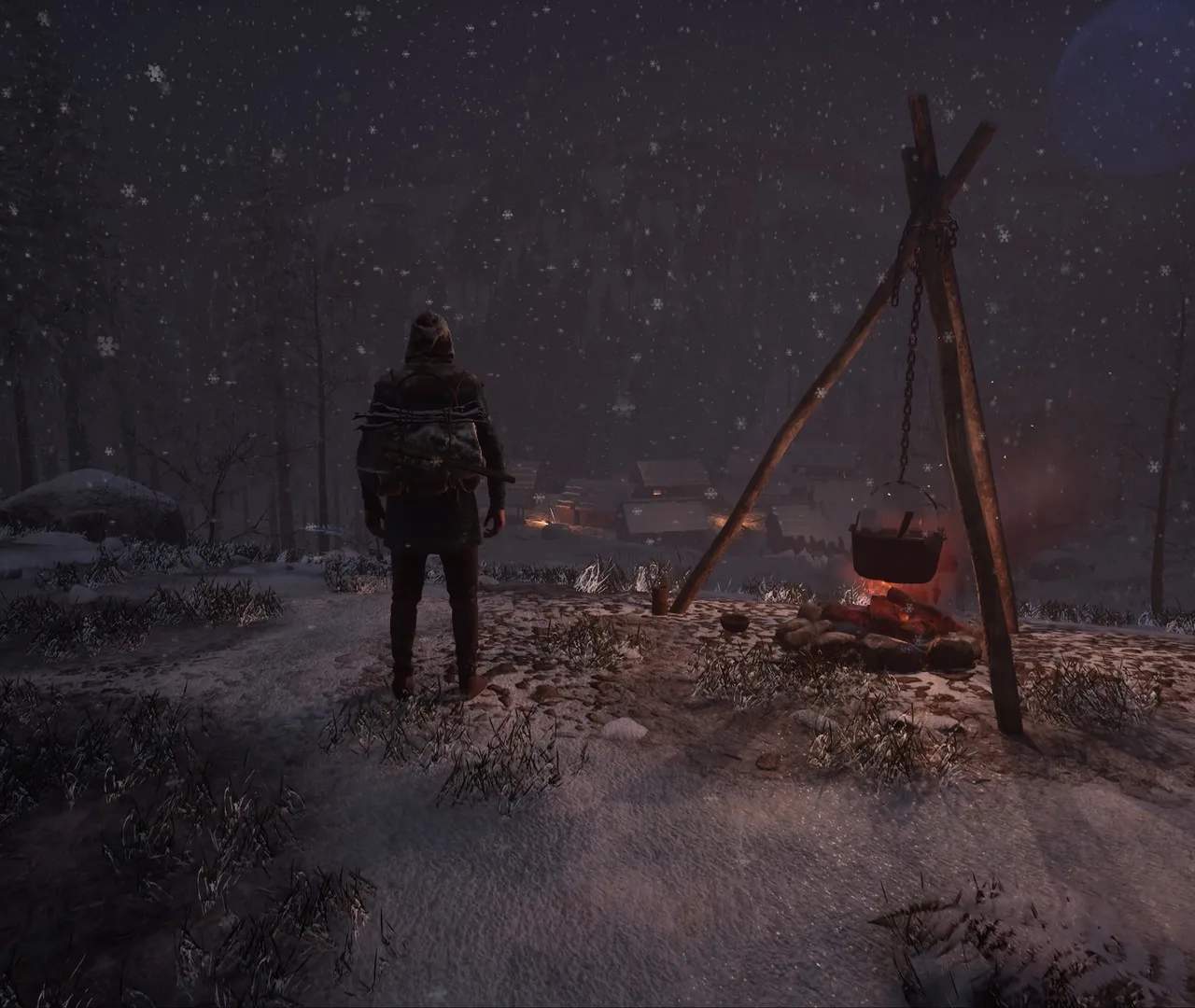
Game Settings & Optimization
Welcome, aspiring dynasty builder! Medieval Dynasty offers a vast, beautiful world, but to truly enjoy your journey from humble peasant to village elder, understanding and optimizing your game settings is crucial. Whether you're battling framerate drops in bustling settlements or simply want to fine-tune your visual experience, this guide will walk you through the essential steps.
Accessing the Settings Menu
To begin, launch Medieval Dynasty and from the Main Menu, select "Options." If you're already in-game, press the 'Esc' key to bring up the Pause Menu, then select "Options." This will open the comprehensive settings panel where you can adjust various aspects of your game.
Graphics Settings: Balancing Beauty and Performance
The Graphics tab is where you'll spend most of your optimization efforts. Medieval Dynasty can be quite demanding, especially in dense areas or during specific weather effects. Here's a breakdown of key settings and strategies:
- Display Mode: Always aim for "Fullscreen" for the best performance. "Windowed" or "Borderless Windowed" modes can introduce slight input lag and lower frame rates.
- Resolution: Match this to your monitor's native resolution for the sharpest image. If you're struggling with performance, consider dropping this one step down (e.g., from 1920x1080 to 1600x900) as a last resort.
- V-Sync: This synchronizes your game's frame rate with your monitor's refresh rate to prevent screen tearing. Turn it "On" if you experience tearing. If you have a high refresh rate monitor and a powerful GPU, you might try turning it "Off" for slightly lower input lag, but be prepared for potential tearing.
- Frame Rate Limit: Set this to your monitor's refresh rate (e.g., 60 FPS for a 60Hz monitor). Capping your frame rate can lead to more consistent performance and reduce GPU strain.
- Overall Quality: This is a quick preset. Start with "High" or "Medium" and adjust individual settings from there. "Low" is for very old systems or severe performance issues.
Detailed Graphics Adjustments for Performance:
For granular control, delve into these individual settings:
- Shadow Quality: This is often the biggest performance hog. Dropping from "Ultra" to "High" or even "Medium" can provide significant FPS boosts with minimal visual impact, especially in open areas like the fields around Gostovia.
- View Distance: Affects how far into the distance objects and terrain are rendered. "High" is generally good, but if you're struggling, try "Medium." "Low" can make the world feel a bit barren.
- Foliage Quality: Controls the density and detail of trees, bushes, and grass. Lowering this from "High" to "Medium" or "Low" can greatly improve performance in forested regions or around your village.
- Texture Quality: Impacts the sharpness of surfaces. "High" is usually fine for most systems. Only lower this if you have very limited VRAM on your graphics card.
- Post Processing: Includes effects like bloom, depth of field, and motion blur. Turning "Motion Blur" off is often recommended for a clearer image and can offer a slight performance gain. Experiment with other post-processing options.
- Anti-Aliasing: Smooths out jagged edges. "TAA" (Temporal Anti-Aliasing) is often a good balance of quality and performance. If you have performance issues, try "FXAA" or turn it "Off."
- Water Quality: Affects the appearance of rivers and lakes. Lowering this can help in areas with significant water bodies, such as the river near Denica.
Gameplay Settings: Tailoring Your Experience
The Gameplay tab offers options that impact the difficulty and overall feel of your medieval life. These don't directly affect performance but are crucial for enjoying the game at your own pace.
- Survival Difficulty: Adjusts the rate at which your character's hunger, thirst, and stamina deplete. "Normal" is a good starting point. "Hard" makes survival a constant challenge, requiring more frequent trips to your Food Storage and Water Skin refills.
- Building Limit: Determines the maximum number of buildings you can construct in your village. If you plan a sprawling settlement, consider increasing this early on.
- Dynasty Reputation Gain: Controls how quickly your reputation increases, which is vital for attracting new villagers and progressing the story. Increase this if you want a faster pace.
- Technology Gain: Affects how quickly you unlock new crafting recipes and building schematics. A higher value means faster progression through the technology tree.
- Damage Taken/Dealt: Fine-tune combat difficulty. If you find yourself constantly being mauled by boars near Borowo, consider lowering "Damage Taken" or increasing "Damage Dealt."
- Season Length: Adjusts how many days each season lasts. Longer seasons give you more time for farming, hunting, and resource gathering before winter sets in.
Audio Settings: Immersion and Alerts
While not directly impacting performance, proper audio settings enhance immersion and help you react to the world around you.
- Master Volume: Controls the overall game volume.
- Music Volume: Adjusts the background music.
- SFX Volume: Controls sound effects like chopping wood, animal calls, and tool usage. Keep this high to hear important cues.
- Voice Volume: Adjusts character dialogue.
Key Bindings: Personalizing Your Controls
The Key Bindings tab allows you to remap any action to your preferred key or mouse button. This is especially useful if you're accustomed to specific control schemes from other survival or RPG titles. Take the time to customize actions like "Interact," "Inventory," and "Map" to ensure smooth gameplay.
Advanced Optimization Tips:
- Update Your Drivers: Always ensure your graphics card drivers (NVIDIA, AMD, Intel) are up to date. Manufacturers frequently release game-ready drivers that can significantly improve performance.
- Close Background Applications: Before launching Medieval Dynasty, close any unnecessary programs running in the background (web browsers, streaming apps, etc.) to free up RAM and CPU resources.
- Monitor Your Performance: Use tools like MSI Afterburner or your graphics card's overlay (NVIDIA GeForce Experience, AMD Radeon Software) to monitor your FPS, GPU usage, and CPU usage. This helps you identify bottlenecks when adjusting settings.
- Experiment: Every system is different. Don't be afraid to experiment with settings. Make small changes, test them in-game, and then adjust further. A good starting point is to lower Shadow Quality and Foliage Quality first, as these often have the most impact.
By carefully adjusting these settings, you can ensure your Medieval Dynasty experience is as smooth and visually appealing as possible, allowing you to focus on building your legacy without technical frustrations.