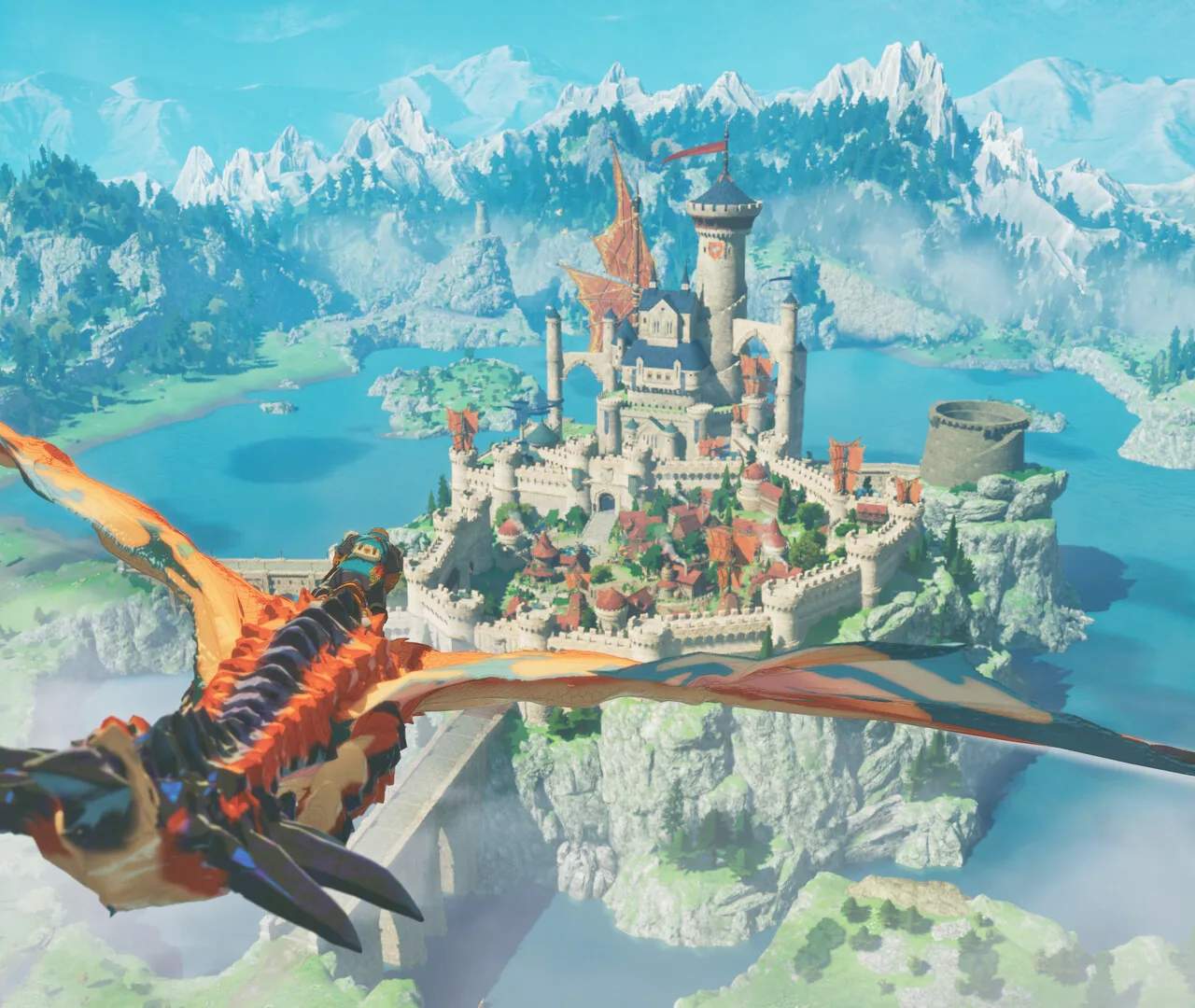
Graphics & Performance Settings
To ensure the most immersive and fluid experience in Monster Hunter Stories 3: Twisted Reflection, optimizing your graphics and performance settings is crucial. The game offers a range of options to tailor the visual fidelity and frame rate to your system's capabilities. Access these settings through the main menu's Options tab. The primary display settings include resolution, which dictates the sharpness of the image. Higher resolutions like 1920x1080 (Full HD) offer greater detail but demand more processing power. If you experience stuttering or low frame rates, consider lowering the resolution to 1280x720 (HD). Texture quality affects the detail of surfaces like monster scales and armor; setting this to High provides the most visually appealing results, while Medium or Low can improve performance. Shadow quality impacts the realism of shadows cast by characters and the environment; reducing this can yield significant performance gains. Anti-aliasing smooths out jagged edges on objects, making the game look cleaner, but it can be a performance-intensive setting. If you're struggling to maintain a consistent 60 frames per second (FPS), consider disabling or reducing anti-aliasing. Motion blur can be toggled on or off based on personal preference; some find it adds to the cinematic feel, while others prefer a sharper image. For players on PC, V-Sync can be enabled to prevent screen tearing by synchronizing the game's frame rate with your monitor's refresh rate, though it may introduce input lag. If your system struggles to maintain a stable frame rate, consider lowering settings like draw distance, which affects how far into the distance objects are rendered, or particle effects, which control the visual complexity of explosions and elemental effects. Experimenting with these settings is key; start with the recommended presets and then fine-tune individual options until you find the optimal balance between visual quality and smooth gameplay, especially when engaging in intense battles with multiple monsters in visually demanding areas like the Crystal Caves.
- Resolution: Adjust for image sharpness and performance (e.g., 1920x1080 vs. 1280x720).
- Texture Quality: Affects surface detail (High, Medium, Low).
- Shadow Quality: Impacts shadow realism and performance.
- Anti-Aliasing: Smooths jagged edges; can be performance-intensive.
- Motion Blur: Toggle for visual preference.
- V-Sync: Synchronizes frame rate with monitor refresh rate (PC).
- Draw Distance: Controls rendering distance of objects.
- Particle Effects: Affects visual complexity of effects.