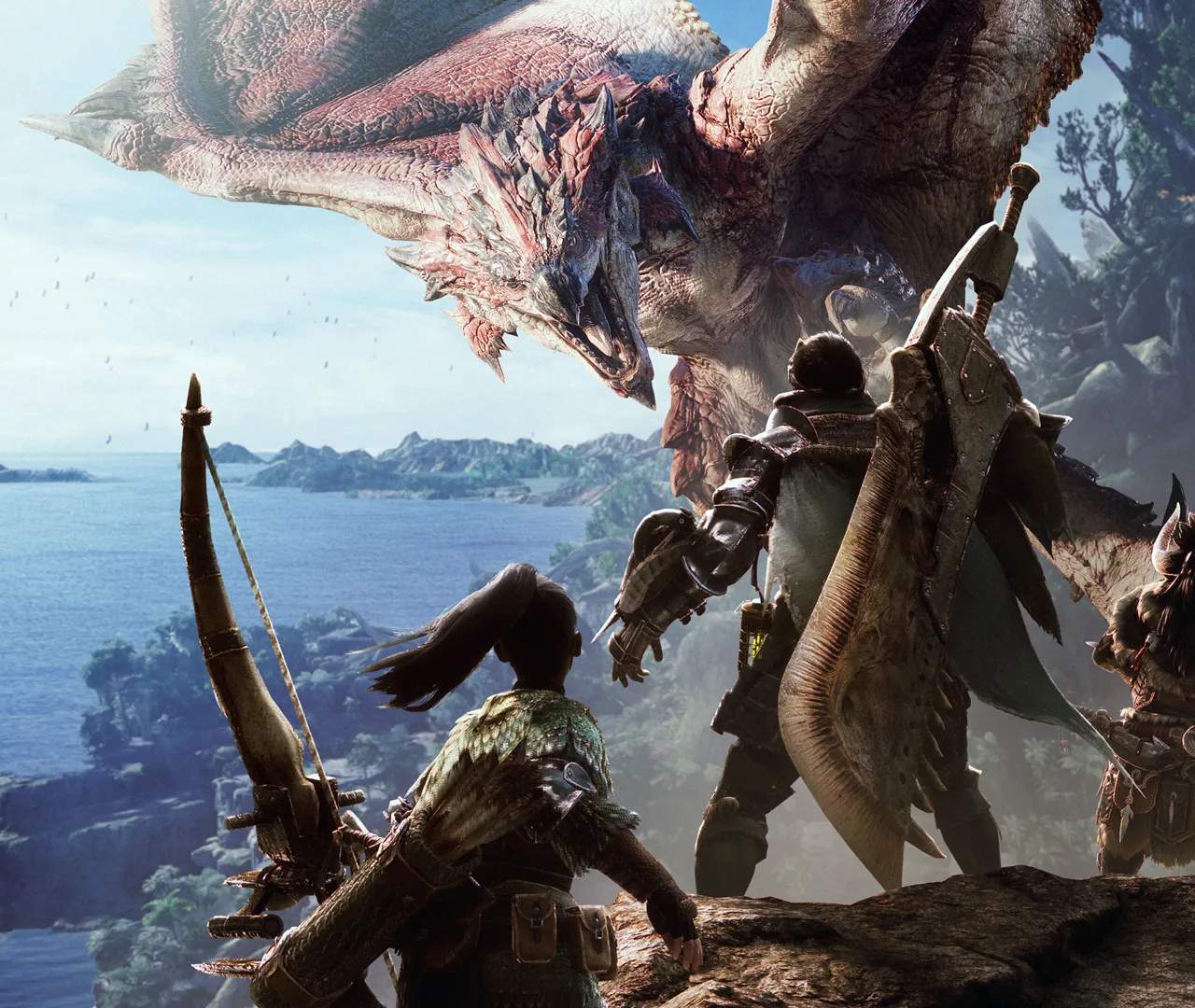
Camera Controls — Monster Hunter: World Guide
Navigating the world of Monster Hunter: World and tracking its colossal beasts requires precise control over your camera. The camera is your eyes in the hunt, and mastering its functions is as vital as wielding your weapon effectively. Poor camera control can lead to missed attacks, unexpected hits, and a frustrating experience. This guide will break down the essential camera controls to help you stay on target.
Monster Hunter: World offers several camera control options, catering to different player preferences. Whether you're playing on PC, PlayStation, or Xbox, the fundamental controls remain similar, focusing on smooth tracking and quick adjustments. Understanding these controls will significantly improve your situational awareness and combat prowess.
Basic Camera Movement:
- Right Analog Stick (Controller) / Mouse (PC): This is your primary tool for looking around. Moving the stick or mouse will rotate your camera, allowing you to survey your surroundings or focus on a specific monster.
- Left Analog Stick (Controller) / WASD Keys (PC): This controls your character's movement. It's crucial to coordinate your movement with your camera to maintain a clear view of the action.
Targeting and Lock-On:
One of the most critical camera features is the ability to lock onto monsters. This keeps the camera focused on your target, making it easier to track their movements and land your attacks. The method for locking on can vary slightly depending on your platform and settings.
- Lock-On Button (Controller): Typically, pressing a specific button (often L2/LT or R3/RS) will initiate a lock-on. Once locked on, the camera will automatically follow the monster. Pressing the button again will cycle through available targets if multiple monsters are present.
- Target Camera (PC): On PC, this is usually bound to a specific key (e.g., 'T' or 'Tab').
- Camera Reset/Center: There's usually a button to quickly recenter the camera behind your hunter or on your locked-on target. This is invaluable for quickly reorienting yourself after a large monster attack or a camera-obscuring event.
Camera Settings:
Monster Hunter: World offers extensive camera settings that allow you to fine-tune your experience. These are typically found in the Options menu under 'Camera Settings'.
| Setting | Description | Recommendation |
|---|---|---|
| Camera Sensitivity | Controls how quickly the camera moves when you use the right analog stick or mouse. | Adjust to your comfort. Higher sensitivity allows for quicker turns, but can be harder to control precisely. |
| Camera Speed (Target Camera) | Controls the speed at which the camera follows a locked-on target. | A moderate speed is usually best to avoid jerky movements. |
| Camera Auto-Center | Determines if the camera automatically centers on your character or target. | Experiment with this. Some prefer it off for more manual control, others find it helpful. |
| Camera Distance | Adjusts how far the camera is from your hunter. | A slightly further distance can improve situational awareness. |
| Target Camera Type | Options like 'Type 1', 'Type 2', 'Type 3' affect how the camera behaves when locking on and off. | Try different types to see which feels most intuitive for your playstyle. Type 1 is often a good starting point. |
Tips for Effective Camera Control:
- Practice Regularly: The more you play, the more intuitive camera control will become.
- Use the Lock-On System: Don't be afraid to use the lock-on feature, especially during intense fights.
- Quickly Re-Center: Learn to use the camera reset button to quickly regain your bearings.
- Adjust Settings: Don't hesitate to tweak your camera settings until they feel just right.
- Be Aware of Your Surroundings: Even with lock-on, occasionally pan your camera to check for other threats or environmental hazards.
Mastering the camera in Monster Hunter: World is an ongoing process, but by understanding these controls and settings, you'll be well on your way to a smoother, more effective hunting experience.