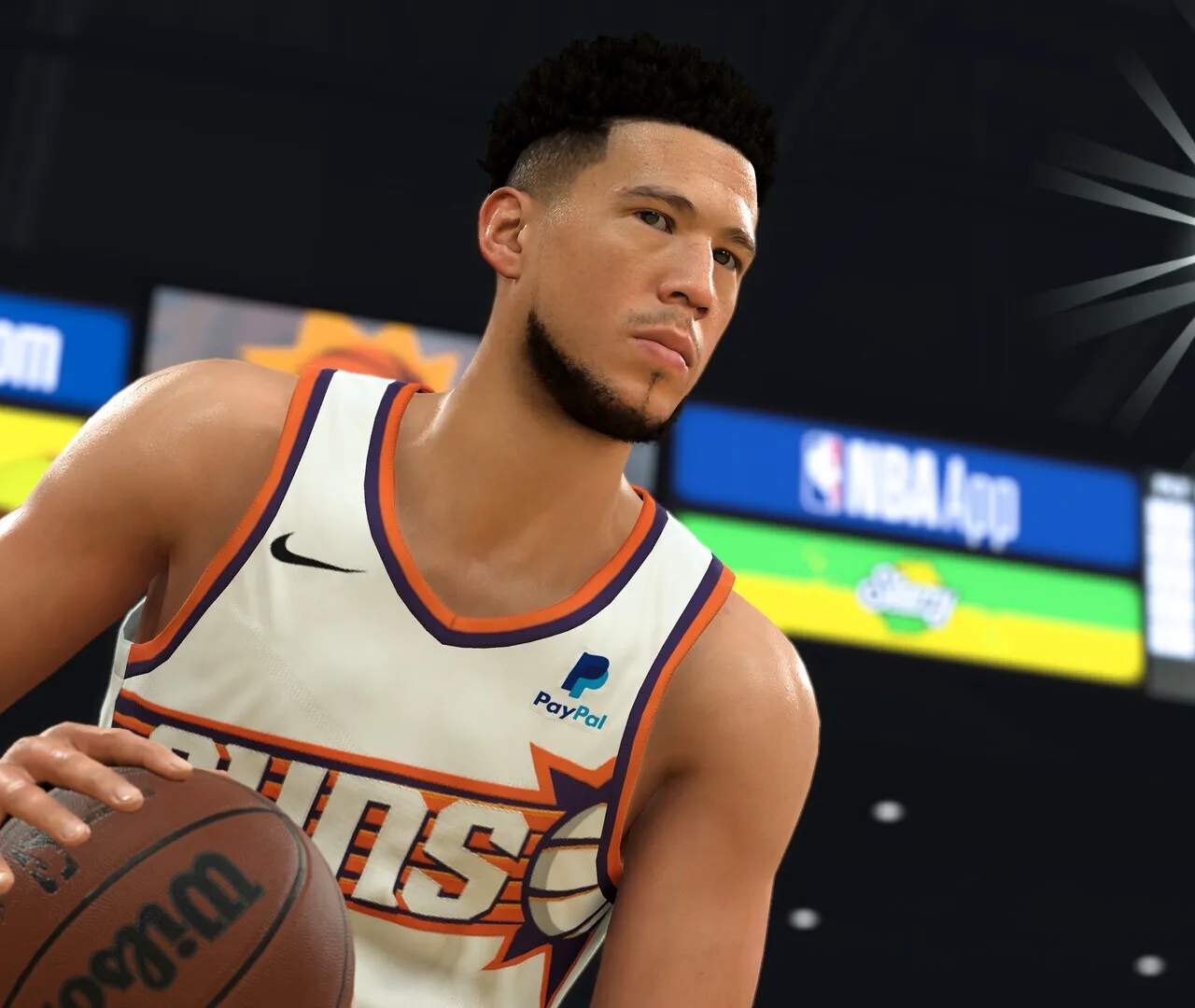
Playing NBA 2K24 on PC: A Comprehensive Guide
NBA 2K24 offers a robust experience on PC, allowing players to enjoy the latest iteration of the popular basketball simulation on their computers. Whether you're using a keyboard and mouse or a controller, this guide will walk you through the essential steps to get started, optimize your settings, and ensure a smooth gameplay experience. From system requirements to in-game adjustments, we'll cover everything you need to know to hit the virtual court on PC.
Playing NBA 2K24 on PC provides a versatile platform for basketball simulation enthusiasts. This guide focuses on ensuring you have the best possible experience, covering installation, control configurations, and performance optimization. Whether you prefer the precision of a keyboard and mouse or the familiarity of a controller, we'll help you set up your game for maximum enjoyment and competitive edge.
System Requirements
Before diving in, ensure your PC meets the minimum or recommended system requirements for NBA 2K24. These specifications are crucial for smooth performance and to avoid frustrating lag or crashes. You can typically find these details on the game's store page (e.g., Steam) or the official NBA 2K website.
Installation and Launch
NBA 2K24 is available on PC through digital storefronts like Steam. Once purchased, the game can be downloaded and installed directly through the platform. Ensure you have sufficient disk space and a stable internet connection for the download process. After installation, launching the game is as simple as clicking the 'Play' button in your game library.
Control Options: Keyboard & Mouse vs. Controller
NBA 2K24 on PC supports both keyboard and mouse controls and gamepad input. While many players prefer the tactile feedback and analog control offered by a gamepad (such as an Xbox or PlayStation controller), the keyboard and mouse setup can also be effective, especially for menu navigation and certain actions.
- Controller: Recommended for the most authentic basketball experience. Most modern USB controllers are plug-and-play.
- Keyboard & Mouse: Offers precise control for menu navigation. Keybindings can be customized within the game's settings.
Optimizing In-Game Settings
To achieve the best performance and visual fidelity, it's essential to adjust the in-game graphics and gameplay settings. Access these through the game's main menu under 'Settings' or 'Options'.
- Graphics Settings: Adjust resolution, texture quality, anti-aliasing, and shadow detail to balance visual quality with frame rate. Lowering certain settings can sificantly improve performance on less powerful hardware.
- Gameplay Settings: Customize camera angles, shot meter options, and other gameplay-related preferences.
- Controller Settings: If using a controller, you can often fine-tune sensitivity, vibration feedback, and button mapping.
Troubleshooting Common Issues
If you encounter performance issues, try the following:
- Update your graphics card drivers.
- Close unnecessary background applications.
- Verify the integrity of game files through your digital storefront.
- Ensure your operating system is up to date.
By following these steps, you can ensure a smooth and enjoyable NBA 2K24 experience on your PC, allowing you to focus on the game itself.