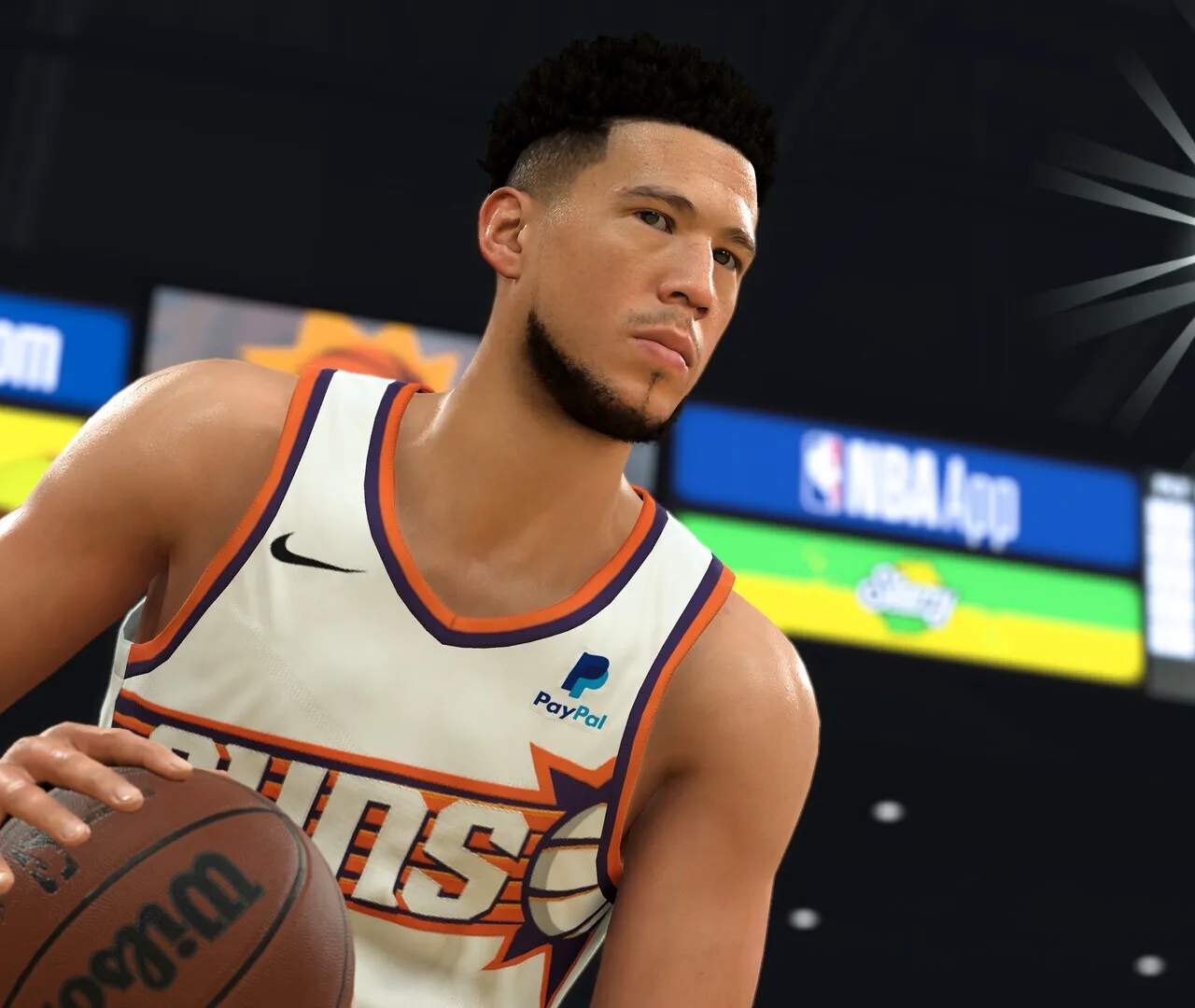
1.1. Installation & Initial Setup
Embarking on your NBA 2K24 journey begins with a smooth installation and initial setup. This section guides you through downloading, installing, and configuring the game for optimal performance. We'll cover platform-specific instructions and essential first-time settings to ensure you're ready to hit the court without delay.
The installation process for NBA 2K24 varies slightly depending on your chosen platform: PlayStation, Xbox, Nintendo Switch, or PC. For console users, navigate to your platform's digital store (PlayStation Store, Microsoft Store, Nintendo eShop), search for "NBA 2K24," and select the option to purchase or download. Ensure you have sufficient storage space on your console's hard drive; the game typically requires a sificant amount of space. Once the download is complete, the game will usually install automatically. For PC users, installation is typically handled through a platform like Steam or the Epic Games Store. After purchasing and downloading the game files, follow the on-screen prompts to complete the installation. It's recommended to install the game on an SSD for faster loading times.
Upon launching NBA 2K24 for the first time, you'll be guided through an initial setup process. This often includes agreeing to the terms of service, setting up your 2K Account (which is crucial for online features and cross-progression), and potentially downloading the latest game updates and roster files. You'll also be prompted to configure your display settings, such as resolution, refresh rate, and graphical presets, to match your system's capabilities. Audio settings, including volume levels for commentary, crowd noise, and music, can also be adjusted. Finally, you might have the option to complete a brief tutorial or jump straight into the main menu. Taking a moment to adjust these settings can sificantly enhance your gameplay experience and ensure smooth performance from the outset.