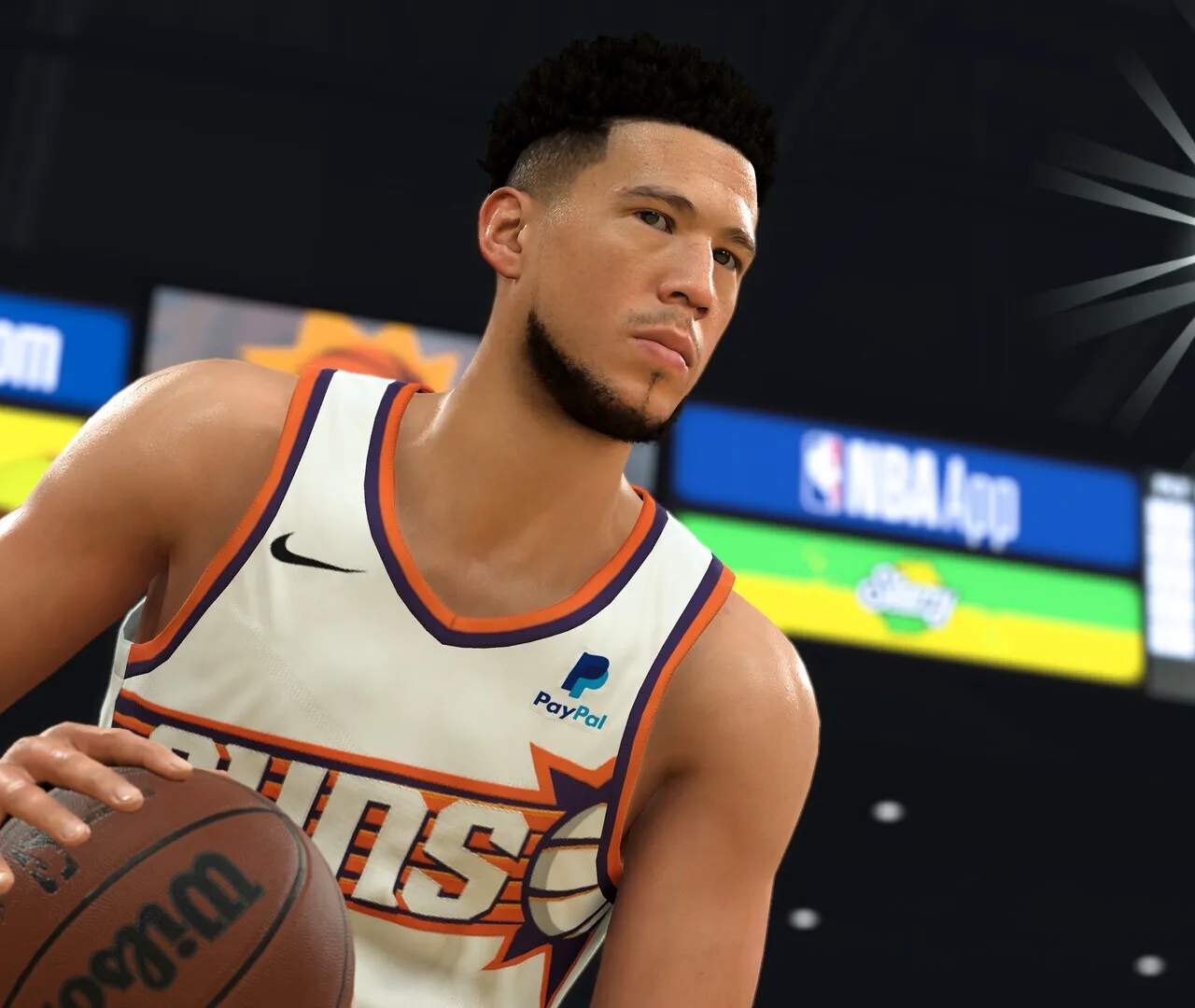
Installation & First Launch
Welcome to the definitive guide for getting started with NBA 2K24! This section will walk you through the installation process, initial setup, and crucial first steps to ensure you're ready to dominate the court. Whether you're a seasoned veteran or a rookie to the series, a smooth launch experience sets the stage for countless hours of basketball action.
System Requirements & Pre-Installation Checks
Before you even think about downloading, it's vital to ensure your system meets the minimum requirements and has ample space. NBA 2K24 is a graphically intensive game with a substantial file size.
- Storage Space: The game requires a significant amount of storage. On average, expect to need 150GB to 160GB of free space. This can fluctuate slightly between platforms (PC, PlayStation, Xbox, Switch). We highly recommend having at least 200GB available to accommodate future updates and patches without hassle.
- Internet Connection: A stable and reasonably fast internet connection is crucial for downloading the game, especially if you purchased a digital version. Even physical copies often require a day-one patch.
- Platform-Specific Checks:
- PC: Verify your CPU, GPU, and RAM meet or exceed the minimum specifications listed on the game's store page (Steam, Epic Games Store). Ensure your graphics drivers are up to date.
- Consoles (PS5, Xbox Series X/S): Ensure your console's system software is updated to the latest version.
- Nintendo Switch: If purchasing digitally, consider an SD card for expanded storage, as the internal memory might not be sufficient.
Installation Process
The installation process varies slightly depending on your platform and whether you have a physical or digital copy.
Digital Download (All Platforms)
- Purchase & Locate: After purchasing the game from your platform's digital storefront (PlayStation Store, Xbox Store, Nintendo eShop, Steam, Epic Games Store), navigate to your game library or download queue.
- Initiate Download: Select NBA 2K24 and choose the "Download" or "Install" option.
- Monitor Progress: Keep an eye on the download progress. Depending on your internet speed, this could take several hours. Most platforms allow you to put your console into rest mode while downloading.
- Ready to Play: Once the download and installation are complete, the game icon will become active, and you'll be ready to launch.
Physical Disc Installation (PlayStation, Xbox)
- Insert Disc: Place the NBA 2K24 game disc into your console's disc drive.
- Automatic Installation: Your console should automatically begin the installation process, copying game data from the disc to your hard drive.
- Day-One Patch: Even with a physical disc, a significant "day-one patch" or subsequent updates will likely be required. Your console will typically prompt you to download these updates. This download can be substantial, so ensure you have an internet connection.
- Launch Game: Once the disc data is installed and any necessary patches are applied, you can launch the game.
First Launch & Initial Setup
Upon launching NBA 2K24 for the very first time, you'll be guided through a series of essential setup steps designed to tailor the experience to your preferences. Do not rush through these; they lay the groundwork for your entire gameplay experience.
1. Display & Audio Calibration
- Brightness: The game will prompt you to adjust the brightness. Follow the on-screen instructions, typically asking you to adjust until a specific logo or image is barely visible. This ensures optimal visual clarity.
- HDR Calibration (if applicable): If your display supports HDR, you might have an additional calibration step to fine-tune HDR peak brightness and paper white settings.
- Audio Settings: You'll be given options for audio output (e.g., TV speakers, headphones, surround sound) and initial volume levels for music, commentary, and sound effects. We recommend setting these to a comfortable level, knowing you can fine-tune them later in the main menu.
2. Initial Preferences & Difficulty
Beyond basic display and audio, NBA 2K24 offers crucial preference settings right from the start:
- Difficulty Setting: You'll be asked to choose your preferred difficulty. Options typically range from Rookie (very easy, ideal for new players) to Hall of Fame (extremely challenging, for experienced players). Don't worry too much about this initial choice; you can always change it later in the main menu's settings for most game modes. For your first few games, Pro or All-Star are good starting points to get a feel for the game without being overwhelmed.
- Preferred Camera Angle: NBA 2K24 offers several camera angles. You might be prompted to select a default. Common choices include:
- 2K Cam: The traditional broadcast-style camera, following the action up and down the court.
- Broadcast: A more static, TV-like perspective.
- Side: A classic side-scrolling view.
- Player Lock: Follows only your controlled player.
- Controller Layout: While the default layout is usually standard, some players might be given an option for alternative button configurations or be shown a diagram of the controls.
3. Initial Tutorial Prompts & Gameplay Introduction
After setting your initial preferences, the game will often transition into a brief, interactive tutorial or an introductory exhibition match. This is highly recommended for all players, regardless of experience.
- Mandatory vs. Optional: While some basic control prompts might be mandatory to progress, the more in-depth tutorials (e.g., specific offensive moves, defensive strategies) are often optional but invaluable. We strongly advise completing them.
- What They Cover: These tutorials typically cover:
- Basic Movement: Dribbling, sprinting, changing direction.
- Shooting Mechanics: Jump shots, free throws, layups, dunks (often with a shot meter explanation).
- Passing: Basic passes, bounce passes, lob passes.
- Defense: Stealing, blocking, guarding, contesting shots.
- Advanced Moves: Crossovers, spin moves, post-up play (these might be introduced in later, more advanced tutorials).
- Benefits: Even if you've played previous NBA 2K titles, the controls and mechanics can evolve. These tutorials ensure you understand the current game's nuances, especially new features like the "ProPLAY" technology or updated shot timing. They are the best way to avoid common pitfalls and build muscle memory.
4. MyPLAYER Creation (If Applicable)
Depending on the game version and initial setup flow, you might be immediately prompted to begin creating your MyPLAYER. This is the avatar you'll use in popular modes like MyCAREER and The City/Neighborhood.
- Initial Scan/Face Creation: You might have the option to use the MyNBA2K Companion App on your mobile device to scan your face onto your player, or you can use the in-game creation suite.
- Archetype/Build Selection: This is a critical step. You'll choose your player's position, height, weight, wingspan, and initial skill attributes. This determines your player's archetype (e.g., "Sharpshooting Playmaker," "Two-Way Slashing Center").
- Common Pitfall: Do not rush this! Your MyPLAYER build significantly impacts your gameplay experience in MyCAREER and online modes. Research popular builds or consider what playstyle you enjoy most. You can always create multiple MyPLAYERs later, but your first one is often your main investment.
- Recommendation: If unsure, select a balanced build or a position you're comfortable playing in real-life basketball.
Post-Launch Recommendations
Once you've completed the initial setup and tutorials, here are a few immediate steps to enhance your experience:
- Explore the Main Menu: Familiarize yourself with the various game modes available (MyCAREER, MyTEAM, MyNBA, Play Now, The W, etc.) and the settings menu.
- Practice in 2KU: The 2KU mode (often found under "Play Now" or "Training") is an excellent sandbox for practicing specific moves, plays, and shot timing without pressure.
- Adjust Advanced Settings: Dive into the game's settings menu. You can fine-tune controller vibration, shot meter appearance, camera angles, and more to truly personalize your gameplay.
- Check for Updates: Always ensure your game is updated to the latest version to benefit from bug fixes, roster updates, and new content.
By following these comprehensive steps, you'll ensure a smooth installation and a perfectly calibrated first launch, setting you up for success on the virtual hardwood of NBA 2K24!