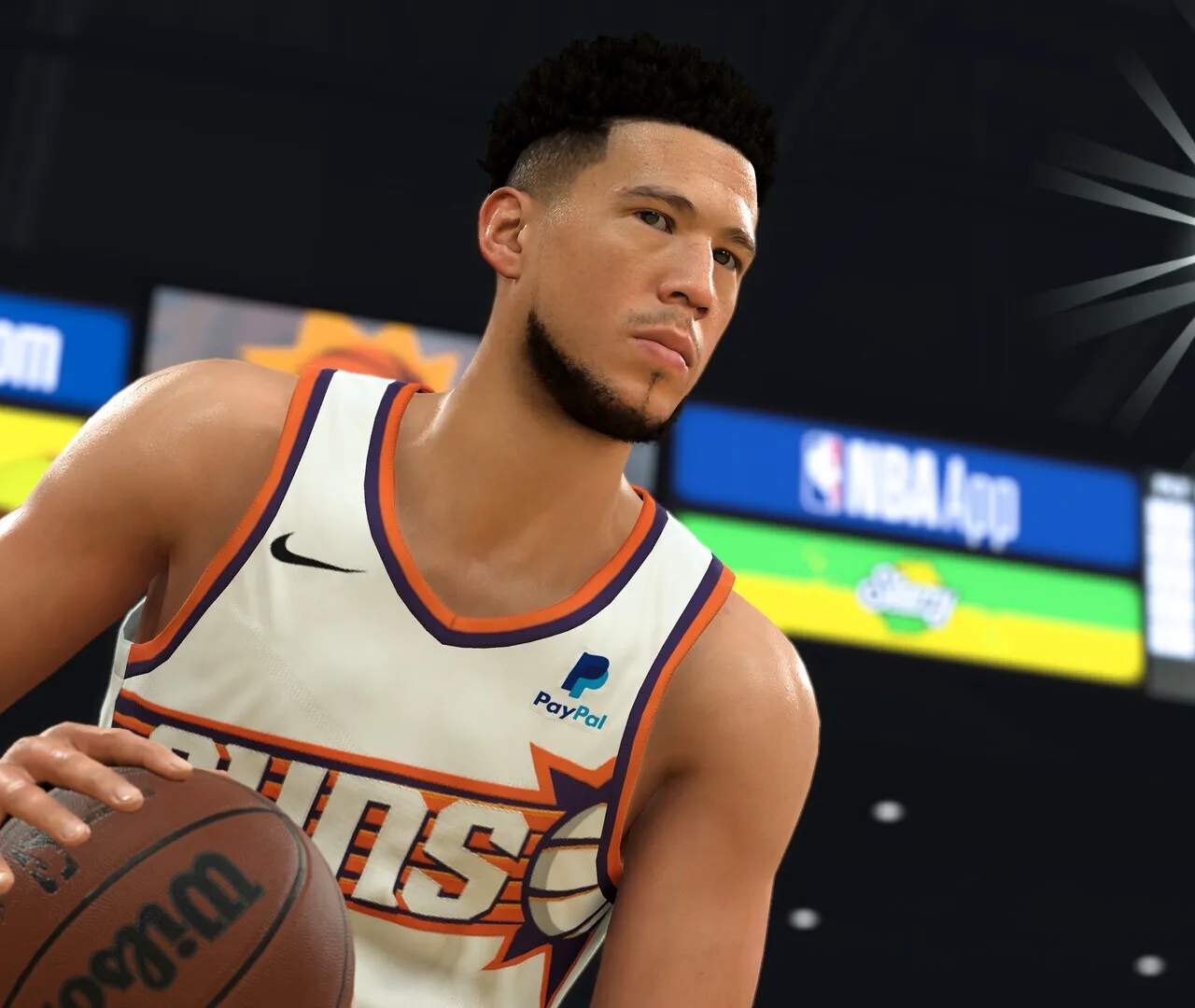
Playing NBA 2K24 on PC and Mac
NBA 2K24 offers a premium basketball simulation experience, and for PC players, there are two primary avenues to enjoy the game: the native Windows version and, for Mac users or those preferring a mobile-like experience on PC, through Android emulators.
Option 1: Playing the Native NBA 2K24 on Windows PC
The most direct and recommended way to play NBA 2K24 on a Windows PC is by purchasing and installing the official PC version. This version is optimized for the platform, offering the best performance, graphical fidelity, and control options without the need for third-party software.
Where to Purchase and Download NBA 2K24 for PC:
- Digital Storefronts: The primary platform for purchasing NBA 2K24 on PC is Steam. You can also find it on the Epic Games Store.
- System Requirements: Before purchasing, ensure your PC meets the minimum and recommended system requirements for NBA 2K24. These are typically found on the game's store page. Key components to check include your CPU, GPU, RAM, and available storage space.
Step-by-Step Installation Guide (Steam):
- Create/Log In to Steam Account: If you don't have a Steam account, visit store.steampowered.com to create one. If you do, log in to your existing account.
- Purchase NBA 2K24: Navigate to the NBA 2K24 store page on Steam. Select your desired edition and proceed to checkout.
- Download and Install: Once purchased, NBA 2K24 will appear in your Steam Library. Click on the game title, then click the "Install" button. Choose your installation directory and follow the on-screen prompts. The download size can be substantial, so ensure you have a stable internet connection and sufficient disk space.
- Launch the Game: After installation, the "Install" button will change to "Play." Click it to launch NBA 2K24. The first launch may involve additional setup or shader compilation.
- Configure Settings: Upon launching, you'll likely be presented with graphics and control configuration options. Adjust these to your preference and system capabilities for the best experience. You can typically use a keyboard and mouse or a compatible gamepad.
Recommended Controls for PC:
While NBA 2K24 supports keyboard and mouse, many players find a gamepad offers a more intuitive and responsive experience for sports titles. If using a gamepad, ensure it's connected and recognized by your PC before launching the game. Steam's controller configuration options can help map controls precisely.
Option 2: Playing NBA 2K24 on Mac and PC via Android Emulators
For Mac users, or for PC users who prefer to play the mobile version of NBA 2K24 on a larger screen with keyboard and mouse controls, Android emulators are a viable solution. These programs create a virtual Android environment on your computer, allowing you to run mobile apps and games.
Popular Android Emulators:
- BlueStacks: Widely regarded as one of the most user-friendly and performant emulators, especially for gaming.
- NoxPlayer: Another robust option offering good performance and customization.
- LDPlayer: Known for its speed and efficiency, particularly on lower-spec machines.
Step-by-Step Installation Guide (Using BlueStacks as an example):
- Download the Emulator: Visit the official website of your chosen emulator (e.g., bluestacks.com) and download the latest version for your operating system (Windows or macOS).
- Install the Emulator: Run the downloaded installer file and follow the on-screen instructions. This process is similar to installing any other desktop application.
- Launch the Emulator and Sign In: Once installed, open the emulator. You will be prompted to sign in with your Google account. This is necessary to access the Google Play Store.
- Access Google Play Store: Within the emulator's interface, locate and open the Google Play Store app.
- Search for NBA 2K24: Use the search bar in the Play Store to find "NBA 2K24."
- Install NBA 2K24: Click on the game and then click the "Install" button. The game will download and install within the emulator.
- Launch and Configure Controls: After installation, the NBA 2K24 icon will appear on the emulator's home screen. Click it to launch the game. The emulator will likely offer a keymapping tool to assign keyboard keys or mouse actions to on-screen touch controls. Customize these to your liking for optimal gameplay.
Considerations for Emulators:
- Performance: Emulator performance can vary depending on your computer's hardware and the emulator's optimization. Ensure your PC meets the emulator's system requirements.
- Mobile Version Limitations: Be aware that the mobile version of NBA 2K24 may have different features, graphics, or monetization strategies compared to the native PC version.
- Control Mapping: Experiment with different keybinds to find a control scheme that feels natural for basketball gameplay.
By choosing the appropriate method – the native PC version for Windows users seeking the definitive experience, or an emulator for Mac users or those preferring the mobile iteration on a larger screen – you can enjoy NBA 2K24 on your computer.