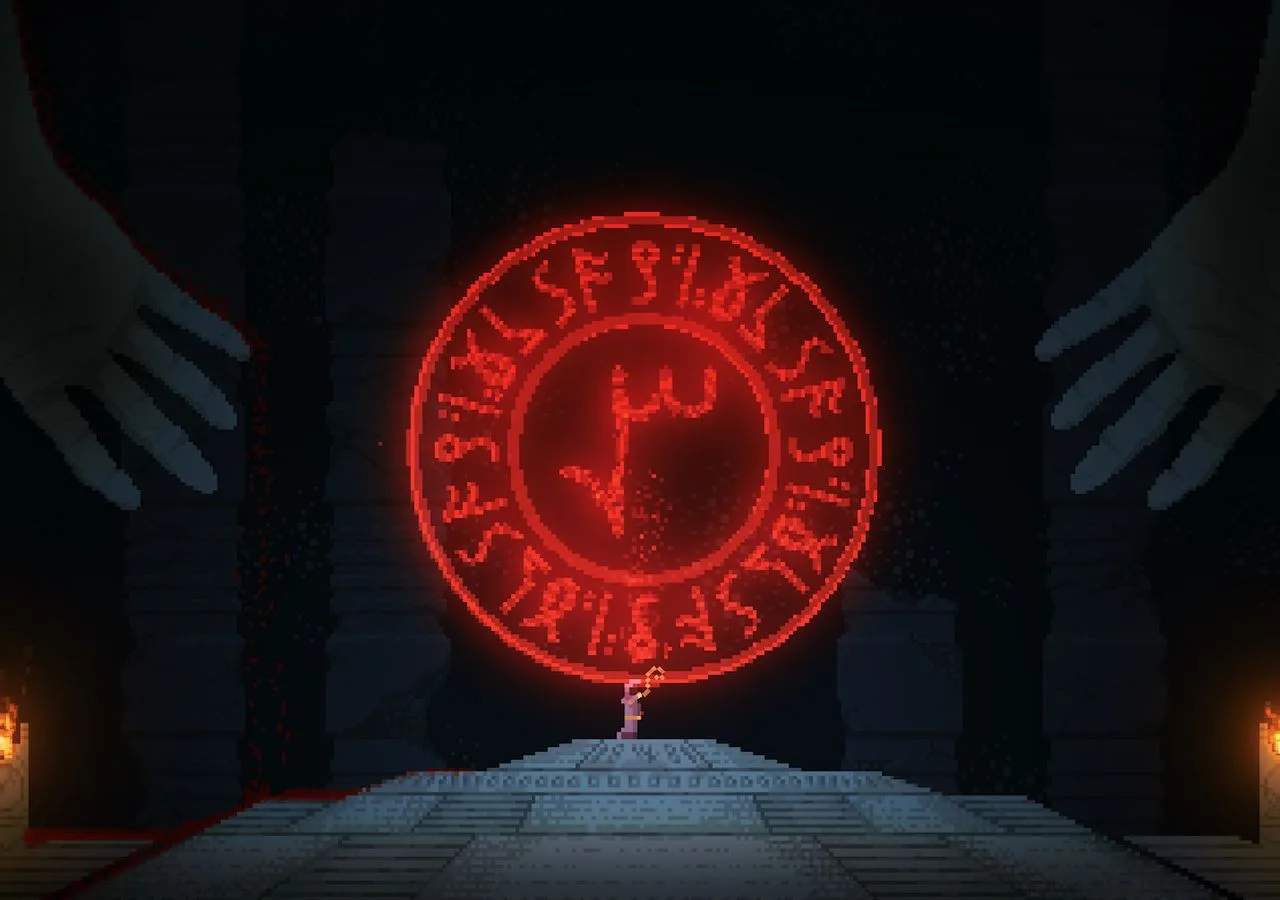
Getting Started with Noita Modding
Noita's robust modding scene allows players to dramatically alter their gameplay experience, from adding new spells and enemies to overhauling core mechanics. This guide will walk you through the essential steps to install and manage mods, as well as introduce you to some common modding concepts.
Installing Mods from the Steam Workshop
The easiest way to get started with Noita mods is through the Steam Workshop. This integrated platform simplifies the process of finding, subscribing to, and updating mods.
- Launch Noita: Start the game through Steam as you normally would.
- Access the Mod Menu: From the main menu, navigate to the "Mods" option. This will open the in-game mod browser.
- Browse the Workshop: Click on "Browse Workshop" to open the Steam Workshop overlay within Noita.
- Find Your Mods: Use the search bar or filters to find mods that interest you. Popular categories include "New Spells," "Quality of Life," and "Enemy Reworks."
- Subscribe to Mods: Once you find a mod you like, click the "Subscribe" button. Steam will automatically download the mod files.
- Enable Mods In-Game: Close the Workshop overlay. Back in the in-game "Mods" menu, you will now see your subscribed mods listed. Click the checkbox next to each mod you wish to enable.
- Apply Changes: After enabling your desired mods, click "Apply Changes" at the bottom of the mod menu. Noita will then restart to load the new modded content.
Important Note: Always check a mod's description for compatibility issues with other mods or specific game versions. Some mods may conflict, leading to crashes or unexpected behavior.
Manually Installing Mods (Advanced)
While the Steam Workshop is convenient, some mods are distributed independently, often through platforms like Nexus Mods or GitHub. Manual installation offers more control but requires a few extra steps.
- Download the Mod File: Obtain the mod's compressed file (usually a
.zipor.rar). - Locate Your Noita Installation Directory:
- Steam: Right-click Noita in your Steam Library > Manage > Browse local files.
- GOG/Other: Navigate to where you installed the game.
- Navigate to the Mods Folder: Inside your Noita installation directory, you'll find a folder named
mods. If it doesn't exist, create it. - Extract the Mod: Extract the contents of the downloaded mod file directly into the
modsfolder. Ensure that the mod's main folder (containingmod.xml) is directly inside themodsfolder, not nested within another folder.Example: If your mod is named "MyAwesomeMod," the path should look like
Noita/mods/MyAwesomeMod/mod.xml. - Enable In-Game: Launch Noita, go to the "Mods" menu, and enable the manually installed mod as described in step 6 of the Steam Workshop section.
Recommended Quality of Life Mods
These mods are highly recommended for enhancing your Noita experience without drastically altering core gameplay.
- Goki's Things: A comprehensive collection of quality-of-life improvements, including better inventory management, spell descriptions, and various UI tweaks. Essential for any serious player.
- Spell Lab: Adds a dedicated area accessible from the main menu where you can test spell combinations without risking your run. Invaluable for understanding complex wand mechanics.
- Noita Together: Enables cooperative multiplayer, allowing you to explore the dangerous world of Noita with friends. Requires careful setup but offers a unique experience.
- Health Bar on Enemies: Displays a health bar above enemies, making it easier to gauge their remaining HP and prioritize targets.
- Always Cast Spells in Shop: Makes all spells available in shops "Always Cast" variants, allowing for more creative and powerful wand builds.
Troubleshooting Common Modding Issues
Even with careful installation, you might encounter problems. Here are some common issues and their solutions:
Game Crashes on Startup
- Mod Conflict: The most common cause. Try disabling mods one by one to identify the culprit. Start by disabling recently added mods.
- Outdated Mod: A mod might not be compatible with the current version of Noita. Check the mod's workshop page or download source for updates or compatibility notes.
- Corrupted Installation: Verify the integrity of game files through Steam (Right-click Noita > Properties > Local Files > Verify integrity of game files).
Mod Not Appearing In-Game
- Not Enabled: Double-check that the mod is checked in the in-game "Mods" menu.
- Incorrect Manual Installation: Ensure the mod's main folder (containing
mod.xml) is directly inside themodsfolder. Avoid extra nested folders. - Missing Dependencies: Some mods require other "dependency" mods to function. Read the mod's description carefully.
Performance Issues with Mods
- Too Many Mods: Running a large number of complex mods can impact performance. Try disabling less essential mods.
- Resource-Intensive Mods: Certain mods, especially those adding many new entities or complex scripts, can be demanding.
- Graphics Settings: Lower your in-game graphics settings (e.g., particle count, resolution) to free up resources.
Creating Your Own Custom Content (Basic Overview)
Noita's modding capabilities extend to creating entirely new content. While a full guide is beyond this section, here's a brief introduction to get you started:
- Lua Scripting: Noita uses Lua for its scripting language. Most mod functionality, from new spell behaviors to enemy AI, is written in Lua.
- XML Definitions: Game entities, spells, perks, and more are defined using XML files. You'll modify or create these to introduce new items.
- Sprite Sheets: New visual assets (enemies, spells, projectiles) are typically added as PNG sprite sheets.
mod.xml: Every mod requires amod.xmlfile in its root directory. This file defines the mod's name, description, version, and lists the files it modifies or adds.
For detailed guides on creating custom content, consult the official Noita Modding Wiki and community resources like the Noita Discord server.
Compare modding and custom content inBlade & Sorcery