Troubleshooting
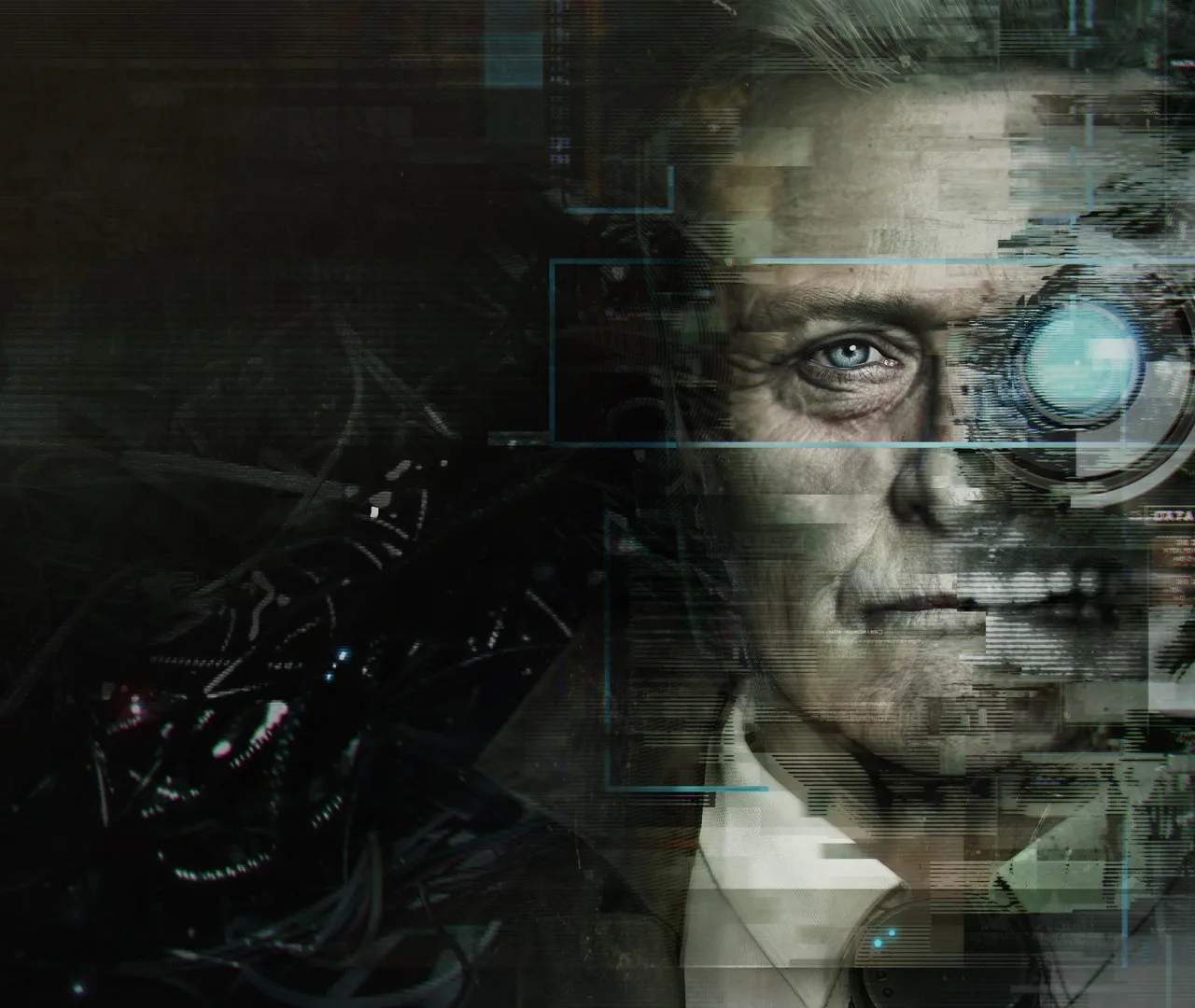
Even the most advanced neural implant can encounter a few glitches! If you're experiencing unexpected behavior, graphical anomalies, or simply feeling stuck in the unsettling world of Observer, this section is designed to help you get back on track. We'll cover common issues and provide actionable steps to resolve them, ensuring your investigation as Daniel Lazarski is as smooth as possible.
General Game Issues
Game Not Launching or Crashing
If Observer isn't starting or is crashing frequently, try these steps:
- Verify Game Files:
- PC (Steam/Epic Games Store): Navigate to your game library, right-click on Observer, select "Properties," then "Local Files," and finally "Verify Integrity of Game Files." This will check for corrupted or missing files and redownload them if necessary.
- PlayStation (PS4): From the PlayStation home screen, highlight Observer, press the "Options" button on your controller, and select "Check for Update" or "Verify and Repair" if available. Sometimes a full system restart can also help.
- Xbox (Xbox One): From the Xbox home screen, highlight Observer, press the "Menu" button (three horizontal lines), select "Manage game & add-ons," then "Files," and look for an option to verify or repair. A hard reset of your console (holding the power button for 10 seconds) is also a good first step.
- Nintendo Switch: From the HOME Menu, select the Observer icon, then press the + or - Button. Select "Software Information" > "Manage Software" > "Check for Corrupt Data." If corrupted data is found, you will be prompted to redownload the software.
- macOS/Linux: For games purchased through Steam, follow the PC (Steam) instructions. For standalone versions, consider reinstalling the game after backing up any save files.
- Update Drivers (PC/macOS/Linux Only): Ensure your graphics card drivers are up to date. Visit the manufacturer's website (NVIDIA, AMD, Intel for PC; Apple for macOS; distribution-specific for Linux) to download the latest versions. Outdated drivers are a common cause of crashes and performance issues.
- Run as Administrator (PC Only): Right-click on the Observer executable file and select "Run as administrator." This can resolve permission-related launch issues, especially if the game needs to write to specific folders.
- Disable Overlays: Game overlays (Steam, Discord, GeForce Experience, Xbox Game Bar) can sometimes interfere with game performance or cause crashes. Try disabling them temporarily to see if the issue persists. You can usually find these settings within the respective application's configuration menu.
- Check Antivirus/Firewall: Occasionally, aggressive antivirus software or firewall settings can incorrectly flag game files as threats, preventing the game from launching or causing crashes. Temporarily disable your antivirus or add Observer to its exceptions list.
Performance Lags or Stuttering
If Daniel Lazarski's movements feel sluggish, the neural interrogation sequences are choppy, or the frame rate drops, consider these adjustments:
- Lower Graphics Settings:
- From the main menu, navigate to "Options" then "Graphics."
- Reduce settings such as "Resolution," "Texture Quality," "Shadow Quality," "Anti-Aliasing," and "Post-Processing Effects." Experiment with one setting at a time to find the optimal balance for your system and visual preference.
- Specifically, lowering "Shadow Quality" and "Post-Processing" often yields significant performance improvements with minimal visual impact, particularly in the dense, neon-lit environments of Krakow.
- If playing on Nintendo Switch, ensure the console is docked for potentially better performance, or try restarting the console to clear its memory.
- Close Background Applications (PC/macOS/Linux Only): Other programs running in the background can consume valuable system resources (CPU, RAM, GPU), leading to performance degradation in Observer.
- Windows: Open Task Manager (Ctrl+Shift+Esc), go to the "Processes" tab, and close any unnecessary applications that are consuming significant resources. Pay particular attention to web browsers with many tabs open, streaming services, or other games.
- macOS: Open Activity Monitor (Finder > Applications > Utilities > Activity Monitor), identify resource-intensive applications, and quit them.
- Linux: Use system monitoring tools like
htopor your desktop environment's system monitor to identify and close background processes. - Ensure any cloud syncing services (e.g., Google Drive, Dropbox, OneDrive) are paused during gameplay, as they can consume bandwidth and CPU cycles.
- Check System Requirements: Ensure your system meets the minimum or recommended specifications for Observer. If your hardware is below the minimum, significant performance issues are to be expected. Upgrading components like RAM or your graphics card might be necessary for a smoother experience.
- Monitor Temperatures: Overheating components (CPU, GPU) can lead to thermal throttling, where your system automatically reduces performance to prevent damage. Use monitoring software (e.g., HWMonitor, MSI Afterburner) to check your system's temperatures during gameplay. Ensure your computer's cooling system is clean and functioning correctly.
In-Game Progression Issues
Stuck on a Puzzle or Objective
If you're unable to progress, first consult the relevant section of this walkthrough (e.g., Part I: The Apartment Block or Part II: Adam's Apartment). If the walkthrough doesn't immediately clarify, try these general strategies:
- Re-examine Your Surroundings with EM and Bio Vision: As Daniel Lazarski, you have access to two crucial vision modes:
- Electromagnetic (EM) Vision: Use this to highlight electronic devices, wiring, and data streams. Many puzzles involve manipulating power or data flow. Look for glowing blue outlines.
- Bio Vision: Use this to detect biological traces, blood, and other organic matter. This is essential for tracking subjects or finding hidden clues. Look for glowing red outlines.
- Check Your Objectives Log: Access your current objectives (usually via the pause menu). Sometimes a specific instruction, an item name, or a location will be highlighted, guiding your next step. The game often provides subtle hints in the objective text.
- Interact with Everything: Don't be afraid to interact with every console, door, drawer, and item you can. Even if it seems irrelevant, it might trigger a necessary event, provide a crucial piece of information, or reveal a collectible. Pay attention to dialogue cues from Daniel or other characters.
- Restart from Last Checkpoint: If you suspect a bug or a missed trigger, sometimes simply restarting from the last checkpoint can resolve the issue. This is usually an option in the pause menu. Be aware that Observer's checkpoints can sometimes be spaced out, so you might lose a little progress.
- Listen to Audio Cues: The game's sound design is excellent and often provides subtle hints. Listen for beeps, hums, or character dialogue that might indicate an interactable object or a path forward.
Missing Key Items or Data Logs
If you believe you've missed a critical item required for progression, or are hunting for all the "Nanoswarm" collectibles:
- Retrace Your Steps Carefully: Go back through the areas you've recently visited. Pay close attention to corners, under tables, inside lockers, or behind objects. The apartment complex is dense with hidden details.
- Utilize Your Vision Modes Extensively: Use EM Vision to find hidden electronic components or data pads, and Bio Vision for organic clues. Many collectibles and key items are deliberately obscured and require careful scanning.
- Check All Apartments: If you're in the main apartment block hub, ensure you've thoroughly searched every accessible apartment. Many side stories and optional data logs are found by exploring these.
- Consult the Walkthrough: Our detailed walkthrough provides exact locations for all key items, data logs, and collectibles (including the Nanoswarm cards). Refer to the specific section you're in to pinpoint anything you might have overlooked. For instance, if you're in the Prologue, check the Prologue section for item locations and specific apartment numbers.
- Look for Environmental Storytelling: Observer excels at environmental storytelling. Often, a key item's location is hinted at by the surrounding clutter, notes, or visual cues.
Audio and Visual Glitches
No Sound or Distorted Audio
- Check In-Game Audio Settings: Go to "Options" then "Audio" from the main menu. Ensure master volume and other specific audio channels (music, effects, dialogue) are not muted or set too low.
- Verify System Audio Output: Make sure your headphones or speakers are correctly connected and selected as the default audio output device on your PC, console, or macOS/Linux system. Check your operating system's sound settings.
- Update Audio Drivers (PC/macOS/Linux Only): Similar to graphics drivers, outdated audio drivers can cause issues. Visit your motherboard manufacturer's website or audio chip manufacturer's website (e.g., Realtek) for the latest drivers.
- Restart Game/Console/System: A simple restart can often clear up temporary audio glitches.
- Check for Conflicting Audio Software: Some audio enhancement software or virtual surround sound programs can interfere with game audio. Try disabling them temporarily.
Graphical Artifacts or Textures Not Loading
- Update Graphics Drivers (PC/macOS/Linux Only): As mentioned, this is crucial for visual fidelity and stability. Ensure you have the absolute latest drivers installed.
- Adjust Graphics Settings: Lowering "Texture Quality," "Shadow Quality," or "Post-Processing" can sometimes resolve issues with textures not loading correctly or strange graphical artifacts appearing. Experiment with different settings.
- Verify Game Files: Corrupted game files are a common cause of visual glitches, missing textures, or strange geometry. Follow the steps under "Game Not Launching or Crashing" to verify your installation.
- Check VRAM Usage: If your graphics card has limited VRAM, high texture settings can cause issues. Lowering texture quality can alleviate this.
- Disable In-Game Overlays: Some in-game overlays (like NVIDIA GeForce Experience's Freestyle filters) can cause graphical anomalies. Try disabling them.
- Monitor for Overheating: Graphical glitches can also be a symptom of an overheating GPU. Ensure your system has adequate cooling.
If you've tried all these steps and are still encountering persistent issues, consider visiting the Boards for Observer. The community there might have encountered similar problems and found unique solutions. You can also check the Q&A section for specific questions related to Daniel Lazarski's investigation.