User Interface (UI) Overview
Mastering the user interface (UI) in Persona 3 FES is fundamental to efficiently navigating the game's intricate systems, managing your party, and making the most of your limited time. Unlike modern Persona titles, FES features a distinct UI tailored to its PlayStation 2 origins, emphasizing clear information display and strategic command selection. There is no 'Theurgy' gauge in Persona 3 FES; this is a mechanic exclusive to Persona 3 Reload. This guide will walk you through the essential UI elements you'll encounter throughout your journey, from the overworld to intense Tartarus battles.
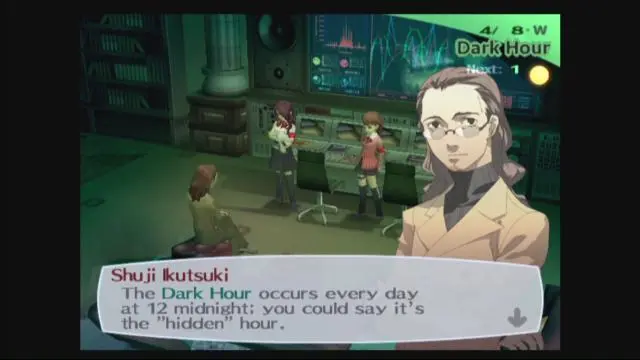
Overworld & Calendar UI
When exploring Tatsumi Port Island or the school, the UI provides crucial contextual information:
- Top-Left Corner: Date & Time
- This is arguably the most important UI element outside of battle. It displays the current month, day, and time of day (Morning, Lunchtime, After School, Evening, Night).
- Actionable Tip: Always keep an eye on this. Certain activities are only available at specific times, and progressing time often consumes a time slot. Planning your day around this display is key to maximizing Social Link progression, stat building, and Tartarus exploration.
- Bottom-Right Corner: Mini-Map / Navigation Prompts
- In certain areas, a mini-map will appear, showing your current location and nearby exits or points of interest.
- When interacting with objects or NPCs, context-sensitive prompts (e.g., "Talk," "Examine," "Enter") will appear here.
- Character Speech Bubbles:
- When conversing with NPCs, their dialogue will appear in speech bubbles, often with their character portrait displayed. Pay attention to dialogue choices, as they can impact Social Link progression or trigger special events.
Battle UI
Combat in Persona 3 FES is turn-based and relies heavily on understanding the information presented on screen. The battle UI is designed to give you all the tools needed for strategic decision-making:
Character Status & Turn Order
- Left Side: Party Member Portraits & Status
- Each of your active party members (including the Protagonist) will have their portrait displayed.
- Below each portrait, you'll see their current HP (Health Points) and SP (Spirit Points) bars, along with their current status effects (e.g., Poison, Charm, Panic).
- Actionable Tip: Regularly check HP and SP. SP is particularly precious early on for Persona skills. Knowing who is afflicted by what status is vital for using items or skills to cure them.
- Right Side: Enemy Portraits & Status
- Similar to your party, enemy portraits will show their HP bars and any status ailments they are suffering from.
- Actionable Tip: Enemies with low HP are prime targets for finishing blows. Status effects like "Shock" or "Freeze" can grant critical hits and extra turns.
- Top-Center: Turn Order Display
- A horizontal bar at the top of the screen indicates the upcoming turn order for both allies and enemies.
- Actionable Tip: Use this to plan your moves. If a powerful enemy is about to act, prioritize debuffing them or guarding. If an ally is about to get a turn, consider setting them up for a powerful attack.
Command Menu & Tactics
When it's the Protagonist's turn, a command menu will appear, allowing you to select your action. For AI-controlled party members, their actions are dictated by the 'Tactics' menu.
- Protagonist's Command Menu:
- Attack: Perform a basic physical attack.
- Persona: Access your equipped Persona's skills. This is where you'll find elemental attacks, healing, buffs, and debuffs.
- Item: Use an item from your inventory.
- Guard: Reduce incoming damage for one turn.
- Analyze: View enemy weaknesses, resistances, and skills (once discovered).
- Escape: Attempt to flee from battle.
- Shift (Unique to FES): This command allows you to change your currently equipped Persona mid-battle. This is crucial for exploiting enemy weaknesses and adapting to different combat situations.
- Actionable Tip: The Protagonist is your most versatile combatant due to the 'Shift' mechanic. Always be ready to switch Personas to hit weaknesses or provide necessary support.
- Tactics Menu (for AI Party Members):
- Accessed by pressing the Square button during battle or from the Main Menu. This is where you set the AI behavior for your party members.
- Key Tactics Options:
- Act Freely: Party members will use skills and attacks as they see fit, prioritizing weaknesses.
- Full Assault: Focus entirely on offensive skills and physical attacks.
- Conserve SP: Prioritize physical attacks and basic skills to save SP for longer dungeon crawls.
- Heal/Support: Focus on healing and buffing allies, and curing status ailments.
- Knock Down: Prioritize skills that exploit enemy weaknesses to achieve "1 More!" turns and All-Out Attacks.
- Assign Target: Allows you to manually select which enemy a party member should target, overriding their AI for that turn.
- Actionable Tip: The 'Tactics' menu is your primary way to control your party. For example, setting Yukari to "Heal/Support" ensures she prioritizes healing, while setting Junpei to "Knock Down" will make him focus on hitting weaknesses. Don't be afraid to change tactics mid-battle!
Main Menu UI
Accessed by pressing the Triangle button (or Start button in some contexts), the Main Menu is your central hub for managing everything outside of direct combat.
- Status: View detailed statistics for each party member, including their level, HP/SP, equipped gear, and resistances.
- Persona:
- Equip: Change the Protagonist's active Persona.
- Skills: View the skills of your owned Personas.
- Compendium: Register and summon Personas you've previously obtained. This is crucial for managing your Persona collection and fusing new ones.
- Fusion: Access the Velvet Room's Persona Fusion mechanic.
- Items: Manage your inventory. Use consumables, equip accessories, or check key items.
- Equip: Change weapons, body armor, and accessories for any party member.
- Social Link: Track the progress of all your active Social Links. This shows your current rank and the next rank-up requirements.
- System: Access game settings (audio, display), save your game, or load a previous save.
- Tactics: Pre-set the battle tactics for your AI-controlled party members outside of combat.
- Quests: View active and completed requests from Elizabeth.
- Calendar: Review past and upcoming events on the in-game calendar.
Common Pitfalls & UI Tips
- Forgetting to Save: The "System" menu is your friend. Save frequently, especially before entering Tartarus or major story events.
- Ignoring Tactics: Relying solely on "Act Freely" can lead to inefficient SP usage or missed opportunities. Learn to use specific tactics for different situations.
- Not Using Analyze: Always analyze new enemies to discover their weaknesses. This information is permanently recorded and crucial for efficient combat.
- Overlooking 'Shift': The Protagonist's ability to 'Shift' Personas is your greatest asset. Don't stick to one Persona if another can exploit a weakness or provide better support.
- Inventory Management: Your item inventory has a limit. Regularly sell unneeded items at the police station or discard them to make space for more useful consumables or loot from Tartarus.
By understanding and effectively utilizing each component of Persona 3 FES's UI, you'll be well-equipped to face the challenges of Tartarus, manage your social life, and ultimately save the world from the encroaching Shadow threat.
Compare user interface (ui) overview inPersona 5