
Mastering the controls and understanding the user interface (UI) is your first step. The Nintendo DS offers a unique dual-screen experience. The top screen typically displays the main gameplay, while the bottom screen is touch-sensitive and used for menus, the C-Gear, and other interactive elements.
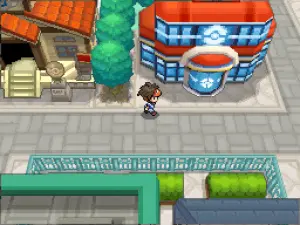
- D-Pad/Circle Pad: Moves your character around the map.
- A Button: Interacts with people, objects, and confirms selections in menus.
- B Button: Cancels selections, runs (when held down after obtaining Running Shoes), and speeds up text.
- X Button: Opens the main menu (Pokémon, Bag, Pokédex, C-Gear, Save, Options).
- Y Button: Registers key items for quick access (after obtaining the Key Item registration feature).
- L/R Buttons: Scrolls through menu pages or tabs.
- Start Button: Opens the main menu (same as X Button).
- Select Button: No primary function in Black 2/White 2, but can be used for some specific in-game features.
The UI is intuitive. On the bottom screen, you'll frequently interact with the C-Gear for wireless communication, the Bag for item management, and the Pokémon menu for checking your team's status. Pay attention to on-screen prompts and tutorials early in the game.