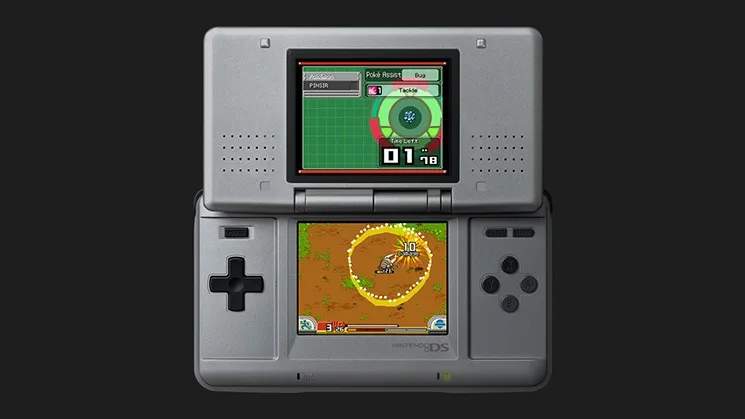
Understanding the game's UI will help you navigate the Fiore region efficiently. The Nintendo DS screens serve distinct purposes:
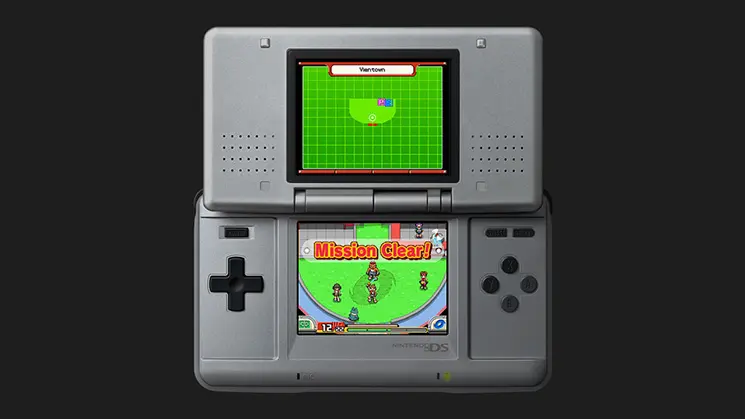
Top Screen:
- Main View: Displays the game world, your Ranger, and wild Pokémon.
- Mission Objectives: During missions, your current objective will often be displayed here.
Bottom Screen (Touch Screen):
- Movement Pad: Your primary method of movement.
- Capture Styler Icon: Tap this to initiate a capture.
- Partner Pokémon Icon: Tap to use your partner's Field Move.
- Menu Icon: Tap to open the Ranger Menu, where you can access your Ranger Net, Save, and Options.
- Ranger Net: This is your in-game encyclopedia and mission log. It contains information on captured Pokémon, completed missions, and available Field Moves.
- Energy Gauge: Located at the top of the touch screen during captures, this shows your Capture Styler's remaining energy. If it depletes, your Styler breaks, and you fail the capture.
- Stylus Gauge: During captures, this gauge indicates how much pressure you're applying with the stylus. Maintain a steady pressure for optimal captures.
Familiarize yourself with these elements, especially the Ranger Net, as it will be your go-to resource for mission details and Pokémon information. Keeping an eye on your Styler's energy during captures is also vital for success.